Introducing ProtoPie

Getting Started

Making Your First Prototype

ProtoPie Ecosystem

ProtoPie Studio Interface

Import

Getting Started

Importing From Adobe XD

Importing From Figma

Importing From Sketch

ProtoPie Genie

Basic Elements

Containers

Devices

Layers

Preview Window

Scenes

Scroll/Paging

Shortcuts

System Status Bar

Triggers & Responses

Easing

Annotations

Responses

Timelines

Triggers

Formulas

Getting Started

Functions

Layer Properties

Syntax

Formulas Use Cases

Variables

Getting Started

Variables

Predefined Variables

Variables Use Cases

AI

Getting Started

AI Interaction Creation

AI Document Q&A

AI Panel Interface

Tips for Best Results

Auto Layout

Getting Started

Auto Layout Properties

Components

Getting Started

Component Guides

Editing Components

Nested Components

Send & Receive Messages

Interaction Libraries

Getting Started

Managing Interaction Libraries

Managing Library Members

Voice Prototyping

Getting Started

Listen Response

Speak Response

Use Cases

Voice Command Trigger

Connecting Devices

Connecting blokdots

Connecting Mobile Devices

ProtoPie Cloud

Getting Started

Managing Prototypes

Managing Storage

Sharing Prototypes

ProtoPie Player

Testing Prototypes

Managing Fonts

Offline Testing

ProtoPie Player for Wear OS

Teams

Getting Started

Editors & Viewers

Onboarding Your Team

Projects

Team Owner & Team Admin

Handoff

Getting Started

Creating Interaction Recordings

Managing Interaction Recordings

Recording Page

User Testing

Getting Started

Overview

Creating Test Rooms

External Integrations

Managing Test Sessions

Test Results & Analysis

User Testing on ProtoPie Cloud

ProtoPie Connect

Getting Started

API Plugin

Arduino Plugin

blokdots Plugin

Connect Embedded

Custom Layer Integrations

Custom Plugins

Connect Devices

Gamepad Plugin

IFTTT Plugin

Logitech G29 Steering Wheel Plugin

Testing Prototypes

Feature Comparison

Unity Plugin

ProtoPie Enterprise

Getting Started

Organization Settings

Service Admin

Single Sign-On (SSO)

Security

Overview

Access Control

Data Transit, Storage & Backup

Incident Response

Network & ProtoPie Player App Security

Physical Security

Risk Management

Menu

Introducing ProtoPie

Getting Started

Making Your First Prototype

ProtoPie Ecosystem

ProtoPie Studio Interface

Import

Getting Started

Importing From Adobe XD

Importing From Figma

Importing From Sketch

ProtoPie Genie

Basic Elements

Containers

Devices

Layers

Preview Window

Scenes

Scroll/Paging

Shortcuts

System Status Bar

Triggers & Responses

Easing

Annotations

Responses

Timelines

Triggers

Formulas

Getting Started

Functions

Layer Properties

Syntax

Formulas Use Cases

Variables

Getting Started

Variables

Predefined Variables

Variables Use Cases

AI

Getting Started

AI Interaction Creation

AI Document Q&A

AI Panel Interface

Tips for Best Results

Auto Layout

Getting Started

Auto Layout Properties

Components

Getting Started

Component Guides

Editing Components

Nested Components

Send & Receive Messages

Interaction Libraries

Getting Started

Managing Interaction Libraries

Managing Library Members

Voice Prototyping

Getting Started

Listen Response

Speak Response

Use Cases

Voice Command Trigger

Connecting Devices

Connecting blokdots

Connecting Mobile Devices

ProtoPie Cloud

Getting Started

Managing Prototypes

Managing Storage

Sharing Prototypes

ProtoPie Player

Testing Prototypes

Managing Fonts

Offline Testing

ProtoPie Player for Wear OS

Teams

Getting Started

Editors & Viewers

Onboarding Your Team

Projects

Team Owner & Team Admin

Handoff

Getting Started

Creating Interaction Recordings

Managing Interaction Recordings

Recording Page

User Testing

Getting Started

Overview

Creating Test Rooms

External Integrations

Managing Test Sessions

Test Results & Analysis

User Testing on ProtoPie Cloud

ProtoPie Connect

Getting Started

API Plugin

Arduino Plugin

blokdots Plugin

Connect Embedded

Custom Layer Integrations

Custom Plugins

Connect Devices

Gamepad Plugin

IFTTT Plugin

Logitech G29 Steering Wheel Plugin

Testing Prototypes

Feature Comparison

Unity Plugin

ProtoPie Enterprise

Getting Started

Organization Settings

Service Admin

Single Sign-On (SSO)

Security

Overview

Access Control

Data Transit, Storage & Backup

Incident Response

Network & ProtoPie Player App Security

Physical Security

Risk Management

Voice Command Trigger

To trigger responses based on voice commands, simply use the Voice Command trigger. You have the flexibility to configure the trigger to work while someone is speaking or after they have finished speaking. Additionally, you can specify the phrases that should be recognized as commands, allowing you to include or exclude specific phrases.

To enable the Voice Command trigger, make sure to enable listening with the Listen response. This will activate the voice recognition capabilities of your prototype.

To ensure the best performance and accuracy of voice interactions, here are some helpful tips:

  1. Stay close to the microphone: Position yourself near the microphone to capture your voice clearly and accurately.

  2. Minimize background noise: Find a quiet environment or reduce background noise to improve the recognition of your voice commands.

  3. Be articulate: Speak clearly and enunciate your words to enhance the accuracy of voice recognition.
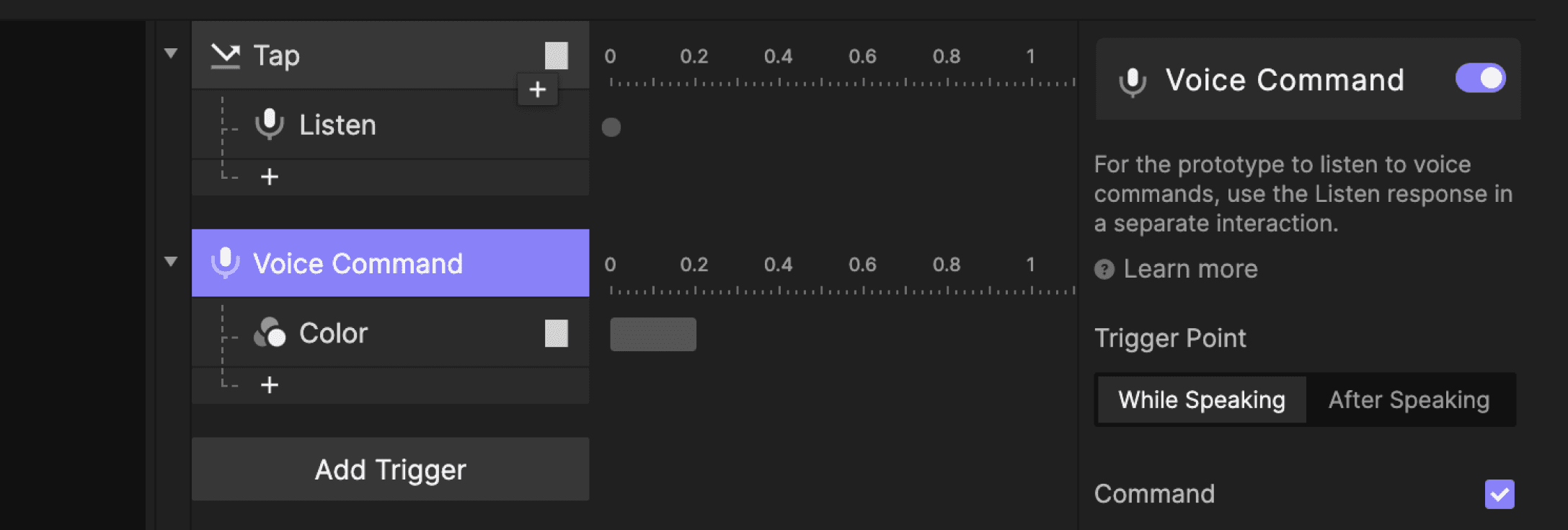

{'_type': 'localeString', 'en': 'voice command'}

In this example, tapping the oval shape activates listening to voice commands. The oval will change its color as soon as someone is speaking.

Trigger Point

It determines at which point the responses should activate.

After Speaking

The responses activate when the prototype no longer detects a speech, meaning when someone stops speaking. This trigger point does not work when Continuous is active in the Listen response.

While Speaking

As soon as the prototype detects a speech, meaning when someone starts speaking.

Command

When the "Command" option is active, a response will be triggered only if specific commands (words or phrases) are included or excluded from the speech.

Phrases - Include

This means that a voice command needs to include one of the phrases listed. You can enter various words, phrases, or sentences and separate them using line breaks.
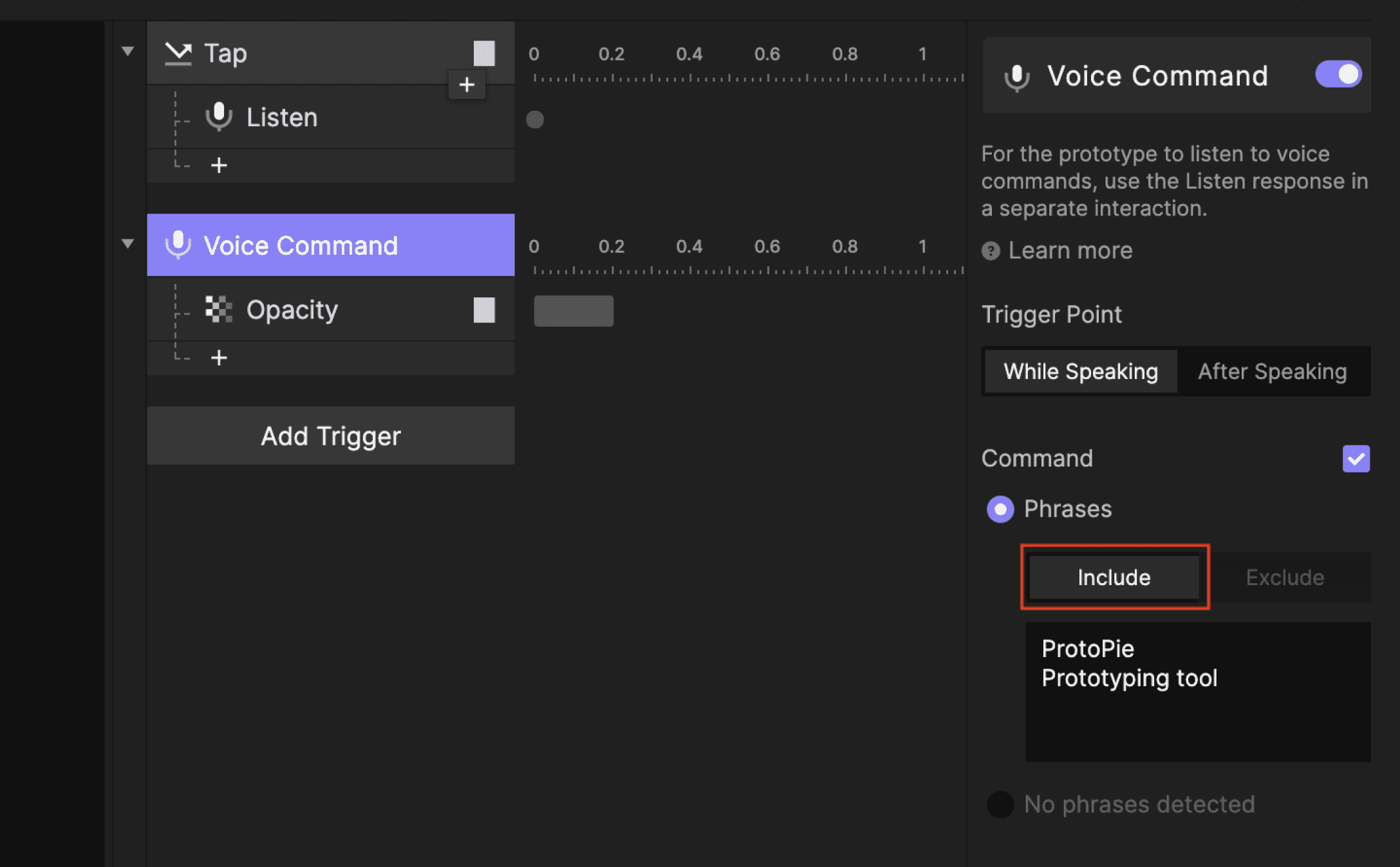

{'_type': 'localeString', 'en': 'phrases-include'}

In this example, the shape's opacity changes only if the incoming voice command includes at least one of the two phrases: "ProtoPie" and "Prototyping Tool".

Phrases - Exclude

This means that the voice command should not contain any of the phrases listed. You can enter various words, phrases, or sentences and separate them using line breaks.
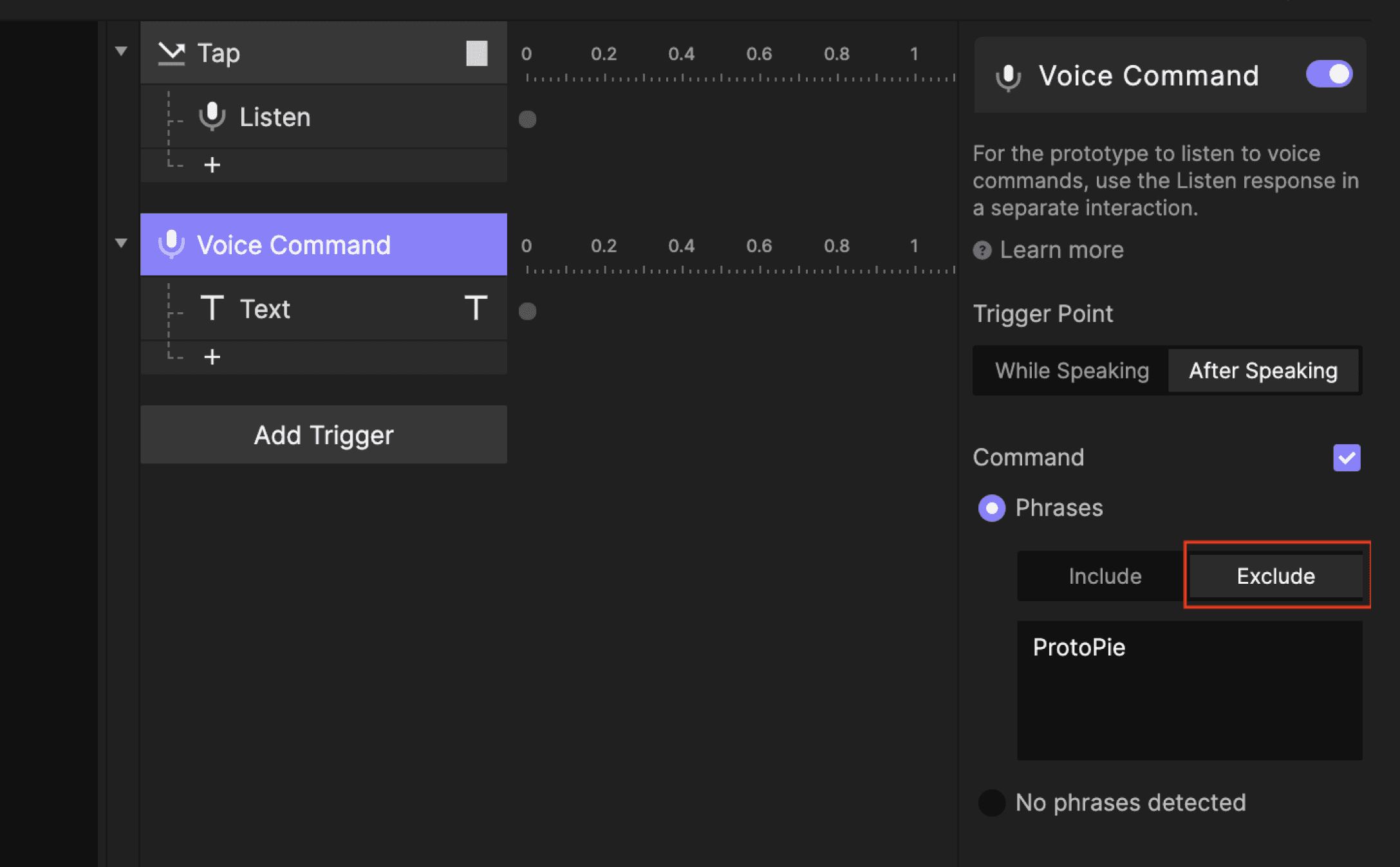

{'_type': 'localeString', 'en': 'phrases-exclude'}

In this example, the text response triggers only if the incoming voice command does not contain the phrase "ProtoPie".

No Phrases Detected

This means that the incoming speech does not contain any phrases. It could be due, for example, to background noises or other sounds that can't be interpreted as human language.
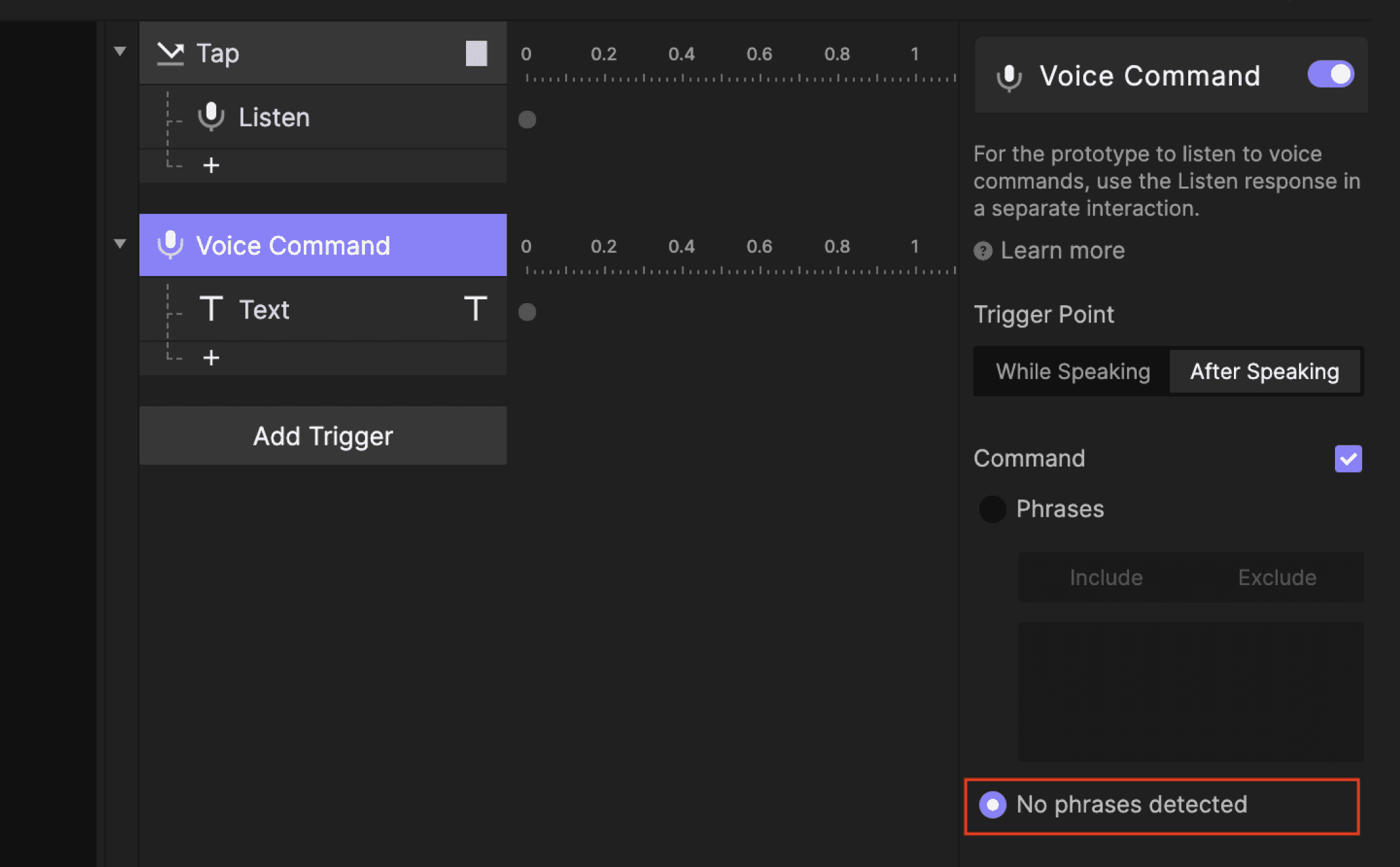

{'_type': 'localeString', 'en': 'no-phrases-detected'}

In this example, "Please say it again" will be displayed via a Text response if no phrases are detected.

Recording Voice Interactions in Preview

Record your prototype's media sounds and voice interactions by using an external microphone. Click the Settings icon in the Preview window and choose the desired audio input device.
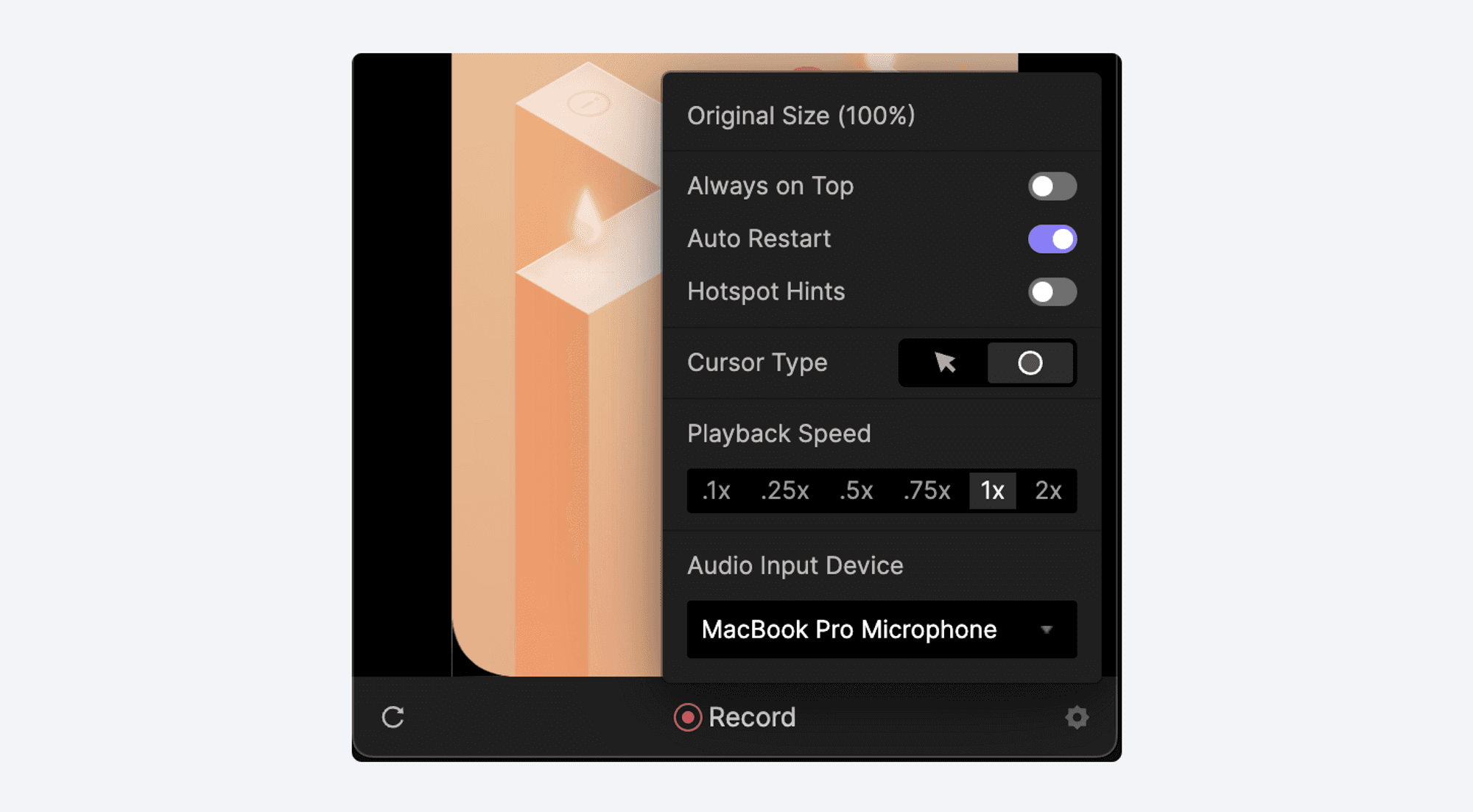

{'_type': 'localeString', 'en': 'Recording Voice Interactions in Preview'}

Voice Prototyping Masterclass

Master the effective application of these commands by actively participating in engaging conversation exercises and thoroughly analyzing real-world speech examples.

The Masterclass in Advanced Voice Prototyping is a comprehensive program that equips you with the knowledge and tools needed to design and build cutting-edge voice-driven user interfaces.