Introducing ProtoPie

Getting Started

Making Your First Prototype

ProtoPie Ecosystem

ProtoPie Studio Interface

Import

Getting Started

Importing From Adobe XD

Importing From Figma

Importing From Sketch

ProtoPie Genie

Basic Elements

Containers

Devices

Layers

Preview Window

Scenes

Scroll/Paging

Shortcuts

System Status Bar

Triggers & Responses

Easing

Annotations

Responses

Timelines

Triggers

Formulas

Getting Started

Functions

Layer Properties

Syntax

Formulas Use Cases

Variables

Getting Started

Variables

Predefined Variables

Variables Use Cases

AI

Getting Started

AI Interaction Creation

AI Document Q&A

AI Panel Interface

Tips for Best Results

Auto Layout

Getting Started

Auto Layout Properties

Components

Getting Started

Component Guides

Editing Components

Nested Components

Send & Receive Messages

Interaction Libraries

Getting Started

Managing Interaction Libraries

Managing Library Members

Voice Prototyping

Getting Started

Listen Response

Speak Response

Use Cases

Voice Command Trigger

Connecting Devices

Connecting blokdots

Connecting Mobile Devices

ProtoPie Cloud

Getting Started

Managing Prototypes

Managing Storage

Sharing Prototypes

ProtoPie Player

Testing Prototypes

Managing Fonts

Offline Testing

ProtoPie Player for Wear OS

Teams

Getting Started

Editors & Viewers

Onboarding Your Team

Projects

Team Owner & Team Admin

Handoff

Getting Started

Creating Interaction Recordings

Managing Interaction Recordings

Recording Page

User Testing

Getting Started

Overview

Creating Test Rooms

External Integrations

Managing Test Sessions

Test Results & Analysis

User Testing on ProtoPie Cloud

ProtoPie Connect

Getting Started

API Plugin

Arduino Plugin

blokdots Plugin

Connect Embedded

Custom Layer Integrations

Custom Plugins

Connect Devices

Gamepad Plugin

IFTTT Plugin

Logitech G29 Steering Wheel Plugin

Testing Prototypes

Feature Comparison

Unity Plugin

ProtoPie Enterprise

Getting Started

Organization Settings

Service Admin

Single Sign-On (SSO)

Security

Overview

Access Control

Data Transit, Storage & Backup

Incident Response

Network & ProtoPie Player App Security

Physical Security

Risk Management

Menu

Introducing ProtoPie

Getting Started

Making Your First Prototype

ProtoPie Ecosystem

ProtoPie Studio Interface

Import

Getting Started

Importing From Adobe XD

Importing From Figma

Importing From Sketch

ProtoPie Genie

Basic Elements

Containers

Devices

Layers

Preview Window

Scenes

Scroll/Paging

Shortcuts

System Status Bar

Triggers & Responses

Easing

Annotations

Responses

Timelines

Triggers

Formulas

Getting Started

Functions

Layer Properties

Syntax

Formulas Use Cases

Variables

Getting Started

Variables

Predefined Variables

Variables Use Cases

AI

Getting Started

AI Interaction Creation

AI Document Q&A

AI Panel Interface

Tips for Best Results

Auto Layout

Getting Started

Auto Layout Properties

Components

Getting Started

Component Guides

Editing Components

Nested Components

Send & Receive Messages

Interaction Libraries

Getting Started

Managing Interaction Libraries

Managing Library Members

Voice Prototyping

Getting Started

Listen Response

Speak Response

Use Cases

Voice Command Trigger

Connecting Devices

Connecting blokdots

Connecting Mobile Devices

ProtoPie Cloud

Getting Started

Managing Prototypes

Managing Storage

Sharing Prototypes

ProtoPie Player

Testing Prototypes

Managing Fonts

Offline Testing

ProtoPie Player for Wear OS

Teams

Getting Started

Editors & Viewers

Onboarding Your Team

Projects

Team Owner & Team Admin

Handoff

Getting Started

Creating Interaction Recordings

Managing Interaction Recordings

Recording Page

User Testing

Getting Started

Overview

Creating Test Rooms

External Integrations

Managing Test Sessions

Test Results & Analysis

User Testing on ProtoPie Cloud

ProtoPie Connect

Getting Started

API Plugin

Arduino Plugin

blokdots Plugin

Connect Embedded

Custom Layer Integrations

Custom Plugins

Connect Devices

Gamepad Plugin

IFTTT Plugin

Logitech G29 Steering Wheel Plugin

Testing Prototypes

Feature Comparison

Unity Plugin

ProtoPie Enterprise

Getting Started

Organization Settings

Service Admin

Single Sign-On (SSO)

Security

Overview

Access Control

Data Transit, Storage & Backup

Incident Response

Network & ProtoPie Player App Security

Physical Security

Risk Management

Auto Layout Properties

Auto Layout provides extensive customization options for structuring layouts, ensuring both functionality and aesthetic appeal. These properties include resizing, direction, layout alignment, and advanced settings.

Resizing Properties

Resizing properties control how child layers and their parent containers adjust in response to content or layout changes. These settings can be applied individually for Width and Height using the dropdown menus in the right panel. Hovering over a resizing option highlights its effect on the canvas.
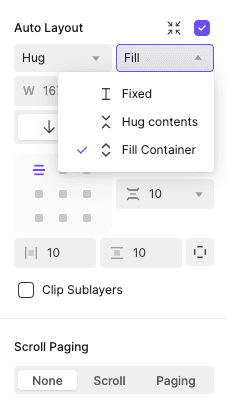
Fixed

Keeps an object’s size constant, unaffected by changes to its content.

Hug

Adjust the parent container’s size to fit its children while accounting for the padding and gap sizes.

Fill

Stretches child objects to match the size of the parent container.

Fixed

Keeps an object’s size constant, unaffected by changes to its content.

Hug

Adjust the parent container’s size to fit its children while accounting for the padding and gap sizes.

Fill

Stretches child objects to match the size of the parent container.

Fixed

When the Fixed option is set for either width or height, the parent frame retains its absolute size regardless of any resizing of the child layers.

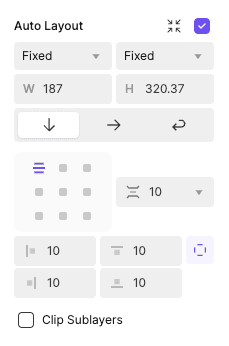
{'_type': 'localeString', 'en': 'Fixed Width or Height', 'ja': 'Fixed Width or Height', 'ko': 'Fixed Width or Height', 'zh': 'Fixed Width or Height'}


{'_type': 'localeString', 'en': 'Fixed Width or Height', 'ja': 'Fixed Width or Height', 'ko': 'Fixed Width or Height', 'zh': 'Fixed Width or Height'}

Hug Contents

When the Auto Layout (AL) parent is set to Hug, the parent frame dynamically adjusts its size to perfectly fit the dimensions of its child layers.

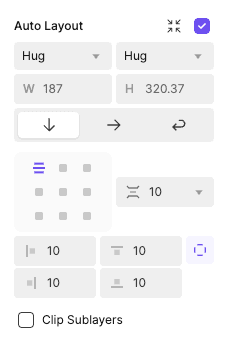
{'_type': 'localeString', 'en': 'Hug Contents', 'ja': 'Hug Contents', 'ko': 'Hug Contents', 'zh': 'Hug Contents'}


{'_type': 'localeString', 'en': 'Hug Contents', 'ja': 'Hug Contents', 'ko': 'Hug Contents', 'zh': 'Hug Contents'}

Fill Container

When a child is set to FILL, its size adjusts to fill the available space within the parent’s dimensions, making it relative to the parent’s size.

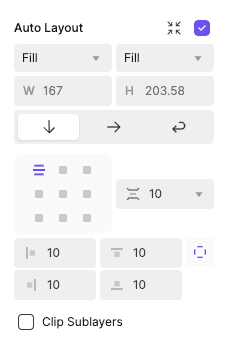
{'_type': 'localeString', 'en': 'Fill Container', 'ja': 'Fill Container', 'ko': 'Fill Container', 'zh': 'Fill Container'}


{'_type': 'localeString', 'en': 'Fill Container', 'ja': 'Fill Container', 'ko': 'Fill Container', 'zh': 'Fill Container'}

Direction Properties

Direction properties define how child objects are arranged within an Auto Layout container, providing flexibility in structuring layouts for various design scenarios.
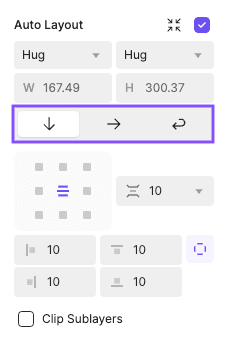
Vertical (default)

Aligns child objects in a vertical stack.

Horizontal

Aligns child objects in a horizontal row.

Wrap

Moves objects to a new row or column when the container runs out of space.

Vertical (default)

Aligns child objects in a vertical stack.

Horizontal

Aligns child objects in a horizontal row.

Wrap

Moves objects to a new row or column when the container runs out of space.

Layout Properties

Layout properties offer granular control over child layer Alignment, Padding, and Gap within an Auto Layout container. These settings ensure a polished and consistent design.
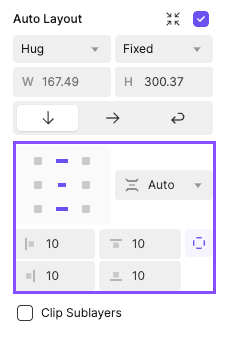
Alignment

Determines how child objects are positioned within the container (e.g., Top-Left, Center, Bottom-Right).

Padding

Defines the space between the container’s edges and its child objects.

Gap

Sets the spacing between child objects, adjustable as fixed or dynamic.

Alignment

Determines how child objects are positioned within the container (e.g., Top-Left, Center, Bottom-Right).

Padding

Defines the space between the container’s edges and its child objects.

Gap

Sets the spacing between child objects, adjustable as fixed or dynamic.

Auto Layout and Constraints

When a container without Auto Layout wraps a child container with Auto Layout, specific interactions occur depending on vertical or horizontal constraints.

Vertical Constraints

If the Auto Layout container has Top & Bottom (T+B) or Scale assigned to it, the Auto Layout container’s height must be Fixed. Changing the Auto Layout container back to Hug resets the vertical constraints to Center.

Horizontal Constraints

When the Auto Layout container has Left & Right (L+R) or Scale assigned to it, the Auto Layout container’s width is set to Fixed. Adjusting the Auto Layout container to Hug resets the container’s horizontal constraints to Center.

These adjustments ensure a logical interaction between Auto Layout and non-Auto Layout containers, offering a predictable workflow.

Advanced Settings

Auto Layout also provides additional advanced settings to enhance layout flexibility and customization. These options allow you to tailor specific elements and behaviors within your design.

Ignore Auto Layout

The "Ignore Auto Layout" feature allows you to bypass auto layout rules for selected objects, enabling manual adjustments without affecting the overall container structure. Objects set to ‘Ignore Auto Layout’ can independently set constraints, providing flexibility for unique layout scenarios while maintaining the auto layout properties of other elements in the container.
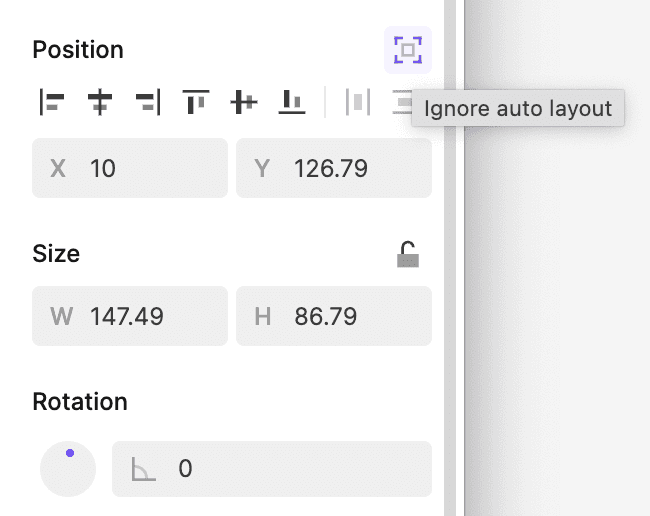

{'_type': 'localeString', 'en': 'Ignore Auto Layout', 'ja': 'Ignore Auto Layout', 'ko': 'Ignore Auto Layout', 'zh': 'Ignore Auto Layout'}

Layer Order Control

Managing stacking order is made simple with multiple options:

  • Layer Panel: Drag layers directly in the panel to reorder them.

  • Keyboard Shortcuts: Adjust stacking order using arrow keys for precise layer control.

  • Mouse Interaction: Click and drag objects on the canvas to reposition them interactively.

Instance Overrides

Instances of components with Auto Layout support selective adjustments, allowing flexibility without altering the master component.

  • Resizing: Modifications to resizing values are limited to existing options; new fixed values cannot be added.

  • Alignment, Gap, and Padding: These properties are customizable within instances.

  • Direction: Directional changes are not supported in instances.