[LIVE] Bringing Multi-Device Fintech Apps to Life. Register for Free.

Introducing ProtoPie

Getting Started

Making Your First Prototype

ProtoPie Ecosystem

ProtoPie Studio Interface

Import

Getting Started

Importing From Adobe XD

Importing From Figma

Importing From Sketch

ProtoPie Genie

Basic Elements

Containers

Devices

Layers

Preview Window

Scenes

Scroll/Paging

Shortcuts

System Status Bar

Triggers & Responses

Easing

Annotations

Responses

Timelines

Triggers

Formulas

Getting Started

Functions

Layer Properties

Syntax

Formulas Use Cases

Variables

Getting Started

Variables

Predefined Variables

Variables Use Cases

AI

Getting Started

AI Interaction Creation

AI Document Q&A

AI Panel Interface

Tips for Best Results

Auto Layout

Getting Started

Auto Layout Properties

Components

Getting Started

Component Guides

Editing Components

Nested Components

Send & Receive Messages

Interaction Libraries

Getting Started

Managing Interaction Libraries

Managing Library Members

Voice Prototyping

Getting Started

Listen Response

Speak Response

Use Cases

Voice Command Trigger

Connecting Devices

Connecting blokdots

Connecting Mobile Devices

ProtoPie Cloud

Getting Started

Managing Prototypes

Managing Storage

Sharing Prototypes

ProtoPie Player

Testing Prototypes

Managing Fonts

Offline Testing

ProtoPie Player for Wear OS

Teams

Getting Started

Editors & Viewers

Onboarding Your Team

Projects

Team Owner & Team Admin

Handoff

Getting Started

Creating Interaction Recordings

Managing Interaction Recordings

Recording Page

User Testing

Getting Started

Overview

Creating Test Rooms

External Integrations

Managing Test Sessions

Test Results & Analysis

User Testing on ProtoPie Cloud

ProtoPie Connect

Getting Started

API Plugin

Arduino Plugin

blokdots Plugin

Connect Embedded

Custom Layer Integrations

Custom Plugins

Connect Devices

Gamepad Plugin

IFTTT Plugin

Logitech G29 Steering Wheel Plugin

Testing Prototypes

Feature Comparison

Unity Plugin

ProtoPie Enterprise

Getting Started

Organization Settings

Service Admin

Single Sign-On (SSO)

Security

Overview

Access Control

Data Transit, Storage & Backup

Incident Response

Network & ProtoPie Player App Security

Physical Security

Risk Management

Menu

Introducing ProtoPie

Getting Started

Making Your First Prototype

ProtoPie Ecosystem

ProtoPie Studio Interface

Import

Getting Started

Importing From Adobe XD

Importing From Figma

Importing From Sketch

ProtoPie Genie

Basic Elements

Containers

Devices

Layers

Preview Window

Scenes

Scroll/Paging

Shortcuts

System Status Bar

Triggers & Responses

Easing

Annotations

Responses

Timelines

Triggers

Formulas

Getting Started

Functions

Layer Properties

Syntax

Formulas Use Cases

Variables

Getting Started

Variables

Predefined Variables

Variables Use Cases

AI

Getting Started

AI Interaction Creation

AI Document Q&A

AI Panel Interface

Tips for Best Results

Auto Layout

Getting Started

Auto Layout Properties

Components

Getting Started

Component Guides

Editing Components

Nested Components

Send & Receive Messages

Interaction Libraries

Getting Started

Managing Interaction Libraries

Managing Library Members

Voice Prototyping

Getting Started

Listen Response

Speak Response

Use Cases

Voice Command Trigger

Connecting Devices

Connecting blokdots

Connecting Mobile Devices

ProtoPie Cloud

Getting Started

Managing Prototypes

Managing Storage

Sharing Prototypes

ProtoPie Player

Testing Prototypes

Managing Fonts

Offline Testing

ProtoPie Player for Wear OS

Teams

Getting Started

Editors & Viewers

Onboarding Your Team

Projects

Team Owner & Team Admin

Handoff

Getting Started

Creating Interaction Recordings

Managing Interaction Recordings

Recording Page

User Testing

Getting Started

Overview

Creating Test Rooms

External Integrations

Managing Test Sessions

Test Results & Analysis

User Testing on ProtoPie Cloud

ProtoPie Connect

Getting Started

API Plugin

Arduino Plugin

blokdots Plugin

Connect Embedded

Custom Layer Integrations

Custom Plugins

Connect Devices

Gamepad Plugin

IFTTT Plugin

Logitech G29 Steering Wheel Plugin

Testing Prototypes

Feature Comparison

Unity Plugin

ProtoPie Enterprise

Getting Started

Organization Settings

Service Admin

Single Sign-On (SSO)

Security

Overview

Access Control

Data Transit, Storage & Backup

Incident Response

Network & ProtoPie Player App Security

Physical Security

Risk Management

Using the Logitech G29 Steering Wheel with ProtoPie Connect

Create realistic multi-screen automotive experiences thanks to ProtoPie Connect and the Logitech G29 Steering Wheel plugin.

Learn more about prototyping with ProtoPie for automotive.

The Information Flow

The below image illustrates the information flow between ProtoPie and the Logitech G29 steering wheel.
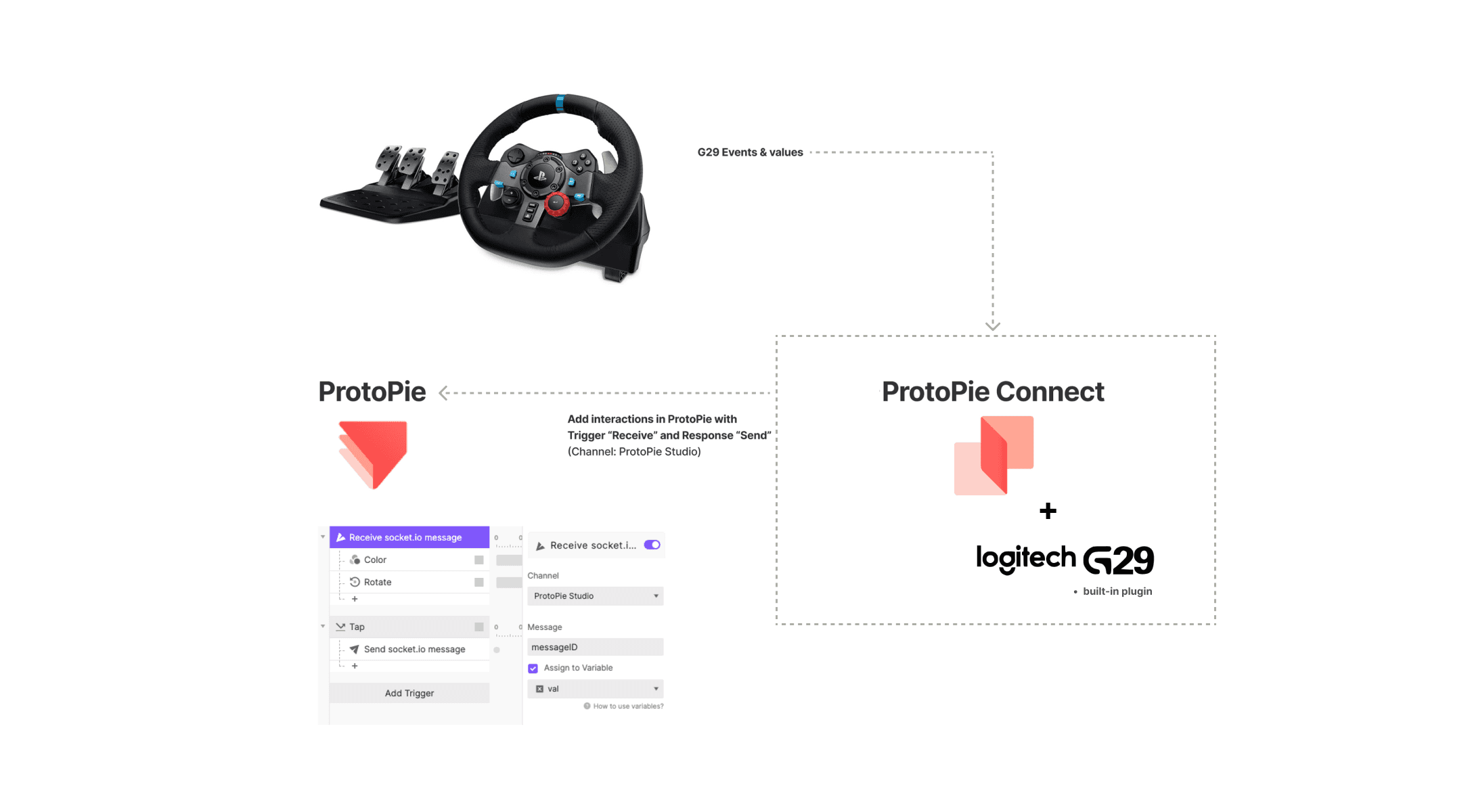

{'_type': 'localeString', 'en': 'The information flow between Connect and G29.'}
  • The Logitech G29 steering wheel sends events and values to ProtoPie Connect’s G29 plugin.

  • The G29 plugin converts these events & values to Socket.IO messages for ProtoPie to understand.

  • Prototypes added to ProtoPie Connect receive these inputs and respond accordingly using Send and Receive messages.

The Ecosystem

Below is a typical ecosystem when using the G29 plugin in ProtoPie Connect.

  • 1 machine with USB ports and WiFi/network capabilities

    • To run ProtoPie Connect and connect to the Logitech G29 steering wheel via USB


  • 1 Logitech G29 racing wheel and pedal (optional) set


  • 2 tablets (iPadOS or Android) or 2 computer monitors

    • For prototypes that need to be opened on a larger display (ProtoPie Connect’s web browser, ProtoPie Player on tablets).


  • 1 smartphone (iOS or Android)

    • For prototypes that need to be opened on a mobile display (ProtoPie Player).

Getting Set Up

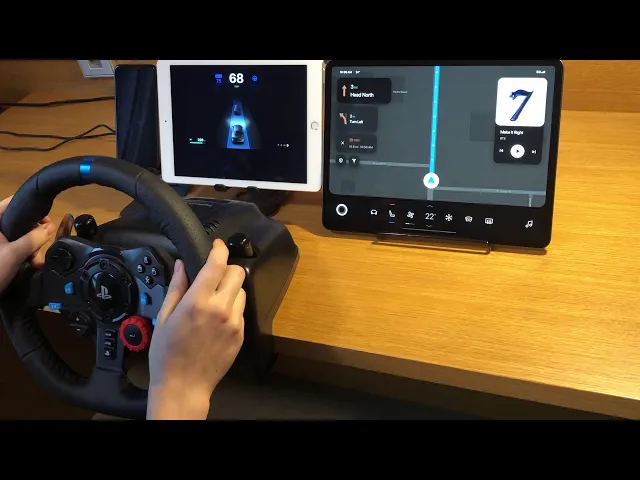
Below is the most recommended setup for handling messages between the Logitech G29 steering wheel and prototypes made in ProtoPie. At the end your setup should look like the one shown in the video at the top of this page.
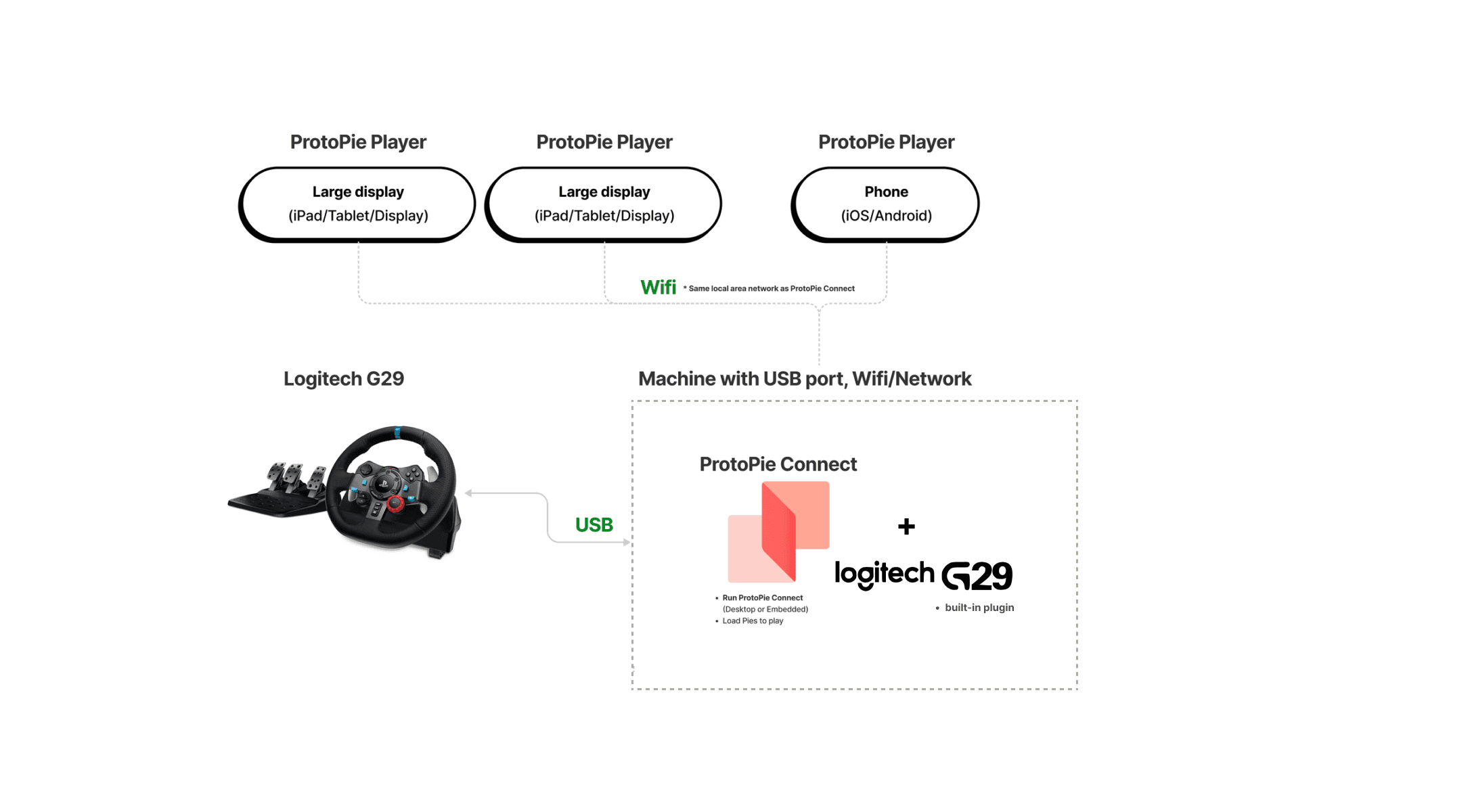

{'_type': 'localeString', 'en': 'Connect and G29 - the setup.'}
  • Use 2 large displays and 1 smartphone for running your prototypes (smartphones, tablets, and monitors can all serve as displays).

  • Connect ProtoPie Player to ProtoPie Connect via WiFi (same LAN).

  • Connect the Logitech G29 steering wheel via USB to the machine where ProtoPie Connect is running:

  • In ProtoPie Connect click on the Plugins button in the upper right corner.

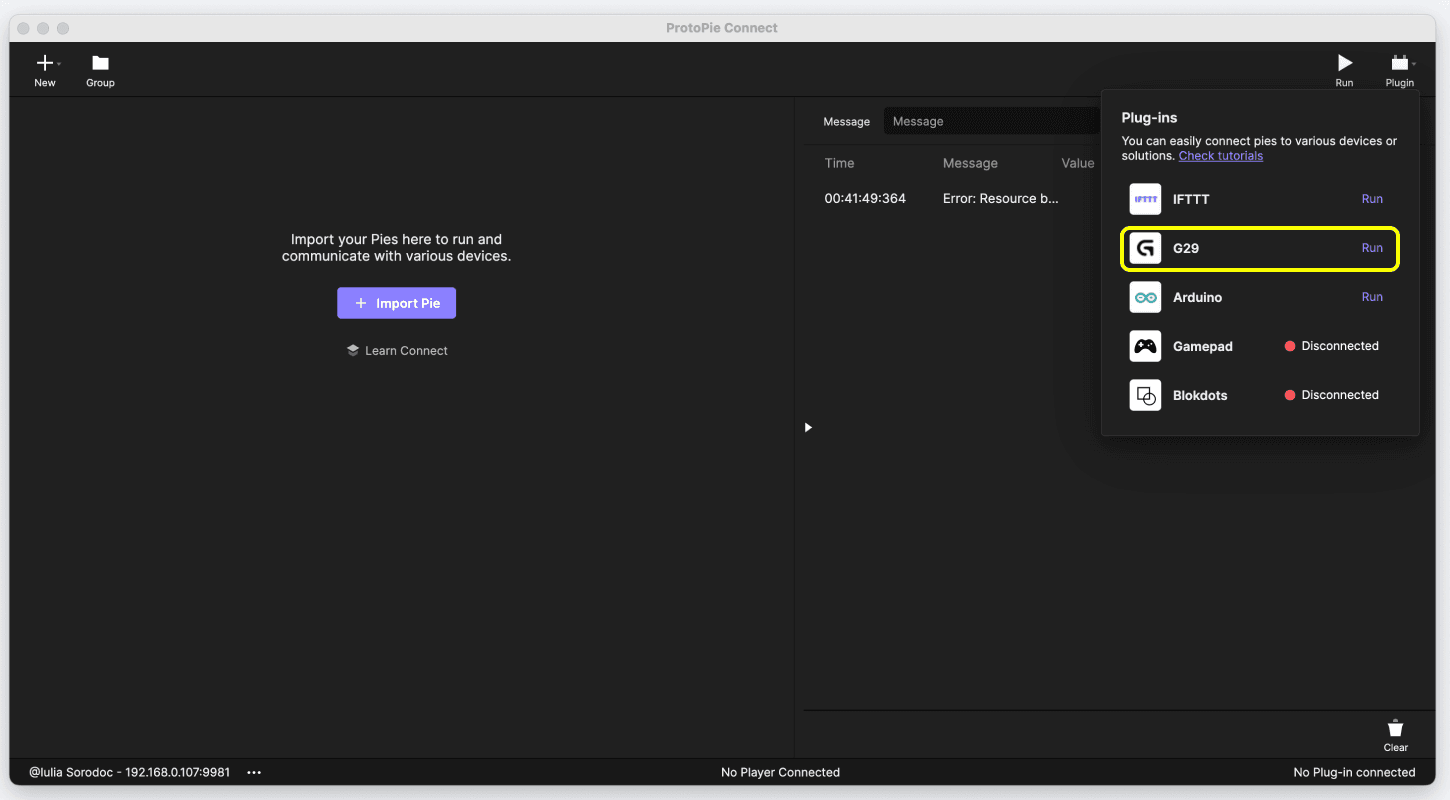
  • Select G29 in the Plugin list.


{'_type': 'localeString', 'en': 'The G29 plugin in ProtoPie Connect.'}
  • If you have the PlayStation version of the G29, it has a switch that allows you to toggle between PS3 and PS4 compatibility mode. Make sure it is switched to PS3 mode.
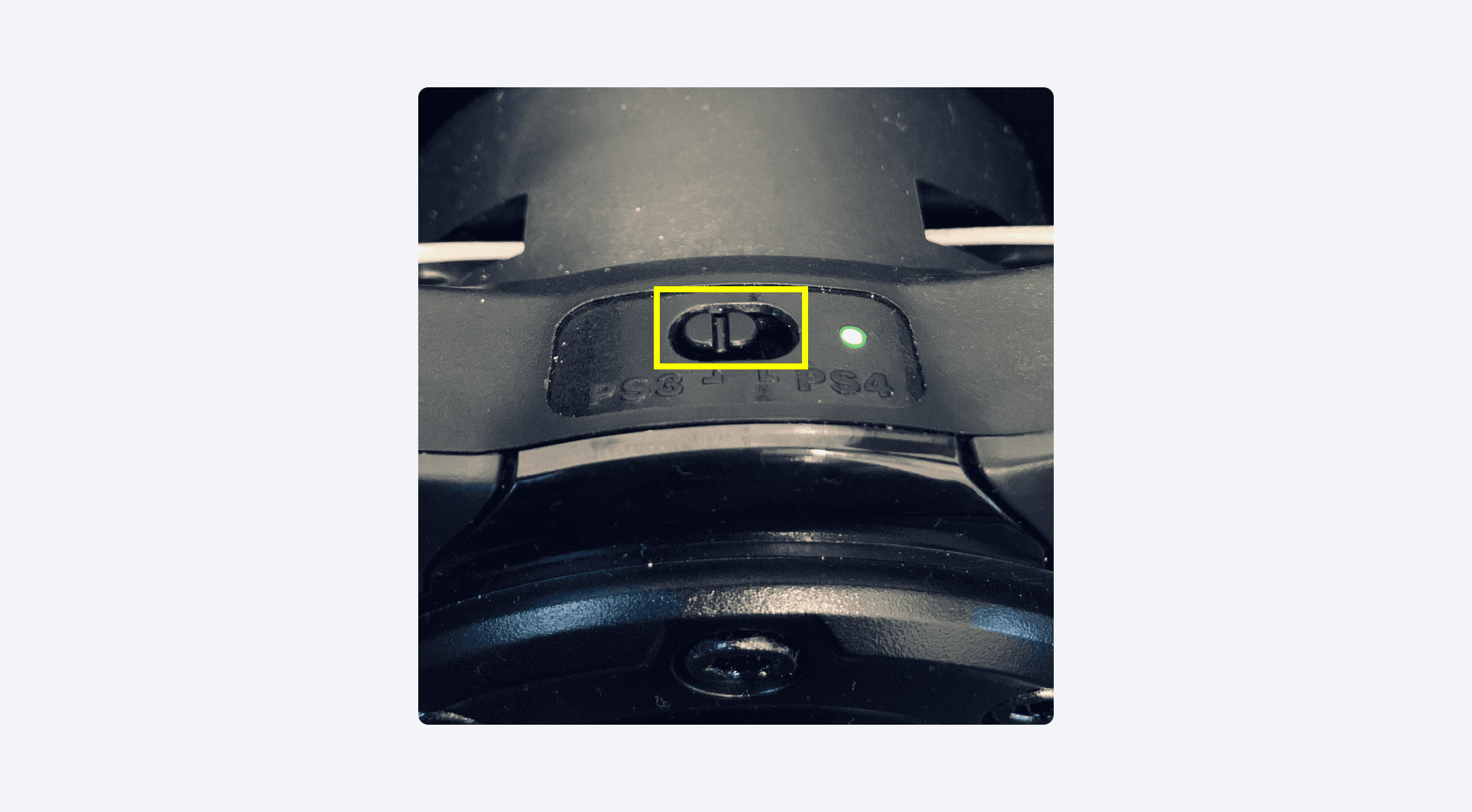

{'_type': 'localeString', 'en': 'PS3 mode in G29 steering wheel.'}
  • Plug in the G29 USB cord into the computer.

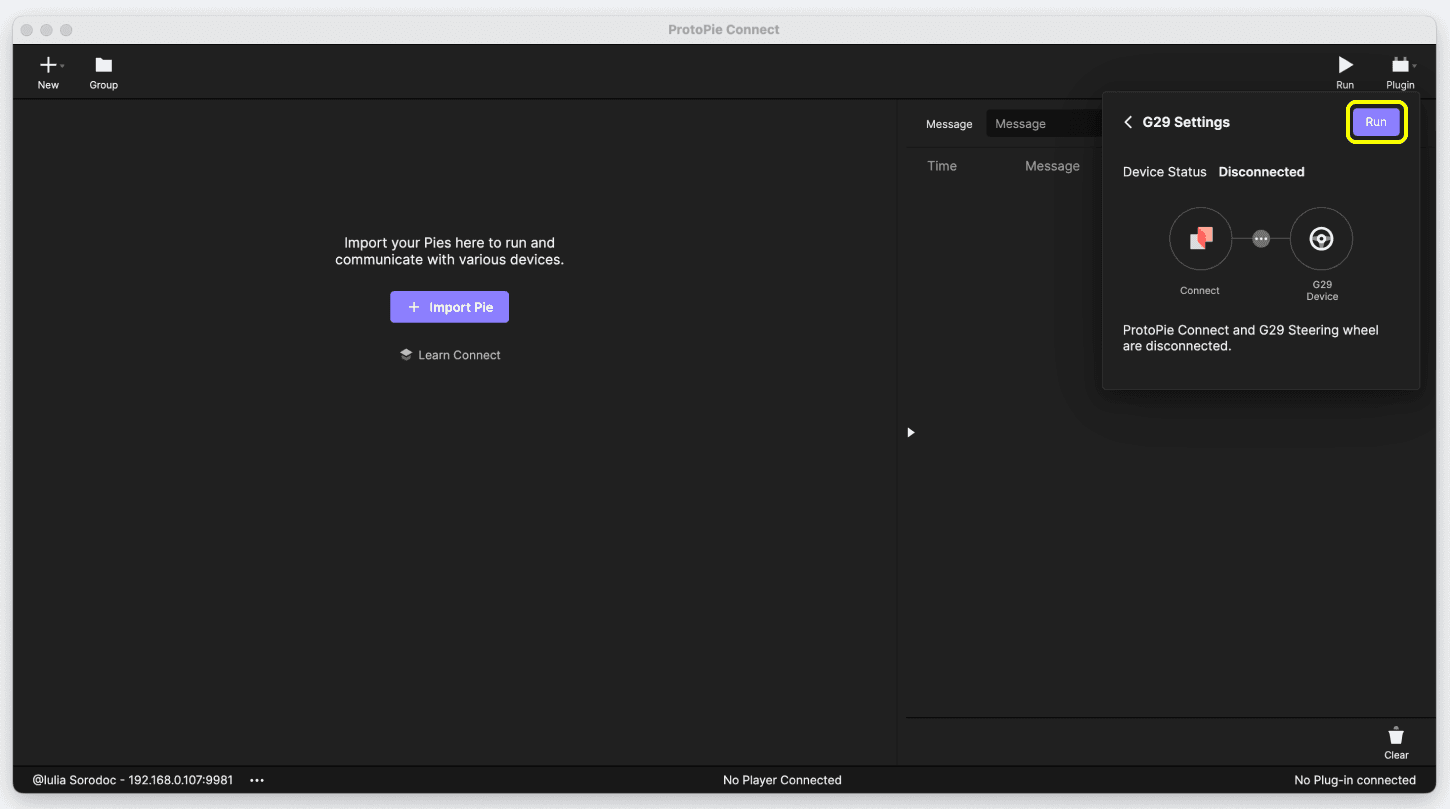
  • Click on the Run button.


{'_type': 'localeString', 'en': 'Run the G29 plugin in ProtoPie Connect.'}
  • The G29 steering wheel is now ready for use.
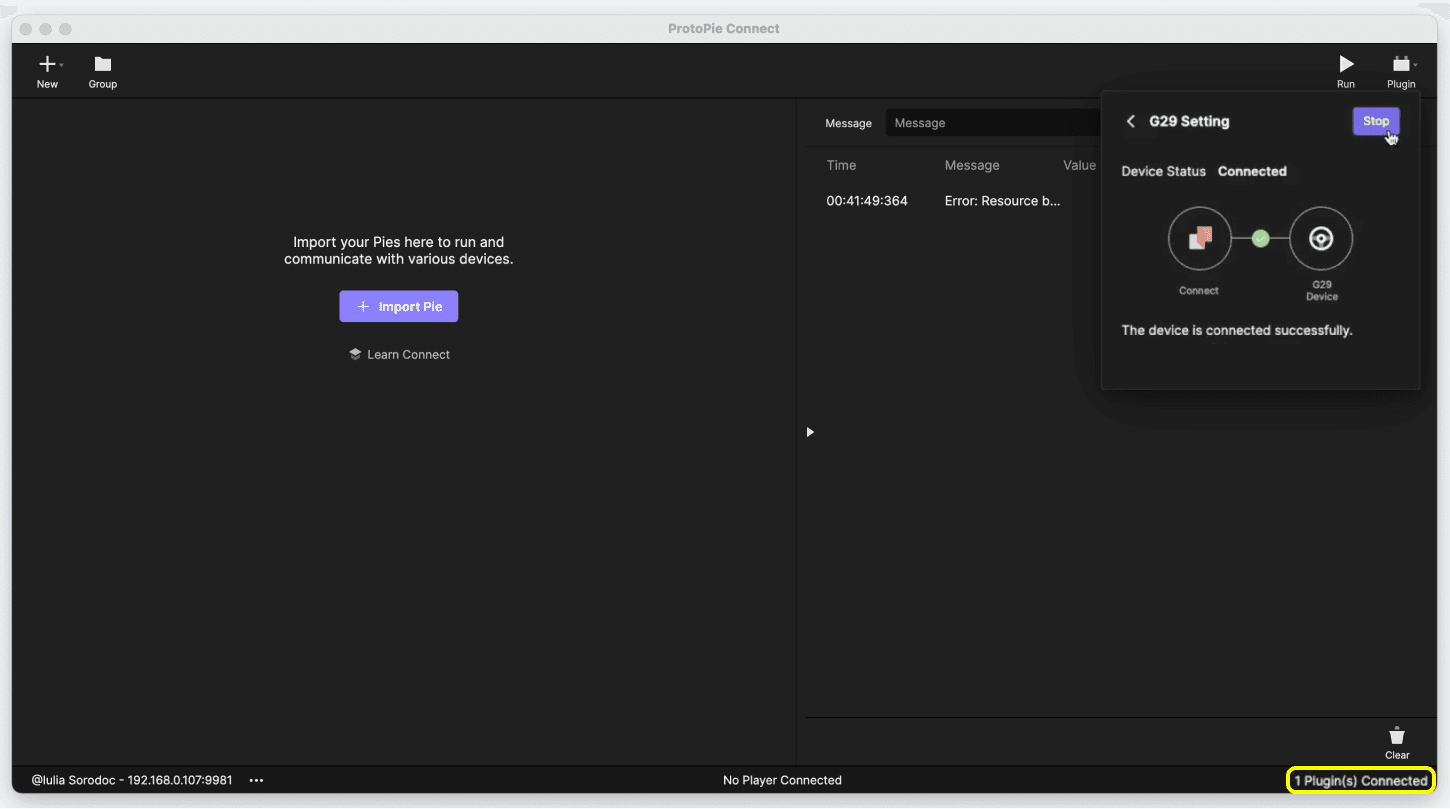

{'_type': 'localeString', 'en': 'G29 plugin is now ready to use.'}

Examples

Turning the Steering Wheel Left

Turn the steering wheel left to rotate and change the color of a layer in ProtoPie Studio.
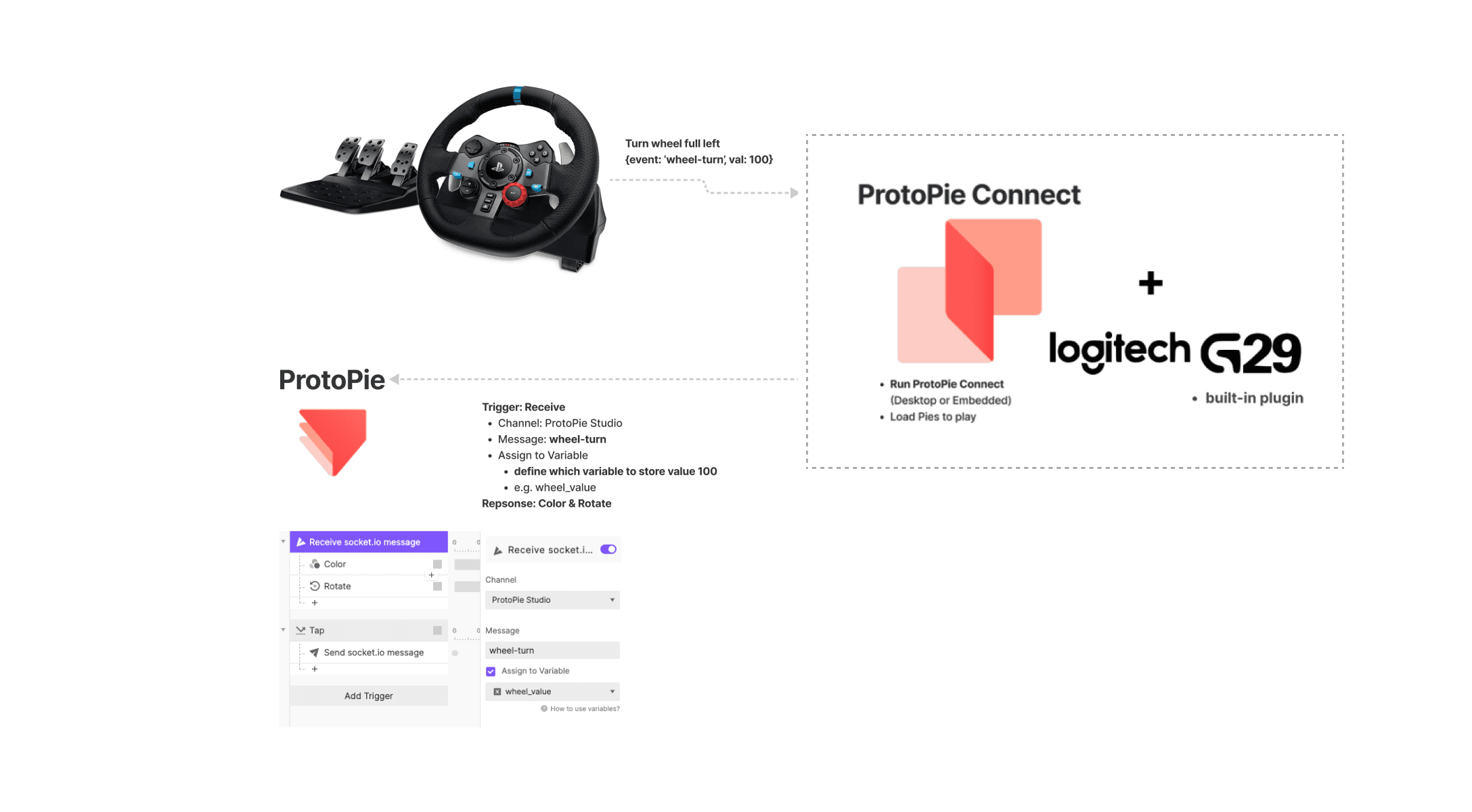

{'_type': 'localeString', 'en': 'Turning the Steering Wheel Left.'}
  • When you turn the Logitech G29 steering wheel fully to the left, the G29 plugin converts the incoming event into a message ProtoPie can interpret.

  • The prototype loaded to ProtoPie Connect receives this message and assigns it to a variable when triggering the Color and Rotate responses.

Pressing a Button on the Steering Wheel

Press the triangle button on the steering wheel to trigger actions in two separate prototypes.
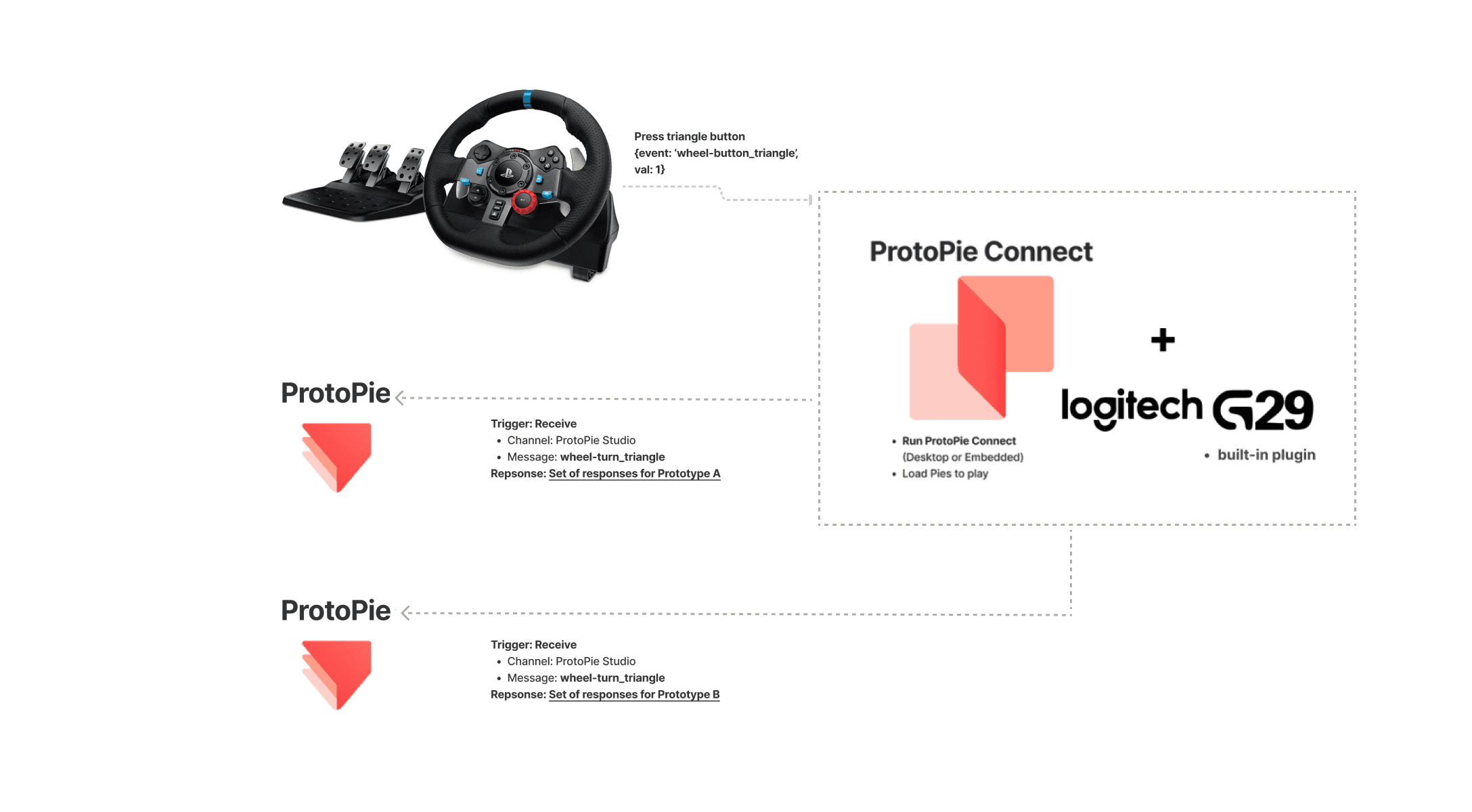

{'_type': 'localeString', 'en': 'Pressing a Button on the Steering Wheel.'}
  • When you press the triangle button on the Logitech G29 steering wheel, the G29 plugin converts the incoming event into a message ProtoPie can interpret.

  • The two prototypes loaded to ProtoPie Connect respond to this message accordingly, depending on how you set up your interactions.

  • For example, one prototype recreates a blinking light and the other prototype shows a text saying “Emergency”.