INSIGHTS & INSPIRATION
PRODUCT LEARNING & SUPPORT
INSIGHTS & INSPIRATION
PRODUCT LEARNING & SUPPORT
Triggers & Responses
Auto Layout
Interaction Libraries
Connecting Devices
ProtoPie Enterprise
Menu
Triggers & Responses
Auto Layout
Interaction Libraries
Connecting Devices
ProtoPie Enterprise
Importing From Adobe XD
Import your designs from Adobe XD into ProtoPie using the Plugin.
Install the ProtoPie plugin for Adobe XD and open the plugin in Adobe XD.
ProtoPie Plugin for Adobe XD
Download and install the ProtoPie plugin for Adobe XD, which requires ProtoPie 7.0 or higher.
With the ProtoPie plugin for Adobe XD, you have lightning speed and flexibility at your fingertips. Import your designs from Adobe XD into ProtoPie, all done locally–without any latency.
Control what you import. Import artboards as scenes, and objects with the same layer hierarchy, positioning, and constraints as in Adobe XD.
For the best performance, keep Adobe XD open and visible on your desktop while importing your designs into ProtoPie.
First time? Try the ProtoPie plugin for Adobe XD with this example file.
Supported Properties
Visibility
Lock
Position
Size
Rotation
Opacity
Constraints
Fill (solid color & image)
Borders
Shadow
Learn more about layer properties in ProtoPie.
The ProtoPie plugin for Adobe XD allows you to:
Import one or multiple artboards and objects.
Import artboards as scenes.
Import what you selected.
Import vector layers as SVG.
Import text layers as SVG that can be converted to text layers.
Import constraints as constraints.
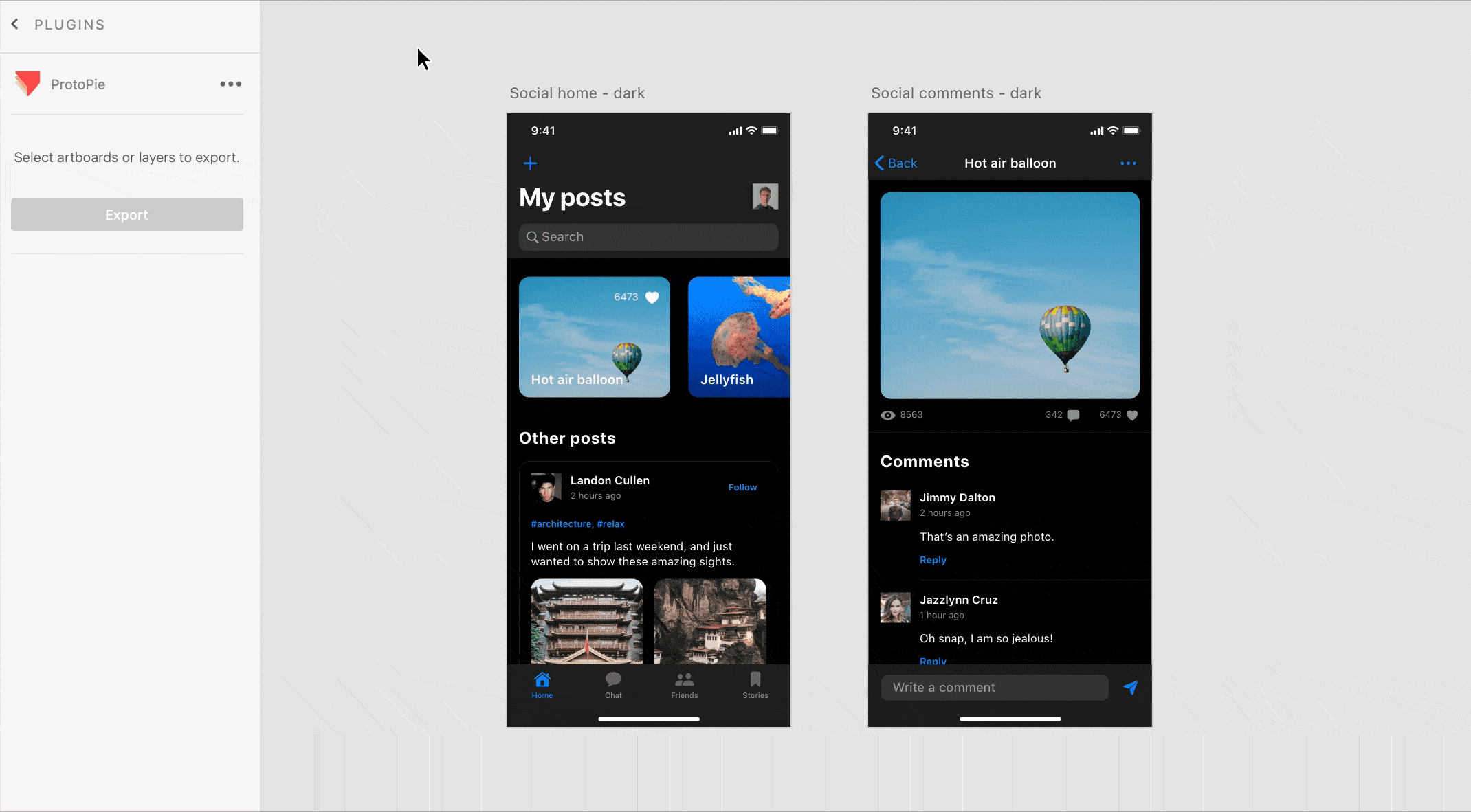
Importing as Scenes
Import an artboard in Adobe XD as a scene in ProtoPie while keeping the same name. It's possible to import one or multiple artboards as scenes at once. Importing artboards as scenes is based on Adobe XD's layer hierarchy.
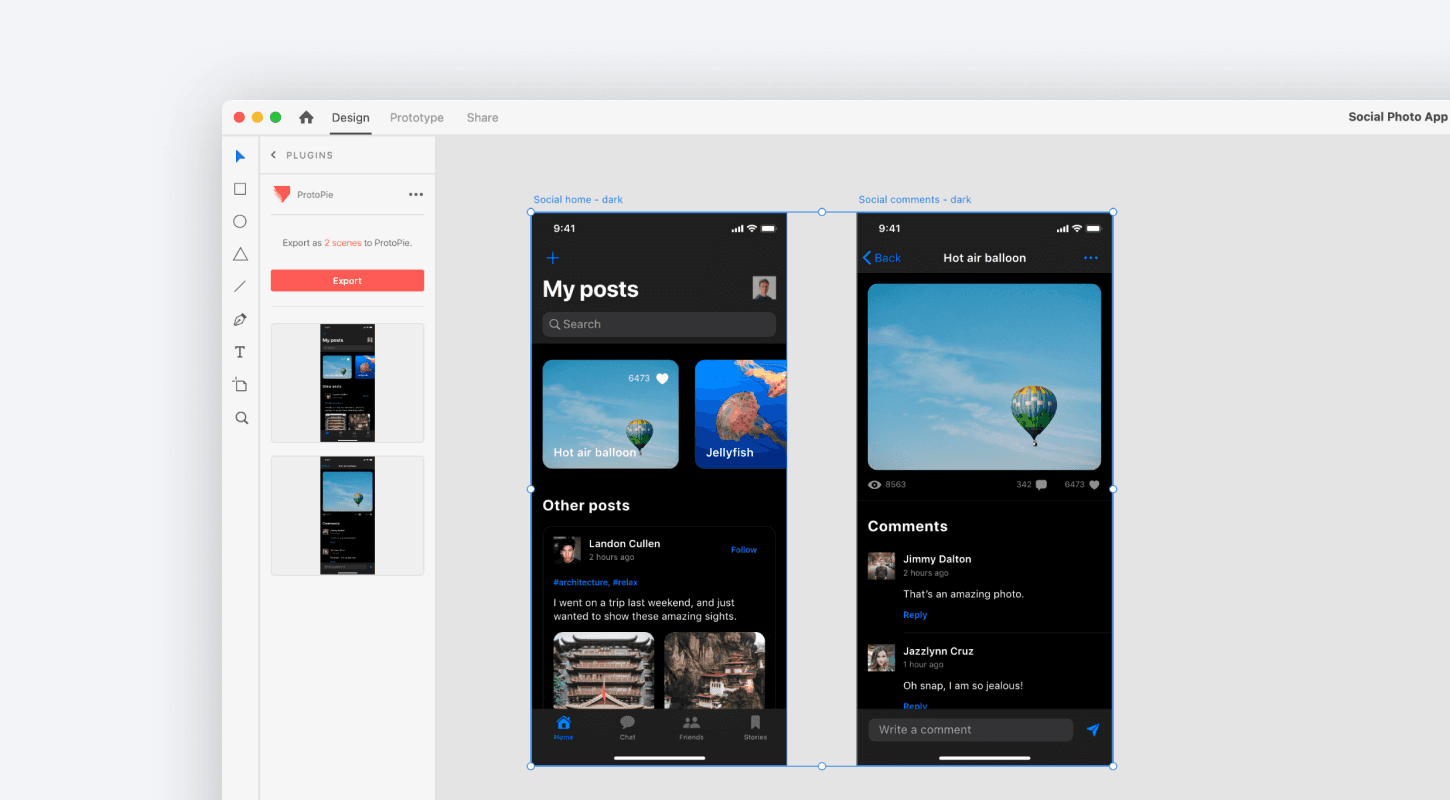
Importing Objects
Import objects with the same layer hierarchy, positioning, and constraints as in Adobe XD. It's possible to import one or multiple objects at once.
Components and component instances in Adobe XD are imported as containers. Convert them to components to keep them as components in ProtoPie. Learn more about components.
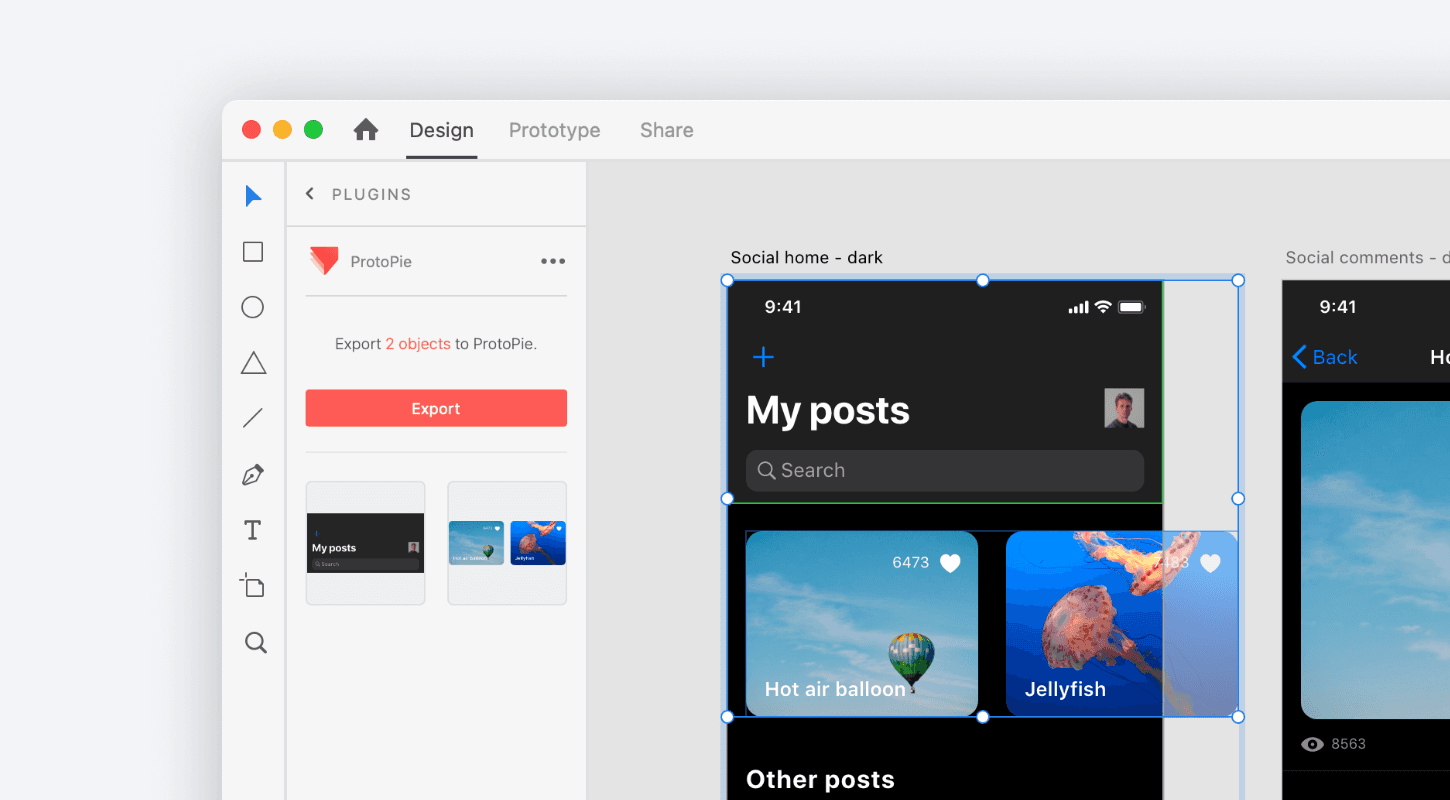
Importing as SVG
Import vector layers in Adobe XD as SVG (Scalable Vector Graphics) in ProtoPie. To make their properties editable, just convert them to shapes after importing. ProtoPie does not support all SVG properties yet. Learn more about SVG layers.
Importing Text Layers
Import text layers in Adobe XD as SVG in ProtoPie. To make their properties editable, convert them to text layers after importing. Learn more about text layers.
ReImporting
Generally, reimported artboards and objects from Adobe XD would replace what was imported before. However, there are some exceptions to consider.
If you changed some properties of an imported object in ProtoPie, re-importing would not affect this particular object.
If you changed the layer hierarchy after importing, reimporting would not affect this adjusted layer hierarchy. For example, you added an imported layer to a newly created scroll container.
A deleted imported layer would not be reimported, unless you select only this specific layer in Adobe XD and import this into ProtoPie.
If you want to have duplicates of a scene or object, just import it once and duplicate it. For example, you want an artboard from Adobe XD as 2 scenes in ProtoPie. Import this once and duplicate the scene to create a second one.
Importing as Scenes
Import an artboard in Adobe XD as a scene in ProtoPie while keeping the same name. It's possible to import one or multiple artboards as scenes at once. Importing artboards as scenes is based on Adobe XD's layer hierarchy.
Importing Objects
Import objects with the same layer hierarchy, positioning, and constraints as in Adobe XD. It's possible to import one or multiple objects at once.
Components and component instances in Adobe XD are imported as containers. Convert them to components to keep them as components in ProtoPie. Learn more about components.
Importing as SVG
Import vector layers in Adobe XD as SVG (Scalable Vector Graphics) in ProtoPie. To make their properties editable, just convert them to shapes after importing. ProtoPie does not support all SVG properties yet. Learn more about SVG layers.
Importing Text Layers
Import text layers in Adobe XD as SVG in ProtoPie. To make their properties editable, convert them to text layers after importing. Learn more about text layers.
ReImporting
Generally, reimported artboards and objects from Adobe XD would replace what was imported before. However, there are some exceptions to consider.
If you changed some properties of an imported object in ProtoPie, re-importing would not affect this particular object.
If you changed the layer hierarchy after importing, reimporting would not affect this adjusted layer hierarchy. For example, you added an imported layer to a newly created scroll container.
A deleted imported layer would not be reimported, unless you select only this specific layer in Adobe XD and import this into ProtoPie.
If you want to have duplicates of a scene or object, just import it once and duplicate it. For example, you want an artboard from Adobe XD as 2 scenes in ProtoPie. Import this once and duplicate the scene to create a second one.