📣 Webinar: Rapid Automotive Prototyping with ProtoPie MCP. Register.
📣 See ProtoPie MCP in Action. Register now.
INSIGHTS & INSPIRATION
PRODUCT LEARNING & SUPPORT
INSIGHTS & INSPIRATION
PRODUCT LEARNING & SUPPORT
Triggers & Responses
Auto Layout
Interaction Libraries
Connecting Devices
ProtoPie Enterprise
Menu
Triggers & Responses
Auto Layout
Interaction Libraries
Connecting Devices
ProtoPie Enterprise
Importing From Sketch
There are two ways to import your designs from Sketch into ProtoPie.
Plugin (recommended): Install the ProtoPie plugin for Sketch and open the plugin in Sketch.
Legacy: Open the Sketch file that you would like to use for importing and open ProtoPie Studio. Select Import from the file menu in ProtoPie.
ProtoPie Plugin for Sketch
Download and install the ProtoPie plugin for Sketch, which requires ProtoPie 7.0 or higher. Learn more about installing plugins for Sketch.
With the ProtoPie plugin for Sketch, you have lightning speed and flexibility at your fingertips. Import your designs from Sketch into ProtoPie, all done locally–without any latency.
Control what you import. Import artboards as scenes, and objects with the same layer hierarchy, positioning, and constraints as in Sketch.
For the best performance, keep Sketch open and visible on your desktop while importing your designs into ProtoPie.
First time? Try the ProtoPie plugin for Sketch with this example file.
Supported Properties
Visibility
Lock
Position
Size
Rotation
Opacity
Constraints
Fill (solid color & image)
Borders
Shadow
Learn more about layer properties in ProtoPie.
Differences Between the Plugin and Legacy Import
The ProtoPie plugin for Sketch allows you to:
Import one or multiple artboards and objects.
Import artboards as scenes.
Import what you selected.
Import vector layers as SVG.
Import text layers as SVG that can be converted to text layers.
Import constraints as constraints.

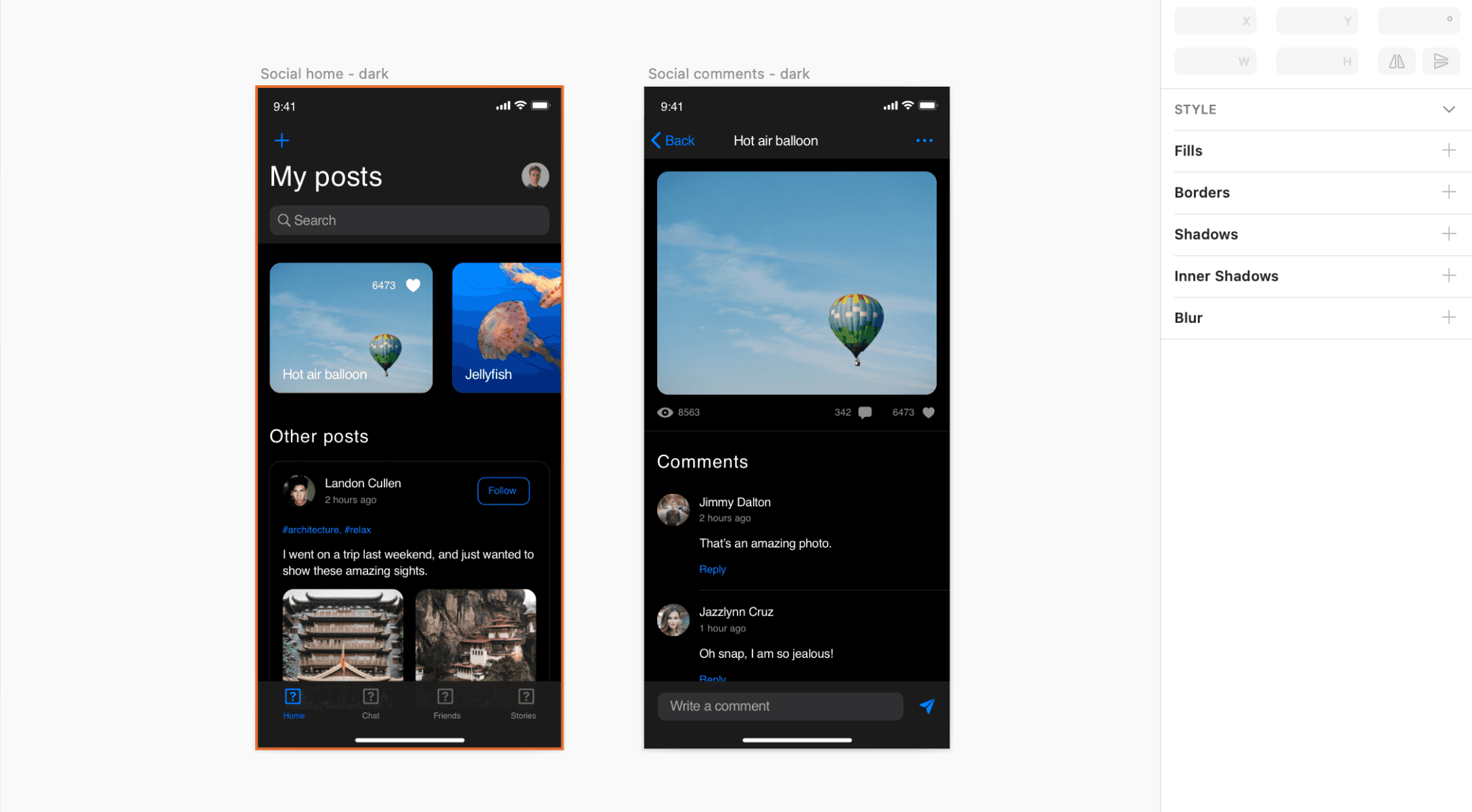
Importing as Scenes
Import an artboard in Sketch as a scene in ProtoPie while keeping the same name. It's possible to import one or multiple artboards as scenes at once. Importing artboards as scenes is based on Sketch's layer hierarchy.
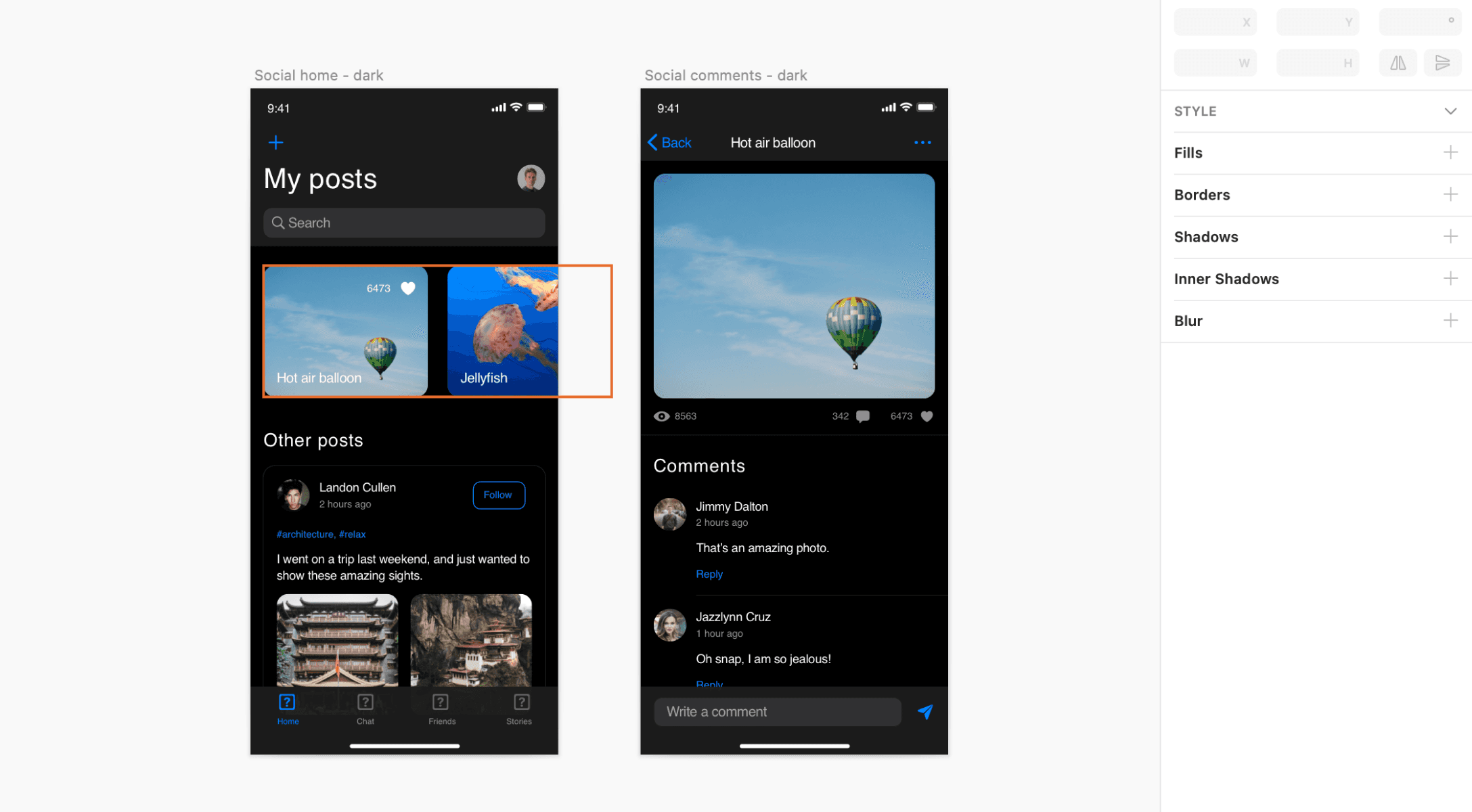
Importing Objects
Import objects with the same layer hierarchy, positioning, and constraints as in Sketch. It's possible to import one or multiple objects at once.
Components and component instances in Sketch are imported as containers. Convert them to components to keep them as components in ProtoPie. Learn more about components.
Importing as SVG
Import vector layers in Sketch as SVG (Scalable Vector Graphics) in ProtoPie. To make their properties editable, just convert them to shapes after importing. ProtoPie does not support all SVG properties yet. Learn more about SVG layers.
Importing Text Layers
Import text layers in Sketch as SVG in ProtoPie. To make their properties editable, convert them to text layers after importing. Learn more about text layers.
Reimporting
Generally, reimported artboards and objects from Sketch would replace what was imported before. However, there are some exceptions to consider.
If you changed some properties of an imported object in ProtoPie, reimporting would not affect this particular object.
If you changed the layer hierarchy after importing, reimporting would not affect this adjusted layer hierarchy. For example, you added an imported layer to a newly created scroll container.
A deleted imported layer would not be reimported, unless you select only this specific layer in Sketch and import this into ProtoPie.
If you want to have duplicates of a scene or object, just import it once and duplicate it. For example, you want an artboard from Sketch as 2 scenes in ProtoPie. Import this once and duplicate the scene to create a second one.
Importing as Scenes
Import an artboard in Sketch as a scene in ProtoPie while keeping the same name. It's possible to import one or multiple artboards as scenes at once. Importing artboards as scenes is based on Sketch's layer hierarchy.
Importing Objects
Import objects with the same layer hierarchy, positioning, and constraints as in Sketch. It's possible to import one or multiple objects at once.
Components and component instances in Sketch are imported as containers. Convert them to components to keep them as components in ProtoPie. Learn more about components.
Importing as SVG
Import vector layers in Sketch as SVG (Scalable Vector Graphics) in ProtoPie. To make their properties editable, just convert them to shapes after importing. ProtoPie does not support all SVG properties yet. Learn more about SVG layers.
Importing Text Layers
Import text layers in Sketch as SVG in ProtoPie. To make their properties editable, convert them to text layers after importing. Learn more about text layers.
Reimporting
Generally, reimported artboards and objects from Sketch would replace what was imported before. However, there are some exceptions to consider.
If you changed some properties of an imported object in ProtoPie, reimporting would not affect this particular object.
If you changed the layer hierarchy after importing, reimporting would not affect this adjusted layer hierarchy. For example, you added an imported layer to a newly created scroll container.
A deleted imported layer would not be reimported, unless you select only this specific layer in Sketch and import this into ProtoPie.
If you want to have duplicates of a scene or object, just import it once and duplicate it. For example, you want an artboard from Sketch as 2 scenes in ProtoPie. Import this once and duplicate the scene to create a second one.
Legacy Sketch Import
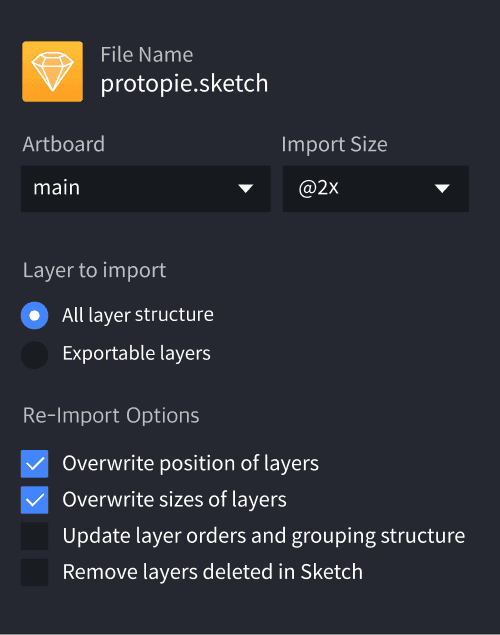
The legacy Sketch import allows you to import all layers, or only the layers that have been marked as exportable, from your Sketch files.
Artboard
Select the artboard from Sketch that will be imported
Import Size
Set the magnification factor for layers. This can be changed based on the size of the selected artboard in Sketch
All layer structure
All layers from an artboard are imported in a folder structure
Exportable layers
Only layers that have been set to "exportable" are imported
Overwrite positions of layers
Overwriting position values of layers when re-importing an artboard from Sketch
Overwrite sizes of layers
Overwriting size values of layers when re-importing an artboard from Sketch
Update layer orders and grouping structure
Update layer orders and grouping structure when re-importing an artboard from Sketch
Remove layers deleted in Sketch
Remove layers that have been deleted in Sketch when re-importing an artboard from Sketch
Artboard
Select the artboard from Sketch that will be imported
Import Size
Set the magnification factor for layers. This can be changed based on the size of the selected artboard in Sketch
All layer structure
All layers from an artboard are imported in a folder structure
Exportable layers
Only layers that have been set to "exportable" are imported
Overwrite positions of layers
Overwriting position values of layers when re-importing an artboard from Sketch
Overwrite sizes of layers
Overwriting size values of layers when re-importing an artboard from Sketch
Update layer orders and grouping structure
Update layer orders and grouping structure when re-importing an artboard from Sketch
Remove layers deleted in Sketch
Remove layers that have been deleted in Sketch when re-importing an artboard from Sketch