[LIVE] Bringing Multi-Device Fintech Apps to Life. Register for Free.

Introducing ProtoPie

Getting Started

Making Your First Prototype

ProtoPie Ecosystem

ProtoPie Studio Interface

Import

Getting Started

Importing From Adobe XD

Importing From Figma

Importing From Sketch

ProtoPie Genie

Basic Elements

Containers

Devices

Layers

Preview Window

Scenes

Scroll/Paging

Shortcuts

System Status Bar

Triggers & Responses

Easing

Annotations

Responses

Timelines

Triggers

Formulas

Getting Started

Functions

Layer Properties

Syntax

Formulas Use Cases

Variables

Getting Started

Variables

Predefined Variables

Variables Use Cases

AI

Getting Started

AI Interaction Creation

AI Document Q&A

AI Panel Interface

Tips for Best Results

Auto Layout

Getting Started

Auto Layout Properties

Components

Getting Started

Component Guides

Editing Components

Nested Components

Send & Receive Messages

Interaction Libraries

Getting Started

Managing Interaction Libraries

Managing Library Members

Voice Prototyping

Getting Started

Listen Response

Speak Response

Use Cases

Voice Command Trigger

Connecting Devices

Connecting blokdots

Connecting Mobile Devices

ProtoPie Cloud

Getting Started

Managing Prototypes

Managing Storage

Sharing Prototypes

ProtoPie Player

Testing Prototypes

Managing Fonts

Offline Testing

ProtoPie Player for Wear OS

Teams

Getting Started

Editors & Viewers

Onboarding Your Team

Projects

Team Owner & Team Admin

Handoff

Getting Started

Creating Interaction Recordings

Managing Interaction Recordings

Recording Page

User Testing

Getting Started

Overview

Creating Test Rooms

External Integrations

Managing Test Sessions

Test Results & Analysis

User Testing on ProtoPie Cloud

ProtoPie Connect

Getting Started

API Plugin

Arduino Plugin

blokdots Plugin

Connect Embedded

Custom Layer Integrations

Custom Plugins

Connect Devices

Gamepad Plugin

IFTTT Plugin

Logitech G29 Steering Wheel Plugin

Testing Prototypes

Feature Comparison

Unity Plugin

ProtoPie Enterprise

Getting Started

Organization Settings

Service Admin

Single Sign-On (SSO)

Security

Overview

Access Control

Data Transit, Storage & Backup

Incident Response

Network & ProtoPie Player App Security

Physical Security

Risk Management

Menu

Introducing ProtoPie

Getting Started

Making Your First Prototype

ProtoPie Ecosystem

ProtoPie Studio Interface

Import

Getting Started

Importing From Adobe XD

Importing From Figma

Importing From Sketch

ProtoPie Genie

Basic Elements

Containers

Devices

Layers

Preview Window

Scenes

Scroll/Paging

Shortcuts

System Status Bar

Triggers & Responses

Easing

Annotations

Responses

Timelines

Triggers

Formulas

Getting Started

Functions

Layer Properties

Syntax

Formulas Use Cases

Variables

Getting Started

Variables

Predefined Variables

Variables Use Cases

AI

Getting Started

AI Interaction Creation

AI Document Q&A

AI Panel Interface

Tips for Best Results

Auto Layout

Getting Started

Auto Layout Properties

Components

Getting Started

Component Guides

Editing Components

Nested Components

Send & Receive Messages

Interaction Libraries

Getting Started

Managing Interaction Libraries

Managing Library Members

Voice Prototyping

Getting Started

Listen Response

Speak Response

Use Cases

Voice Command Trigger

Connecting Devices

Connecting blokdots

Connecting Mobile Devices

ProtoPie Cloud

Getting Started

Managing Prototypes

Managing Storage

Sharing Prototypes

ProtoPie Player

Testing Prototypes

Managing Fonts

Offline Testing

ProtoPie Player for Wear OS

Teams

Getting Started

Editors & Viewers

Onboarding Your Team

Projects

Team Owner & Team Admin

Handoff

Getting Started

Creating Interaction Recordings

Managing Interaction Recordings

Recording Page

User Testing

Getting Started

Overview

Creating Test Rooms

External Integrations

Managing Test Sessions

Test Results & Analysis

User Testing on ProtoPie Cloud

ProtoPie Connect

Getting Started

API Plugin

Arduino Plugin

blokdots Plugin

Connect Embedded

Custom Layer Integrations

Custom Plugins

Connect Devices

Gamepad Plugin

IFTTT Plugin

Logitech G29 Steering Wheel Plugin

Testing Prototypes

Feature Comparison

Unity Plugin

ProtoPie Enterprise

Getting Started

Organization Settings

Service Admin

Single Sign-On (SSO)

Security

Overview

Access Control

Data Transit, Storage & Backup

Incident Response

Network & ProtoPie Player App Security

Physical Security

Risk Management

Using blokdots & ProtoPie Connect

blokdots is a code-free software to build interactive hardware prototypes with Arduino.

The blokdots & ProtoPie integration is available to all users, regardless of their plan. However, when used with ProtoPie Connect, it unlocks new possibilities, such as the ability to create hardware-software interactions involving three or more devices.

The typical blokdots & ProtoPie Connect ecosystem involves:

  • ProtoPie Studio, to create interactions.

  • ProtoPie Connect and blokdots plugin, to enable communication between ProtoPie prototypes and blokdots app which connects to Arduino and sensors.

Getting Set Up

  1. Open the Pie file in ProtoPie Connect.

  2. Connect blokdots to ProtoPie Connect.
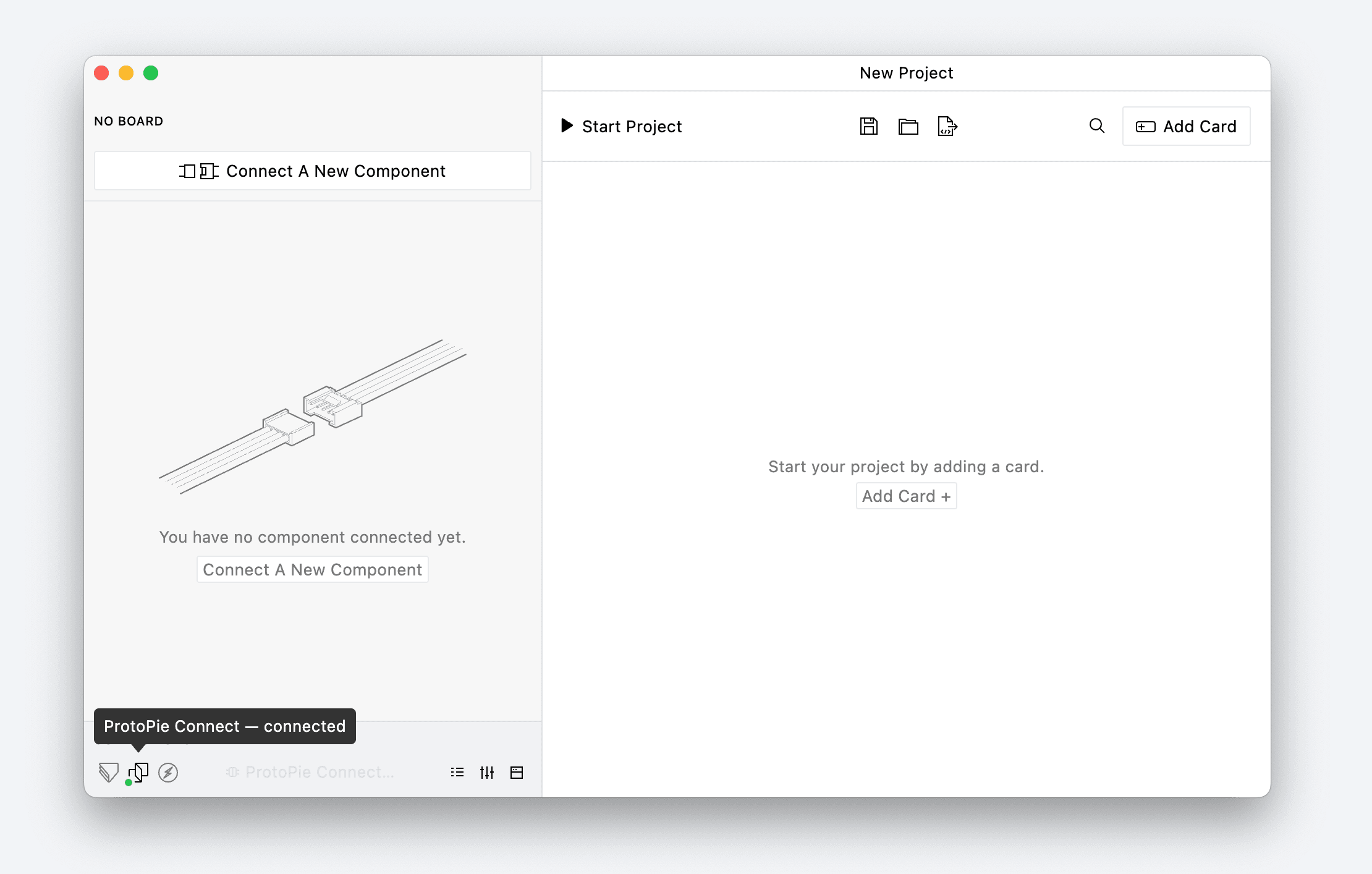

{'_type': 'localeString', 'en': 'ProtoPie Connect status'}
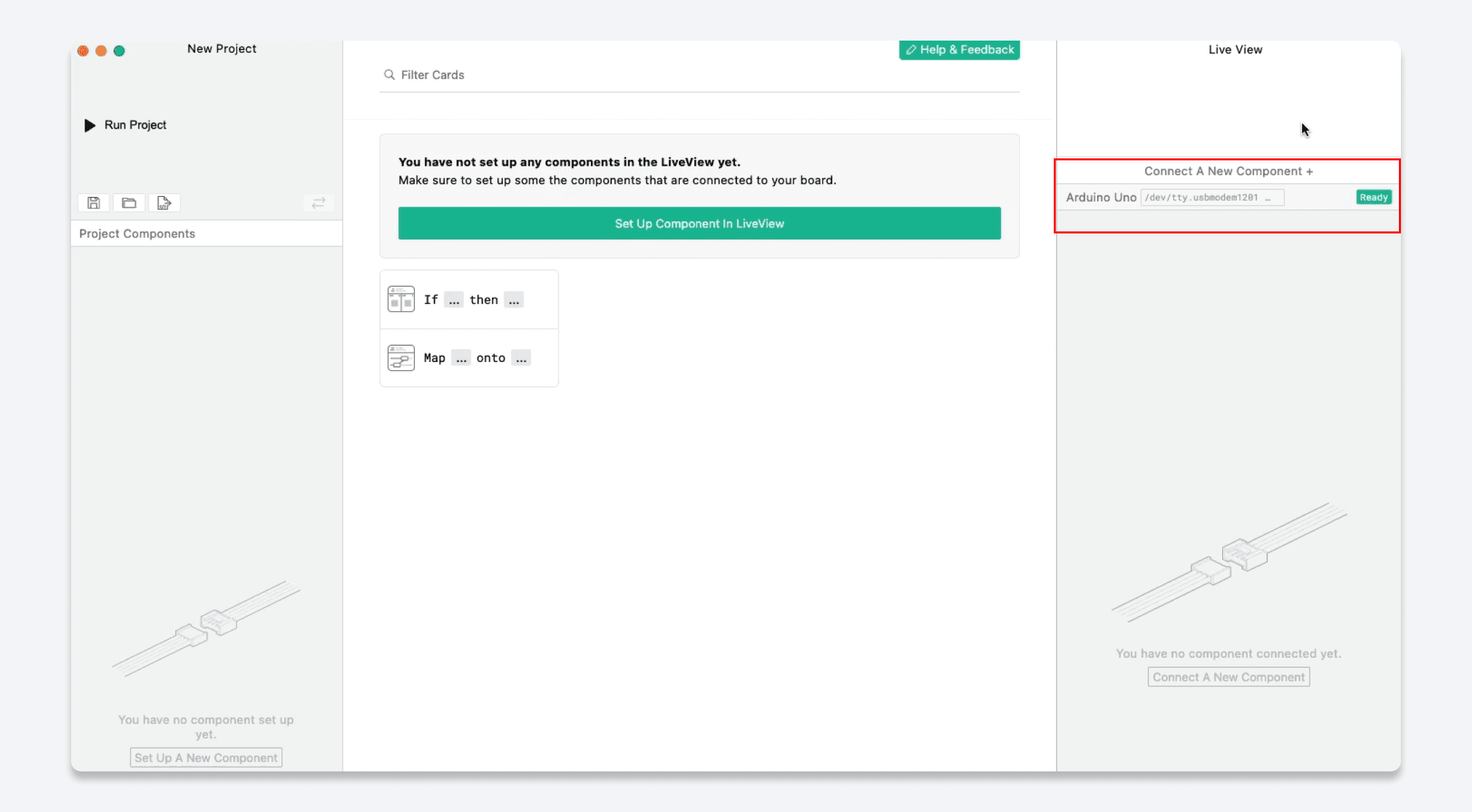
  1. Open the blokdots application on your computer and make sure that you’ve activated the “blokdots pro” plan or start the 14-day trial.

  2. If you’re running ProtoPie Connect and blokdots on the same computer, the connection should happen automatically

  3. If you’re running ProtoPie Connect and blokdots on different computers, open the connection settings and enter the URL of the ProtoPie Connect server

Once blokdots is connected to ProtoPie Connect, the connection indicator at the ProtoPie icon in the bottom-left corner(under “Connections”) should turn green. You will see a Connected message in ProtoPie Connect as well.
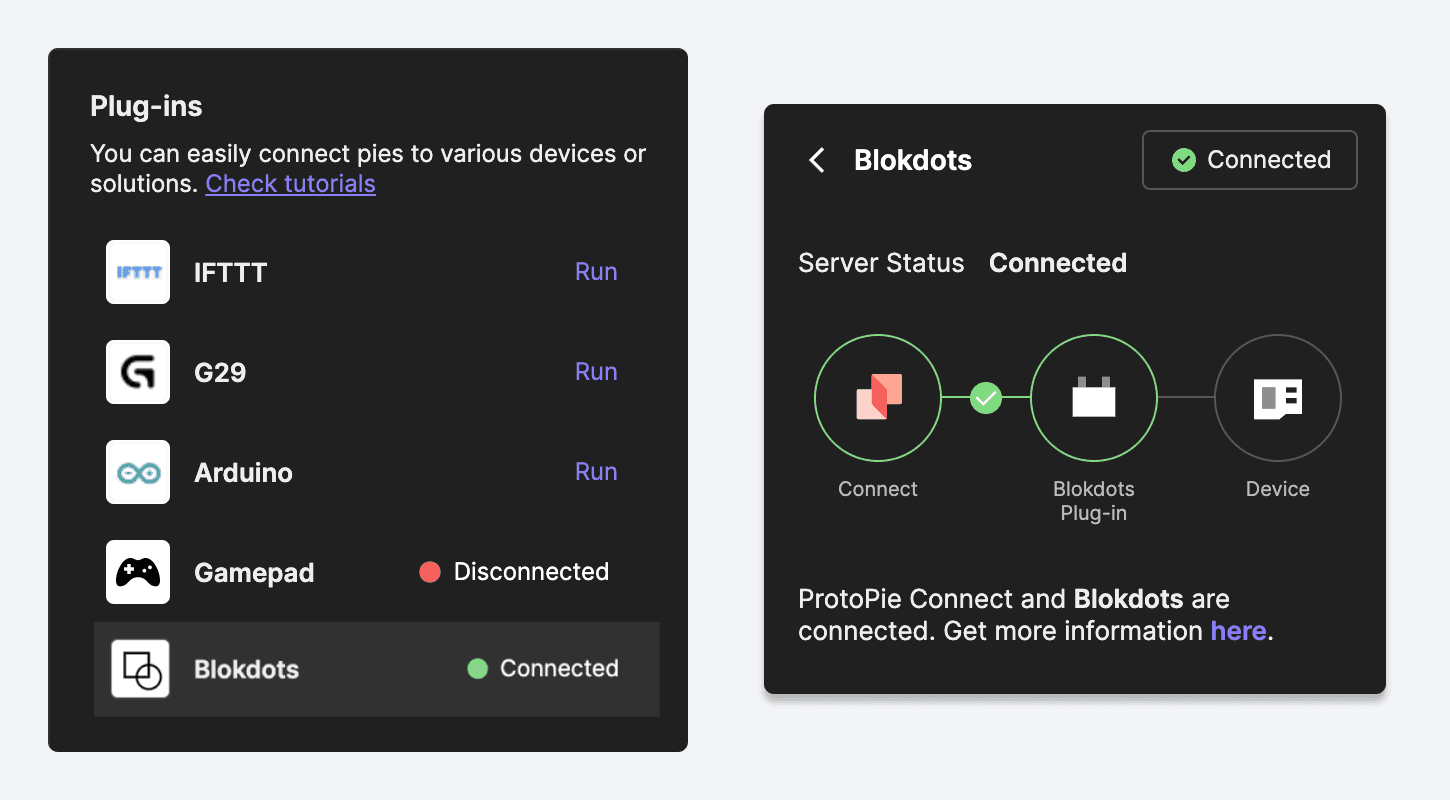

{'_type': 'localeString', 'en': 'blokdots plugin in connected mode.'}
  1. Plug in the Arduino board.


{'_type': 'localeString', 'en': 'The Arduino board is ready for use.'}

Once you see that your board is ready in the top-left corner of blokdots, you can start setting up your components.

  1. Connecting the components

This step is necessary for blokdots to know which components of the Arduino board to control.

  1. Click on Connect A New Component and pick the ones you want to connect.

  2. Chose an available Grove slot or hardware pin from the list

  3. Click on Set Component


{'_type': 'localeString', 'en': 'Set up your components in the Live View of the blokdots app.'}
  1. Configure the components cards.

    1. Start configuring each component card.

{'_type': 'localeString', 'en': 'Configure component cards in the blokdots app.'}

*The blokdots app allows ProtoPie and Arduino to send messages from one to another. To make this happen, you will need to set up Send and Receive in ProtoPie Studio. To learn more about how messages are sent and received between ProtoPie and Arduino, click here.
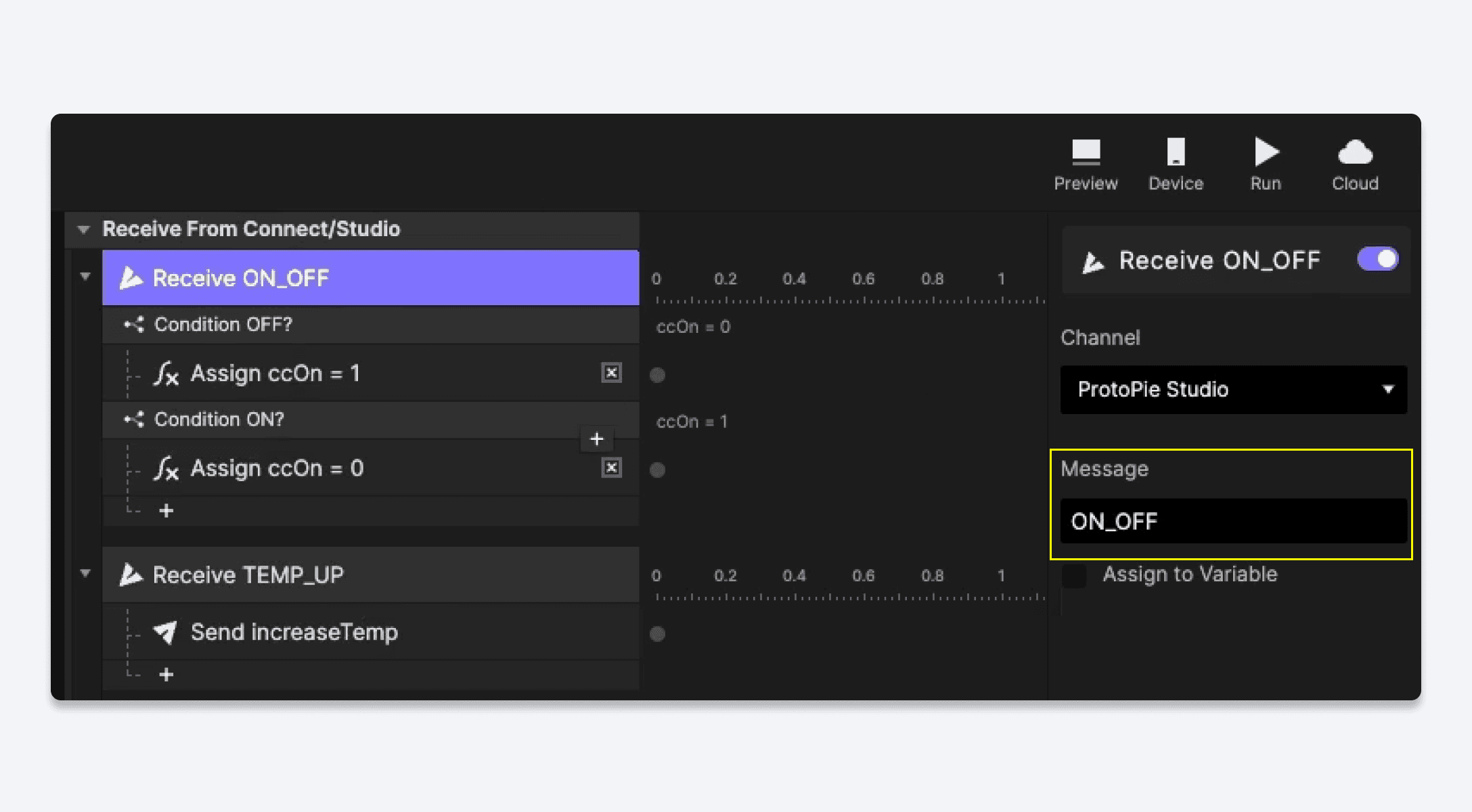

{'_type': 'localeString', 'en': 'Setting up send and receive messages in ProtoPie Studio.'}
  1. Run the project

Click on the Run Project button in blokdots to run your project.

In ProtoPie Connect you’ll be able to see messages coming through the blokdots plugin as you control your Arduino board.


{'_type': 'localeString', 'en': 'Messages coming through via blokdots.'}

To learn more about the blokdots and ProtoPie Connect integration, click here.