Introducing ProtoPie

Getting Started

Making Your First Prototype

ProtoPie Ecosystem

ProtoPie Studio Interface

Import

Getting Started

Importing From Adobe XD

Importing From Figma

Importing From Sketch

ProtoPie Genie

Basic Elements

Containers

Devices

Layers

Preview Window

Scenes

Scroll/Paging

Shortcuts

System Status Bar

Triggers & Responses

Easing

Annotations

Responses

Timelines

Triggers

Formulas

Getting Started

Functions

Layer Properties

Syntax

Formulas Use Cases

Variables

Getting Started

Variables

Predefined Variables

Variables Use Cases

AI

Getting Started

AI Interaction Creation

AI Document Q&A

AI Panel Interface

Tips for Best Results

Auto Layout

Getting Started

Auto Layout Properties

Components

Getting Started

Component Guides

Editing Components

Nested Components

Send & Receive Messages

Interaction Libraries

Getting Started

Managing Interaction Libraries

Managing Library Members

Voice Prototyping

Getting Started

Listen Response

Speak Response

Use Cases

Voice Command Trigger

Connecting Devices

Connecting blokdots

Connecting Mobile Devices

ProtoPie Cloud

Getting Started

Managing Prototypes

Managing Storage

Sharing Prototypes

ProtoPie Player

Testing Prototypes

Managing Fonts

Offline Testing

ProtoPie Player for Wear OS

Teams

Getting Started

Editors & Viewers

Onboarding Your Team

Projects

Team Owner & Team Admin

Handoff

Getting Started

Creating Interaction Recordings

Managing Interaction Recordings

Recording Page

User Testing

Getting Started

Overview

Creating Test Rooms

External Integrations

Managing Test Sessions

Test Results & Analysis

User Testing on ProtoPie Cloud

ProtoPie Connect

Getting Started

API Plugin

Arduino Plugin

blokdots Plugin

Connect Embedded

Custom Layer Integrations

Custom Plugins

Connect Devices

Gamepad Plugin

IFTTT Plugin

Logitech G29 Steering Wheel Plugin

Testing Prototypes

Feature Comparison

Unity Plugin

ProtoPie Enterprise

Getting Started

Organization Settings

Service Admin

Single Sign-On (SSO)

Security

Overview

Access Control

Data Transit, Storage & Backup

Incident Response

Network & ProtoPie Player App Security

Physical Security

Risk Management

Menu

Introducing ProtoPie

Getting Started

Making Your First Prototype

ProtoPie Ecosystem

ProtoPie Studio Interface

Import

Getting Started

Importing From Adobe XD

Importing From Figma

Importing From Sketch

ProtoPie Genie

Basic Elements

Containers

Devices

Layers

Preview Window

Scenes

Scroll/Paging

Shortcuts

System Status Bar

Triggers & Responses

Easing

Annotations

Responses

Timelines

Triggers

Formulas

Getting Started

Functions

Layer Properties

Syntax

Formulas Use Cases

Variables

Getting Started

Variables

Predefined Variables

Variables Use Cases

AI

Getting Started

AI Interaction Creation

AI Document Q&A

AI Panel Interface

Tips for Best Results

Auto Layout

Getting Started

Auto Layout Properties

Components

Getting Started

Component Guides

Editing Components

Nested Components

Send & Receive Messages

Interaction Libraries

Getting Started

Managing Interaction Libraries

Managing Library Members

Voice Prototyping

Getting Started

Listen Response

Speak Response

Use Cases

Voice Command Trigger

Connecting Devices

Connecting blokdots

Connecting Mobile Devices

ProtoPie Cloud

Getting Started

Managing Prototypes

Managing Storage

Sharing Prototypes

ProtoPie Player

Testing Prototypes

Managing Fonts

Offline Testing

ProtoPie Player for Wear OS

Teams

Getting Started

Editors & Viewers

Onboarding Your Team

Projects

Team Owner & Team Admin

Handoff

Getting Started

Creating Interaction Recordings

Managing Interaction Recordings

Recording Page

User Testing

Getting Started

Overview

Creating Test Rooms

External Integrations

Managing Test Sessions

Test Results & Analysis

User Testing on ProtoPie Cloud

ProtoPie Connect

Getting Started

API Plugin

Arduino Plugin

blokdots Plugin

Connect Embedded

Custom Layer Integrations

Custom Plugins

Connect Devices

Gamepad Plugin

IFTTT Plugin

Logitech G29 Steering Wheel Plugin

Testing Prototypes

Feature Comparison

Unity Plugin

ProtoPie Enterprise

Getting Started

Organization Settings

Service Admin

Single Sign-On (SSO)

Security

Overview

Access Control

Data Transit, Storage & Backup

Incident Response

Network & ProtoPie Player App Security

Physical Security

Risk Management

Custom Plugins

Available in the Enterprise plan only.

ProtoPie Connect is equipped with several pre-installed plugins, including API, IFTTT, Logitech G29 steering wheel, Arduino, Gamepad, blokdots, and Unity.

Additionally, users on the Enterprise plan can upload their own custom plugins, enabling them to connect their prototypes to any hardware, APIs, or apps that support Socket.IO via ProtoPie Connect.

Creating Custom Plugins

Custom integrations in ProtoPie Connect can be achieved using Custom Plugins and Bridge Apps. However, we suggest using Custom Plugins instead of Bridge Apps. As Custom Plugin files are portable, they are easier to work with and share among team members.

Here’s how you create a Custom Plugin:

  1. Write your code or reuse an existing Bridge App.

  2. Compile your Bridge App into a single executable binary using pkg
    Index.js files can be compiled for multiple targets (more details here).

  • pkg -t node16-macos-arm64 index.js for Mac ARM

  • pkg -t node16-macos-x64 index.js for Mac Intel

  • pkg -t node16-win-x64 index.js for Windows

    1. Copy the executable file to an empty directory and name it plugin. Create a metadata.json file and add the plugin’s name { "name": "name of the plugin" }.

    2. Compress the file (.zip). Your Custom Plugin is now ready to be used!
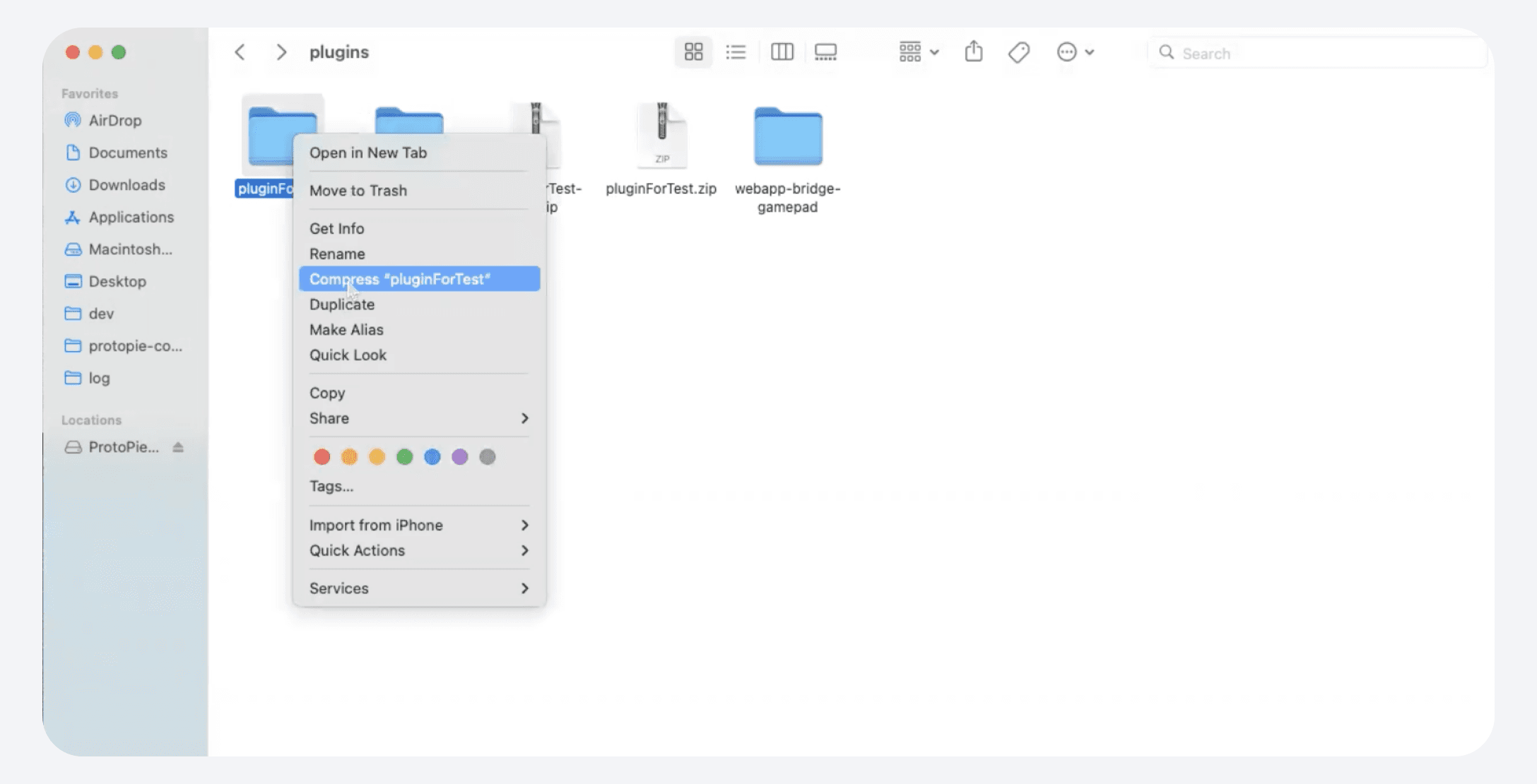

{'_type': 'localeString', 'en': 'compress-custom-plugins'}
  1. Import the Custom Plugin into ProtoPie Connect and run it in the terminal.
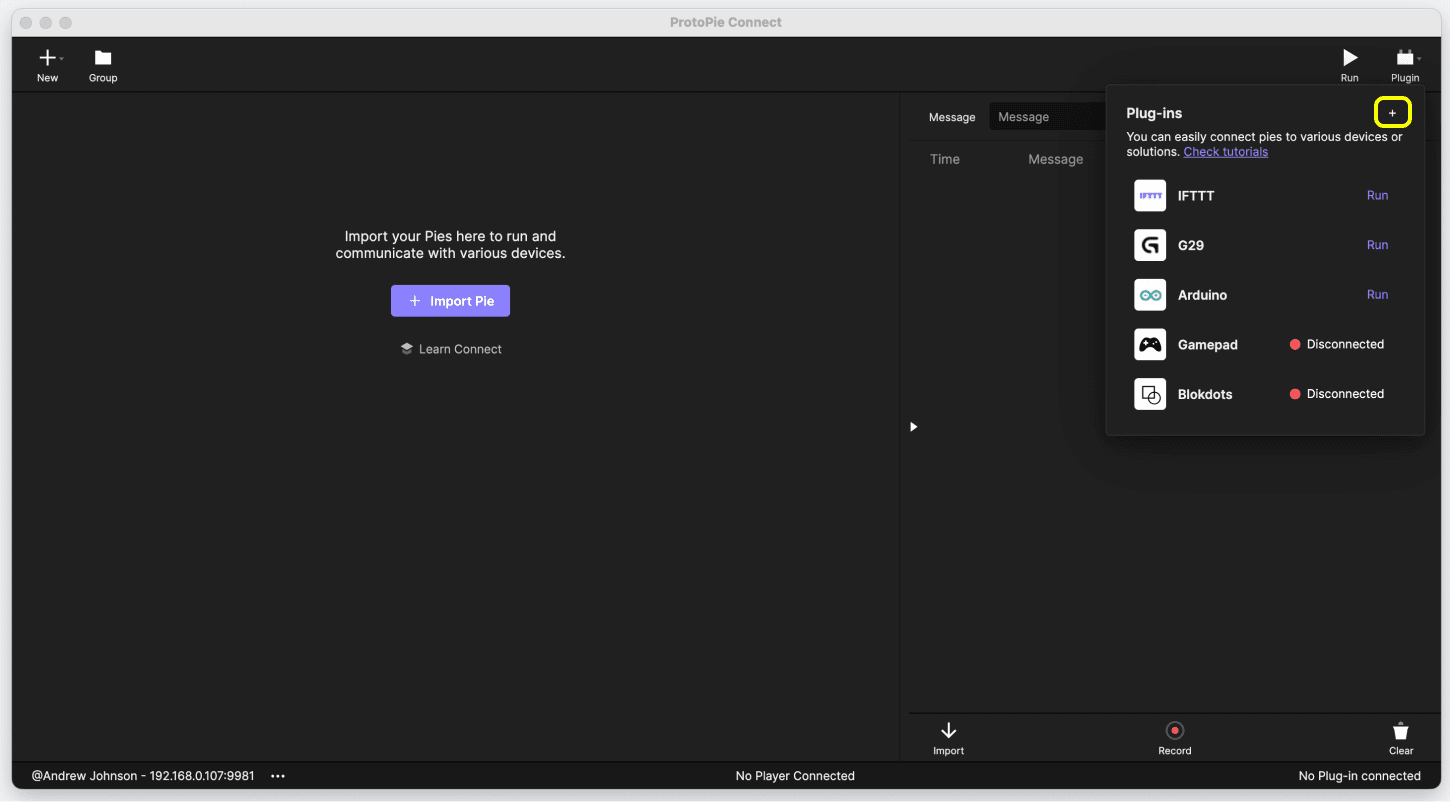

{'_type': 'localeString', 'en': 'protopie-connect-custom-plugin'}

You can find some Custom Plugins examples here.

What is a Bridge App?

Bridge Apps enable communication between any hardware, APIs, or app supporting Socket.IO and ProtoPie Connect. Bridge Apps can catch events, receive data from a server, and even work as a single application.

For your convenience, you can use and customize these Bridge Apps available on GitHub.

Connecting Hardware via Bridge App

The main role of a Bridge App is to convert signals from the hardware into Socket.IO messages - a language ProtoPie can understand - and/or vice versa.

  1. Connect the Bridge App to ProtoPie Connect.

  2. The bridge app converts hardware signals into Socket.IO messages for ProtoPie to interpret. Usually, messages will have the following format:**
    **◦ {messageId: "HwEventName", value: "ValueAssociatedWithEvent"}

  3. Prototypes receiving these messages through ProtoPie Connect will respond accordingly. Some hardware supports bidirectional communication, meaning prototypes can send messages to the hardware. This is only possible if the Bridge App can convert Socket.IO messages into signals that the hardware can interpret.

Connecting to APIs via Bridge Apps

When connecting to APIs via Bridge Apps, the Bridge App converts API responses (e.g., JSON) into individual Socket.IO messages.

For example, if a prototype needs to retrieve weather data dynamically from an API, the Bridge App would do the following:

  1. Convert the JSON response into Socket.IO messages.
    ◦ E.g., {"weather": "sunny", "temperature-celsius": 30.5}

  2. Send Socket.IO messages to ProtoPie Connect that will, in return, relay them to the corresponding prototypes.**
    ◦ {messageId: "weather", value: "sunny"},
    **◦ {messageId: "temperature", value: 30.5}

In the prototype, you need Receive triggers to receive the messages “weather” and “temperature.” Learn more about the Receive trigger.

Running the Bridge App on the Same Machine

By default, most of these Bridge Apps use the IP address http://localhost:9981 as they assume the Bridge App and ProtoPie Connect run on the same machine.
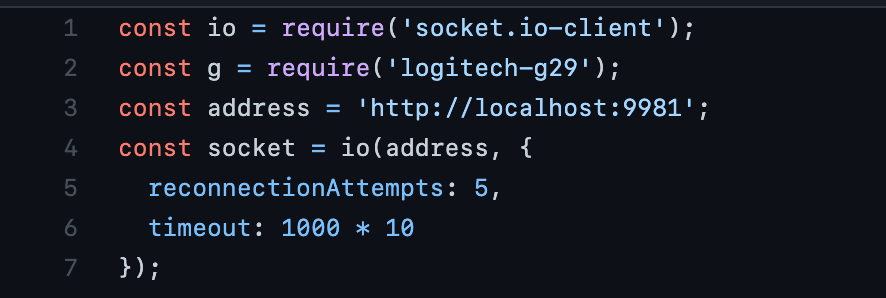

{'_type': 'localeString', 'en': 'running-bridge-app-same-machine'}

Running the Bridge App on a Different Machine

If the Bridge App and ProtoPie Connect run on different machines, you can change the IP address to match ProtoPie Connect’s server.

  • ProtoPie Connect Desktop: find the server address in the below left corner of the interface.


{'_type': 'localeString', 'en': 'ip-address-connect-desktop'}
  • ProtoPie Connect Embedded: find the server address right after launching in the terminal.


{'_type': 'localeString', 'en': 'ip-address-embedded-systems'}