Introducing ProtoPie

Getting Started

Making Your First Prototype

ProtoPie Ecosystem

ProtoPie Studio Interface

Import

Getting Started

Importing From Adobe XD

Importing From Figma

Importing From Sketch

ProtoPie Genie

Basic Elements

Containers

Devices

Layers

Preview Window

Scenes

Scroll/Paging

Shortcuts

System Status Bar

Triggers & Responses

Easing

Annotations

Responses

Timelines

Triggers

Formulas

Functions

Getting Started

Layer Properties

Syntax

Formulas Use Cases

Variables

Getting Started

Predefined Variables

Variables Use Cases

AI

AI Interaction Creation

AI Document Q&A

Getting Started

AI Panel Interface

Tips for Best Results

Auto Layout

Auto Layout Properties

Getting Started

Components

Component Guides

Editing Components

Getting Started

Nested Components

Send & Receive Messages

Interaction Libraries

Getting Started

Managing Interaction Libraries

Managing Library Members

Voice Prototyping

Getting Started

Listen Response

Speak Response

Use Cases

Voice Command Trigger

Connecting Devices

Connecting blokdots

Connecting Mobile Devices

ProtoPie Cloud

Getting Started

Managing Prototypes

Managing Storage

Sharing Prototypes

ProtoPie Player

Testing Prototypes

Managing Fonts

Offline Testing

ProtoPie Player for Wear OS

Teams

Editors & Viewers

Getting Started

Onboarding Your Team

Projects

Team Owner & Team Admin

Handoff

Creating Interaction Recordings

Getting Started

Managing Interaction Recordings

Recording Page

User Testing

Creating Test Rooms

External Integrations

Getting Started

Managing Test Sessions

Test Results & Analysis

User Testing on ProtoPie Cloud

ProtoPie Connect

API Plugin

Arduino Plugin

blokdots Plugin

Connect Embedded

Custom Layer Integrations

Custom Plugins

Gamepad Plugin

Getting Started

IFTTT Plugin

Logitech G29 Steering Wheel Plugin

Testing Prototypes

Feature Comparison

Unity Plugin

ProtoPie Enterprise

Getting Started

Organization Settings

Service Admin

Single Sign-On (SSO)

Security

Access Control

Data Transit, Storage & Backup

Incident Response

Network & ProtoPie Player App Security

Overview

Physical Security

Risk Management

Menu

Introducing ProtoPie

Getting Started

Making Your First Prototype

ProtoPie Ecosystem

ProtoPie Studio Interface

Import

Getting Started

Importing From Adobe XD

Importing From Figma

Importing From Sketch

ProtoPie Genie

Basic Elements

Containers

Devices

Layers

Preview Window

Scenes

Scroll/Paging

Shortcuts

System Status Bar

Triggers & Responses

Easing

Annotations

Responses

Timelines

Triggers

Formulas

Functions

Getting Started

Layer Properties

Syntax

Formulas Use Cases

Variables

Getting Started

Predefined Variables

Variables Use Cases

AI

AI Interaction Creation

AI Document Q&A

Getting Started

AI Panel Interface

Tips for Best Results

Auto Layout

Auto Layout Properties

Getting Started

Components

Component Guides

Editing Components

Getting Started

Nested Components

Send & Receive Messages

Interaction Libraries

Getting Started

Managing Interaction Libraries

Managing Library Members

Voice Prototyping

Getting Started

Listen Response

Speak Response

Use Cases

Voice Command Trigger

Connecting Devices

Connecting blokdots

Connecting Mobile Devices

ProtoPie Cloud

Getting Started

Managing Prototypes

Managing Storage

Sharing Prototypes

ProtoPie Player

Testing Prototypes

Managing Fonts

Offline Testing

ProtoPie Player for Wear OS

Teams

Editors & Viewers

Getting Started

Onboarding Your Team

Projects

Team Owner & Team Admin

Handoff

Creating Interaction Recordings

Getting Started

Managing Interaction Recordings

Recording Page

User Testing

Creating Test Rooms

External Integrations

Getting Started

Managing Test Sessions

Test Results & Analysis

User Testing on ProtoPie Cloud

ProtoPie Connect

API Plugin

Arduino Plugin

blokdots Plugin

Connect Embedded

Custom Layer Integrations

Custom Plugins

Gamepad Plugin

Getting Started

IFTTT Plugin

Logitech G29 Steering Wheel Plugin

Testing Prototypes

Feature Comparison

Unity Plugin

ProtoPie Enterprise

Getting Started

Organization Settings

Service Admin

Single Sign-On (SSO)

Security

Access Control

Data Transit, Storage & Backup

Incident Response

Network & ProtoPie Player App Security

Overview

Physical Security

Risk Management

Projects

Projects allow teams to organize prototypes more effectively within a team space.

Open "Projects" to get an overview of all public projects created in your team space, as well as the private projects you are a member of.

There are two types of projects: public and private.

  • Public projects:

  • All team members have access.

  • Can be converted to a private project.

  • Private projects:

  • Only project members have access.

  • Cannot be converted to a public project.

Creating Projects

Any team member can create projects. However, only editors can upload prototypes to a project. Learn more about editors & viewers.
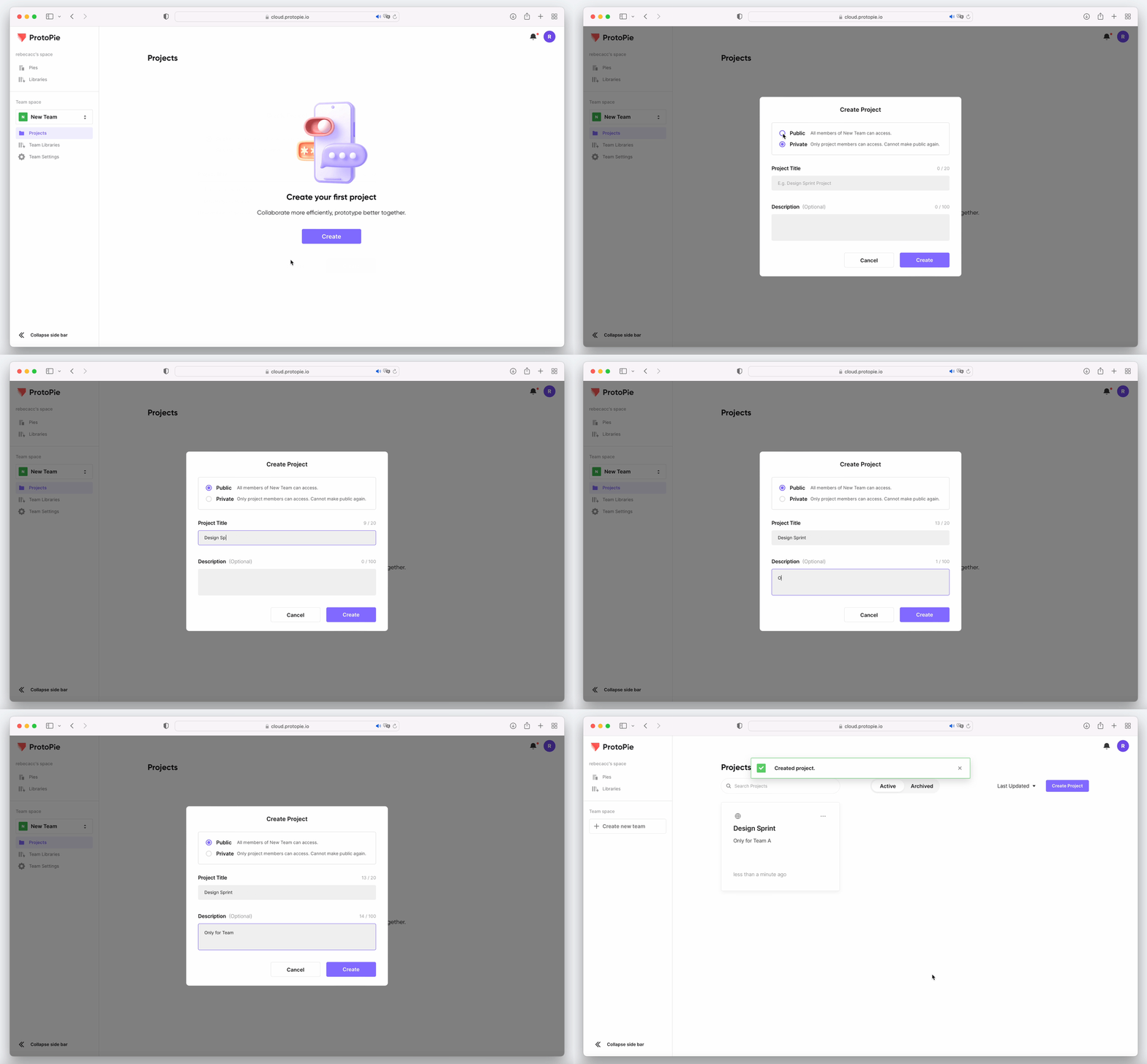

{'_type': 'localeString', 'en': 'creating-projects'}
  1. To create a project in your team space, follow these steps:

  2. Click on Create Project.

  3. Choose whether to make the project private or public. Keep in mind that once a project is set to private, it cannot be reverted back to public.

  4. Enter a title and brief description for the project.

  5. Click on Create.

Managing Projects

The person who creates the project becomes the project owner and manages its settings. This includes tasks such as changing the name and description, transferring ownership, and archiving the project. Only the project owner can convert a public project to a private one.
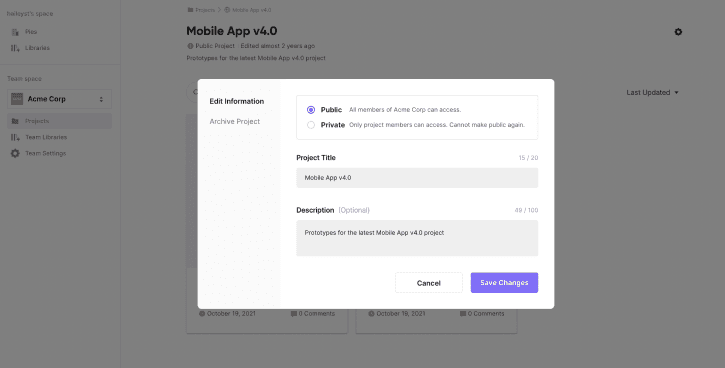

{'_type': 'localeString', 'en': 'managing-projects'}

Managing Members in a Private Project

Only selected members, known as project members, have access to a private project.

To add or remove members from a private project, follow these steps:

  1. Click on the + icon.

  2. Add or remove members as needed.


{'_type': 'localeString', 'en': 'managing_members_in_private_project'}

Active & Archived Projects

A project can have one of two statuses: active or archived.

Active Projects

The Active tab displays all currently active projects. All team members have access to prototypes in these projects, but only editors can upload prototypes to them.
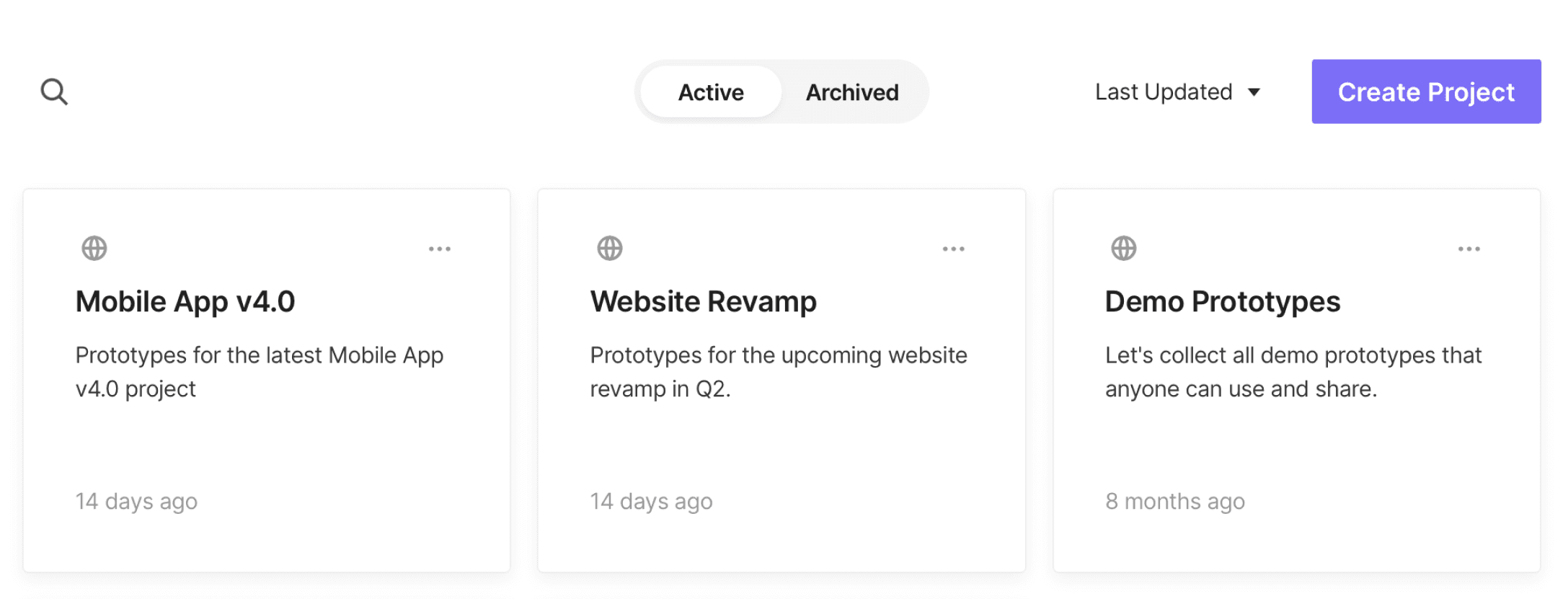

{'_type': 'localeString', 'en': 'active-projects'}

Archived Projects

Team members can archive projects they no longer need. All archived projects can be found under the Archived tab. Prototypes in archived projects cannot be accessed, and editors cannot upload prototypes to them. To make an archived project active again, restore it.