ProtoPie MCP ベータ版を提供開始!詳しくはこちら。

ProtoPie MCPのベータ版が提供開始!

Introducing ProtoPie

始める

Making Your First Prototype

ProtoPie Ecosystem

ProtoPie Studio Interface

Import

始める

Importing From Adobe XD

Importing From Figma

Importing From Sketch

ProtoPie Genie

Basic Elements

Containers

Devices

Layers

Preview Window

Scenes

Scroll/Paging

Shortcuts

System Status Bar

Triggers & Responses

Easing

Annotations

Responses

Timelines

Triggers

Formulas

始める

Functions

Layer Properties

Syntax

Formulas Use Cases

Variables

始める

Variables

Predefined Variables

Variables Use Cases

AI

始める

AI Interaction Creation

AI Document Q&A

AI Panel Interface

Tips for Best Results

ProtoPie MCP

Getting Started

Studio MCP 概要

Studio MCP インストールとセットアップ

Code MCP 概要

Code MCP インストールとセットアップ

Dev View

Auto Layout

시작하기

Auto Layout Properties

Components

始める

Component Guides

Editing Components

Nested Components

Send & Receive Messages

Interaction Libraries

始める

Managing Interaction Libraries

Managing Library Members

Voice Prototyping

Getting Started

Listen Response

Speak Response

Use Cases

Voice Command Trigger

Connecting Devices

Connecting blokdots

Connecting Mobile Devices

ProtoPie Cloud

始める

Managing Prototypes

Managing Storage

Sharing Prototypes

ProtoPie Player

Testing Prototypes

Managing Fonts

Offline Testing

ProtoPie Player for Wear OS

Teams

始める

Editors & Viewers

Onboarding Your Team

Projects

Team Owner & Team Admin

Handoff

始める

Creating Interaction Recordings

Managing Interaction Recordings

Recording Page

User Testing

始める

Overview

Creating Test Rooms

External Integrations

Managing Test Sessions

Test Results & Analysis

User Testing on ProtoPie Cloud

ProtoPie Connect

始める

API Plugin

Arduino Plugin

blokdots Plugin

Connect Embedded

Custom Layer Integrations

Custom Plugins

Connect Devices

Gamepad Plugin

IFTTT Plugin

Logitech G29 Steering Wheel Plugin

Testing Prototypes

Feature Comparison

Unity Plugin

ProtoPie Enterprise

始める

Organization Settings

Service Admin

Single Sign-On (SSO)

Security

Overview

Access Control

Data Transit, Storage & Backup

Incident Response

Network & ProtoPie Player App Security

Physical Security

Risk Management

Menu

Introducing ProtoPie

始める

Making Your First Prototype

ProtoPie Ecosystem

ProtoPie Studio Interface

Import

始める

Importing From Adobe XD

Importing From Figma

Importing From Sketch

ProtoPie Genie

Basic Elements

Containers

Devices

Layers

Preview Window

Scenes

Scroll/Paging

Shortcuts

System Status Bar

Triggers & Responses

Easing

Annotations

Responses

Timelines

Triggers

Formulas

始める

Functions

Layer Properties

Syntax

Formulas Use Cases

Variables

始める

Variables

Predefined Variables

Variables Use Cases

AI

始める

AI Interaction Creation

AI Document Q&A

AI Panel Interface

Tips for Best Results

ProtoPie MCP

Getting Started

Studio MCP 概要

Studio MCP インストールとセットアップ

Code MCP 概要

Code MCP インストールとセットアップ

Dev View

Auto Layout

시작하기

Auto Layout Properties

Components

始める

Component Guides

Editing Components

Nested Components

Send & Receive Messages

Interaction Libraries

始める

Managing Interaction Libraries

Managing Library Members

Voice Prototyping

Getting Started

Listen Response

Speak Response

Use Cases

Voice Command Trigger

Connecting Devices

Connecting blokdots

Connecting Mobile Devices

ProtoPie Cloud

始める

Managing Prototypes

Managing Storage

Sharing Prototypes

ProtoPie Player

Testing Prototypes

Managing Fonts

Offline Testing

ProtoPie Player for Wear OS

Teams

始める

Editors & Viewers

Onboarding Your Team

Projects

Team Owner & Team Admin

Handoff

始める

Creating Interaction Recordings

Managing Interaction Recordings

Recording Page

User Testing

始める

Overview

Creating Test Rooms

External Integrations

Managing Test Sessions

Test Results & Analysis

User Testing on ProtoPie Cloud

ProtoPie Connect

始める

API Plugin

Arduino Plugin

blokdots Plugin

Connect Embedded

Custom Layer Integrations

Custom Plugins

Connect Devices

Gamepad Plugin

IFTTT Plugin

Logitech G29 Steering Wheel Plugin

Testing Prototypes

Feature Comparison

Unity Plugin

ProtoPie Enterprise

始める

Organization Settings

Service Admin

Single Sign-On (SSO)

Security

Overview

Access Control

Data Transit, Storage & Backup

Incident Response

Network & ProtoPie Player App Security

Physical Security

Risk Management

Teams

The Pro and Enterprise plans come with powerful team features that make collaboration easier.

Each team member is assigned one of the following roles: team owner, team admin, editor, or viewer.

Based on their assigned roles, team members can create and upload prototypes to the team space and manage access to prototypes, projects, and team libraries to ensure smooth collaboration.

Check out our dedicated documentation to learn more about the differences between a team owner and a team admin or between an editor and a viewer.

If your team is already created and you're ready to onboard it, learn more about onboarding your team.

Creating a New Team

{'_type': 'localeString', 'en': 'creating-a-team'}
  1. Log into ProtoPie Cloud with your ProtoPie account.

  2. Click on the Team Space menu in the left sidebar.

  3. Click on Create New Team.

  4. Enter a team name and click on Create.

  5. Click on Learn more to activate your Pro plan and unlock Pro features.

  6. Choose between the yearly and monthly Pro plans.

  7. Adjust the number of editor seats.

  8. Click on Subscribe Now and follow the checkout steps.

Getting Started with Team Settings

{'_type': 'localeString', 'en': 'Getting Started with Team Settings', 'ja': 'Getting Started with Team Settings', 'ko': 'Getting Started with Team Settings', 'zh': 'Getting Started with Team Settingsc'}
  1. Log into ProtoPie Cloud with your ProtoPie account.

  2. In the left sidebar, click on the Team space dropdown menu.

  3. Select the Team Space you want to access.

  4. Click on Team settings.

  5. In the General tab, you can find your Team Id.

  6. You can also update your Team name and Team logo from this page.

Managing Members & Roles

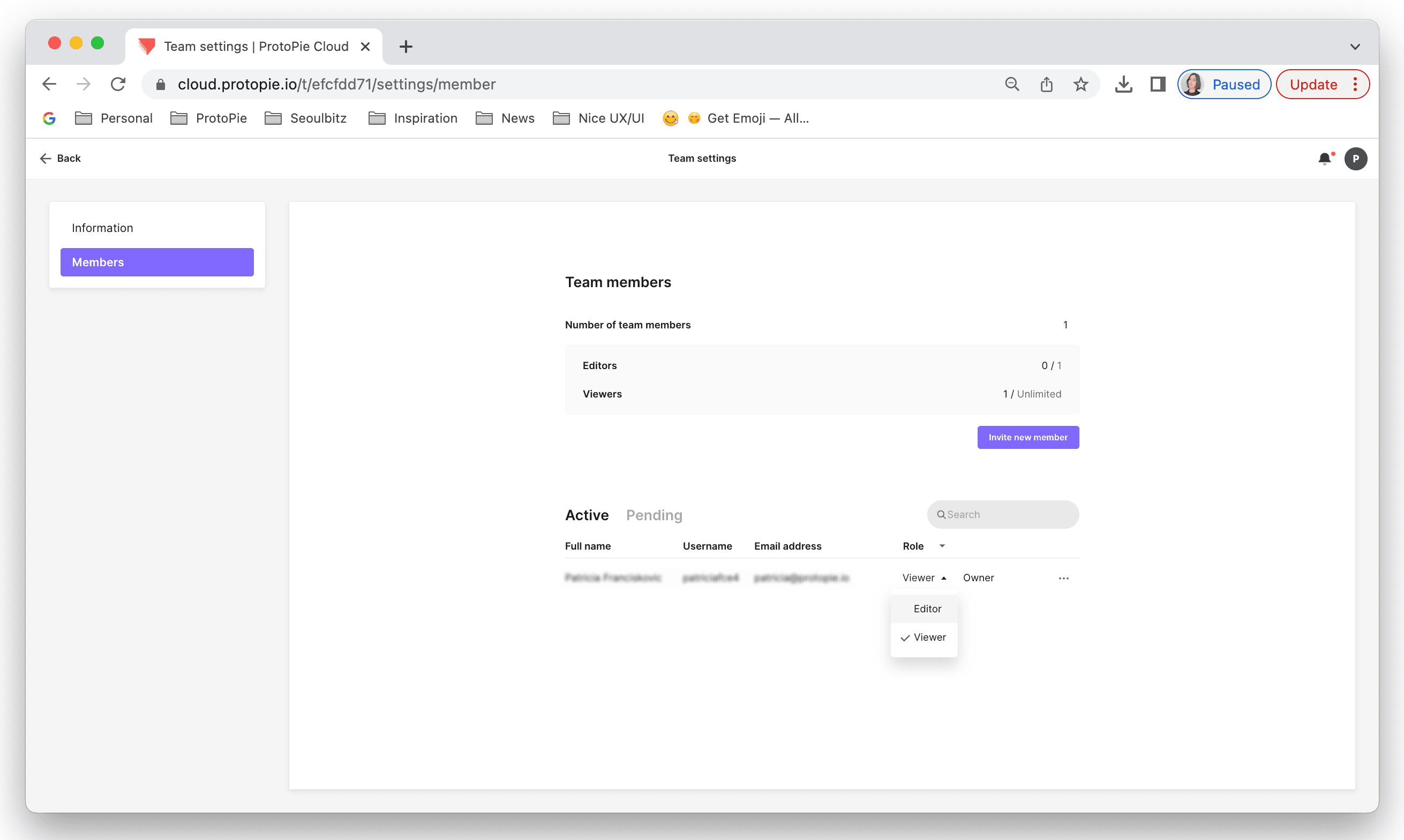
To invite members to a team space, open Team settings and click on Members. Then, select "Invite new member" and enter their email address.

Only the team owner and team admin/s can invite new members to the team. Invited members will receive an email invitation to join the team space.

To change a member's role, click the arrow next to their role under Role and select the desired role from the dropdown menu. Learn more about member roles.

{'_type': 'localeString', 'en': 'changing members roles in a ProtoPie team '}

Member Types & Roles

Team Owner & Team Admin

The team owner role is automatically assigned to the account that creates and activates the team. If you need to transfer your team's ownership to another account, please contact support.

A team can have one or multiple team admins. Both the team owner and team admin can invite new members to the team and assign roles. The team owner can manage billing information and access all invoices.

Learn more about team owner & team admin.

Editors & Viewers

Viewers can be added without limit since they are free of charge. However, the number of editors you can have is determined by the available editor seats in your paid plan.

Editors can create prototypes and upload them to the cloud, while viewers can only see the prototypes stored in their team space and leave comments. Learn more about editors & viewers.

Spaces

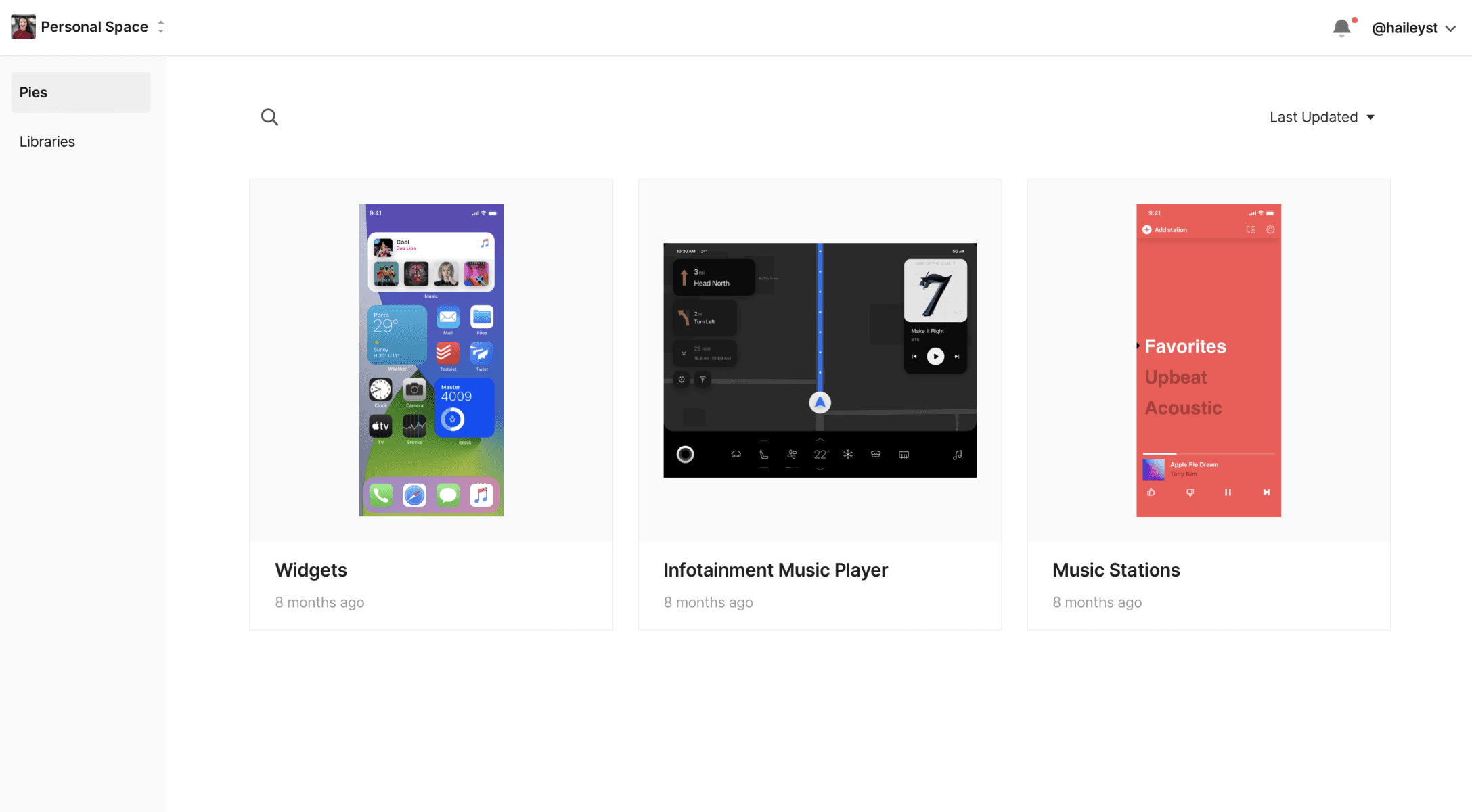
Team members have access to two different spaces in their account:* personal space *and team space.

Personal Space

Your personal space is a private area on the cloud where you can store and manage your personal prototypes and libraries without anyone else accessing them. You can move a prototype from your personal space to a project in a team space, but you cannot move prototypes from a team space to your personal space.

Learn more about duplicating & moving prototypes.


{'_type': 'localeString', 'en': 'personal-space'}

Team Space

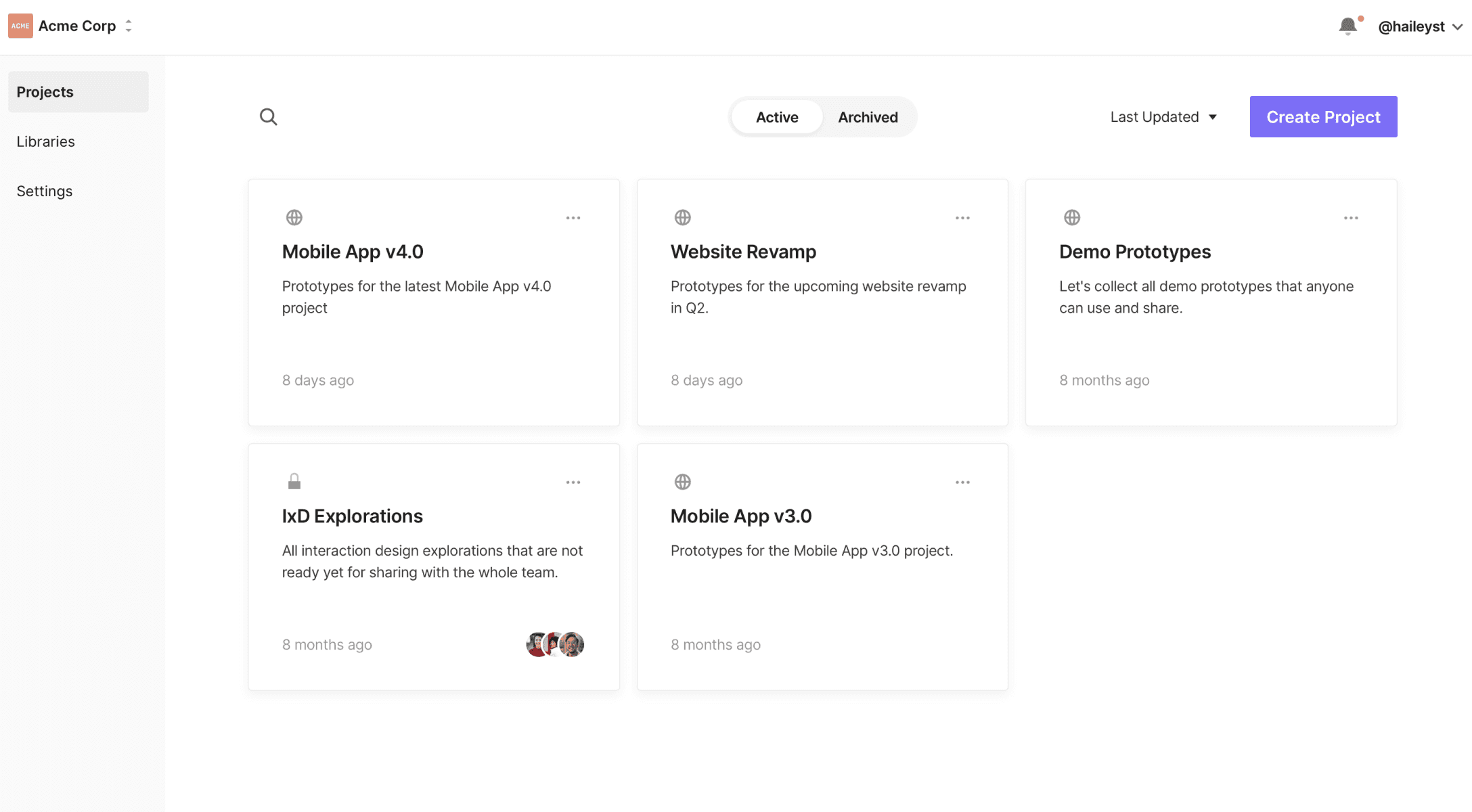
Each team you join has its own space in your cloud space, so if you join three teams, you'll have three spaces.

The team space consists of all the projects created by team members, whether public or private. It also includes team libraries. Learn more about projects.

Only editors with access to the project can duplicate or move its prototypes. Duplicates are always created within the same project as the original prototype. It is possible to move prototypes across projects within a single team space but not between team spaces.


{'_type': 'localeString', 'en': 'team-space'}