INSIGHTS & INSPIRATION
PRODUCT LEARNING & SUPPORT
INSIGHTS & INSPIRATION
PRODUCT LEARNING & SUPPORT
Introducing ProtoPie
Triggers & Responses
Auto Layout
Interaction Libraries
Connecting Devices
ProtoPie Enterprise
Menu
Introducing ProtoPie
Triggers & Responses
Auto Layout
Interaction Libraries
Connecting Devices
ProtoPie Enterprise
レスポンス
ProtoPie では、Response は トリガー によって起動されるインタラクション要素です。これは、それに結び付けられたトリガーによって開始されるアクションとして説明できます。
移動
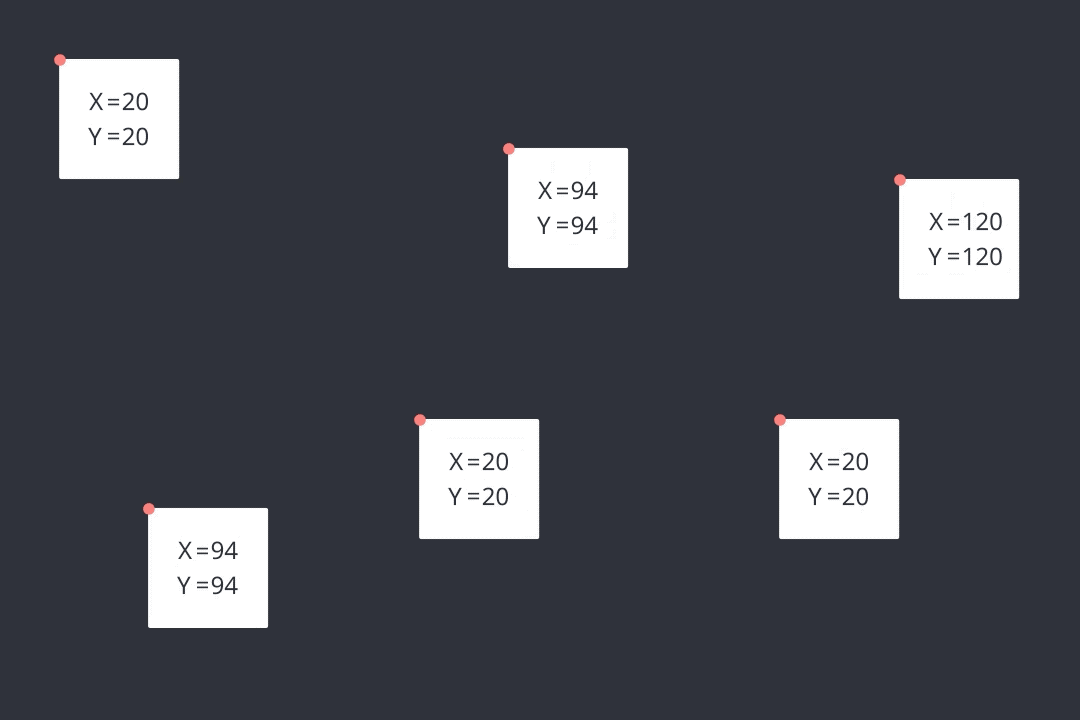
レイヤーを指定の座標へ移動します。
Move (移動)
レイヤーの移動先の座標
Move (移動)
レイヤーの移動先の座標
拡大・縮小
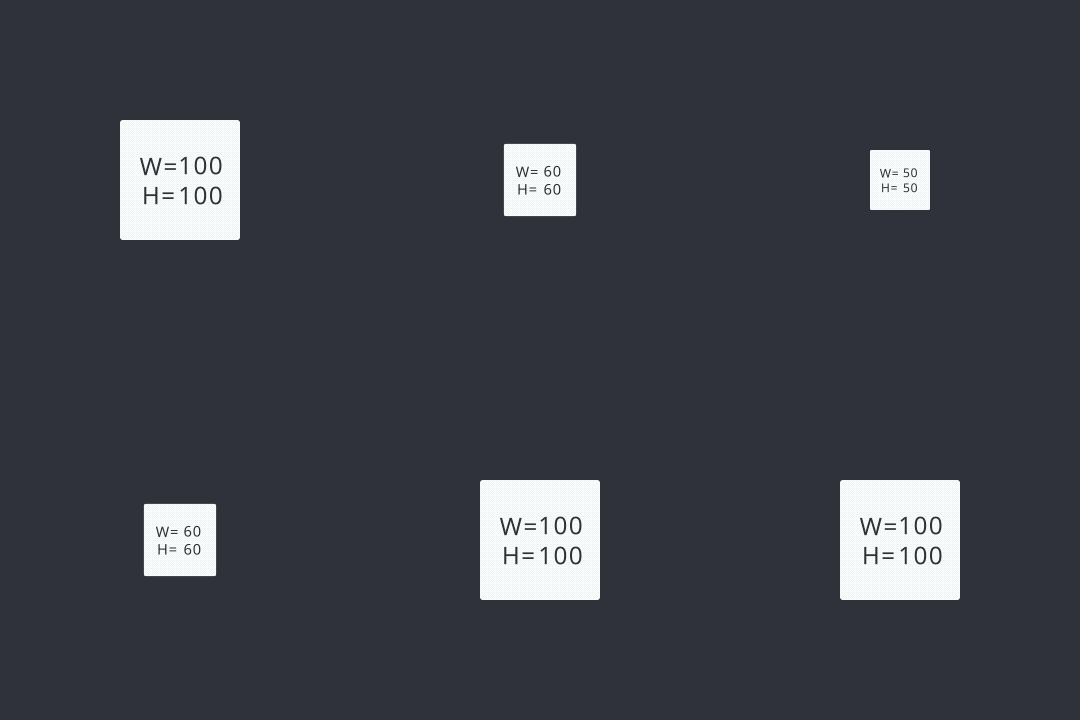
レイヤーを拡大または縮小します。
Size (サイズ)
幅(width)と高さ(height)に固定値を指定して、レイヤーのサイズを修正することができます。(コンテナのサイズが変更されても、コンテナ内のレイヤーは変更されません。)
Factor (倍率)
特定の割合(%)で比例してレイヤーのサイズを修正することができます。(コンテナのサイズが変更されると、コンテナ内のレイヤーもサイズ変更されます。)
Size (サイズ)
幅(width)と高さ(height)に固定値を指定して、レイヤーのサイズを修正することができます。(コンテナのサイズが変更されても、コンテナ内のレイヤーは変更されません。)
Factor (倍率)
特定の割合(%)で比例してレイヤーのサイズを修正することができます。(コンテナのサイズが変更されると、コンテナ内のレイヤーもサイズ変更されます。)
回転
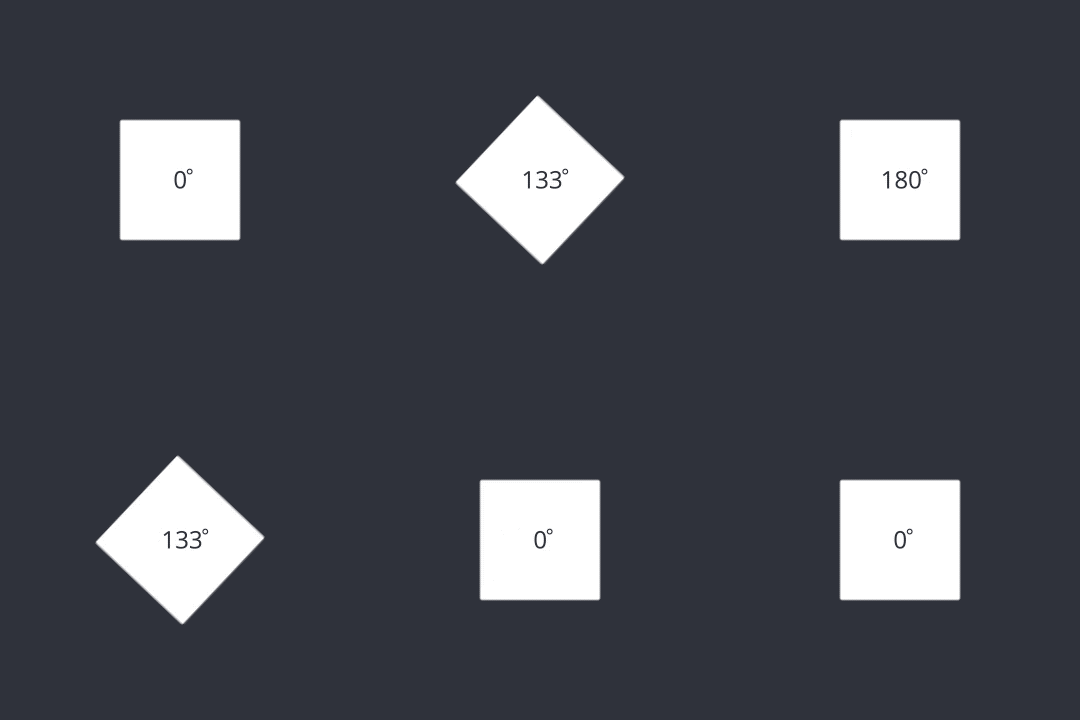
レイヤーを指定の角度に回転します。
Rotate to (回転先)
レイヤーの回転先の角度
Rotate by (回転量)
レイヤーが回転する回転量
Direction (方向)
レイヤーが移動する方向のエリア
Rotate to (回転先)
レイヤーの回転先の角度
Rotate by (回転量)
レイヤーが回転する回転量
Direction (方向)
レイヤーが移動する方向のエリア
3D 回転
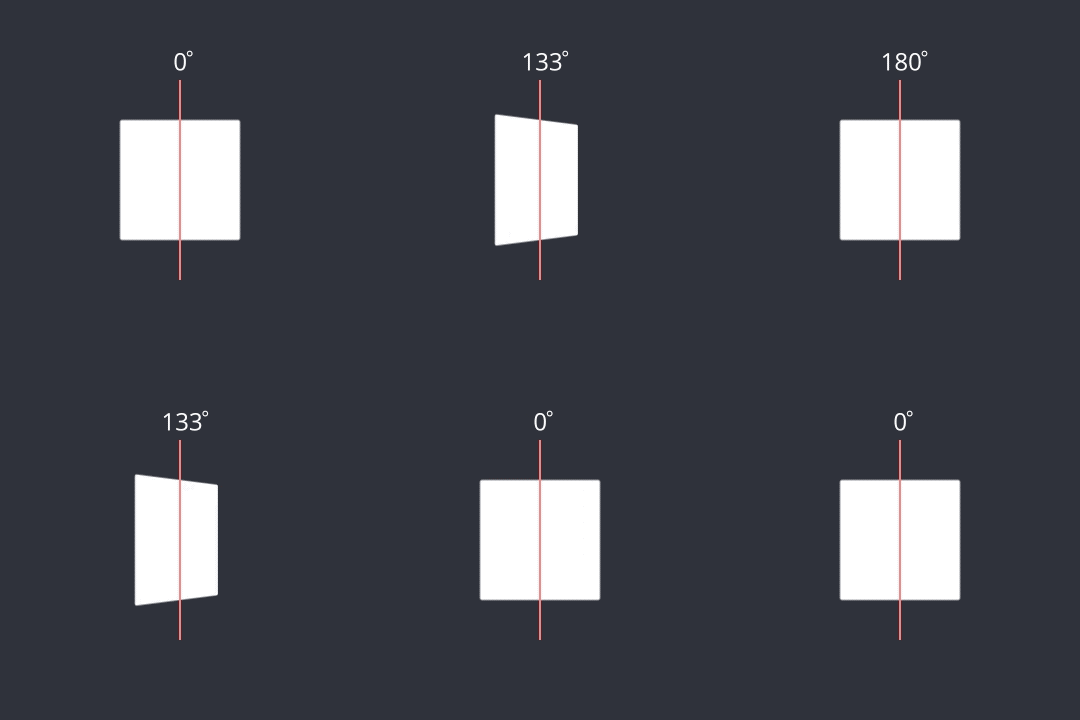
レイヤーを三次元空間で指定の角度に回転します。
Rotate to (回転先)
レイヤーの回転先の角度
Rotate by (回転量)
レイヤーが回転する回転量
Direction (方向)
レイヤーが移動する方向の領域
Pivot (ピボット)
レイヤーが回転またはサイズ変更を行う際の基準点
Perspective Depth (遠近感の奥行き)
レイヤーと表示するための焦一点との間の距離
Rotate to (回転先)
レイヤーの回転先の角度
Rotate by (回転量)
レイヤーが回転する回転量
Direction (方向)
レイヤーが移動する方向の領域
Pivot (ピボット)
レイヤーが回転またはサイズ変更を行う際の基準点
Perspective Depth (遠近感の奥行き)
レイヤーと表示するための焦一点との間の距離
不透明度
レイヤーの透明度を変更します。
Change to (変更先)
レイヤーの不透明度の変更
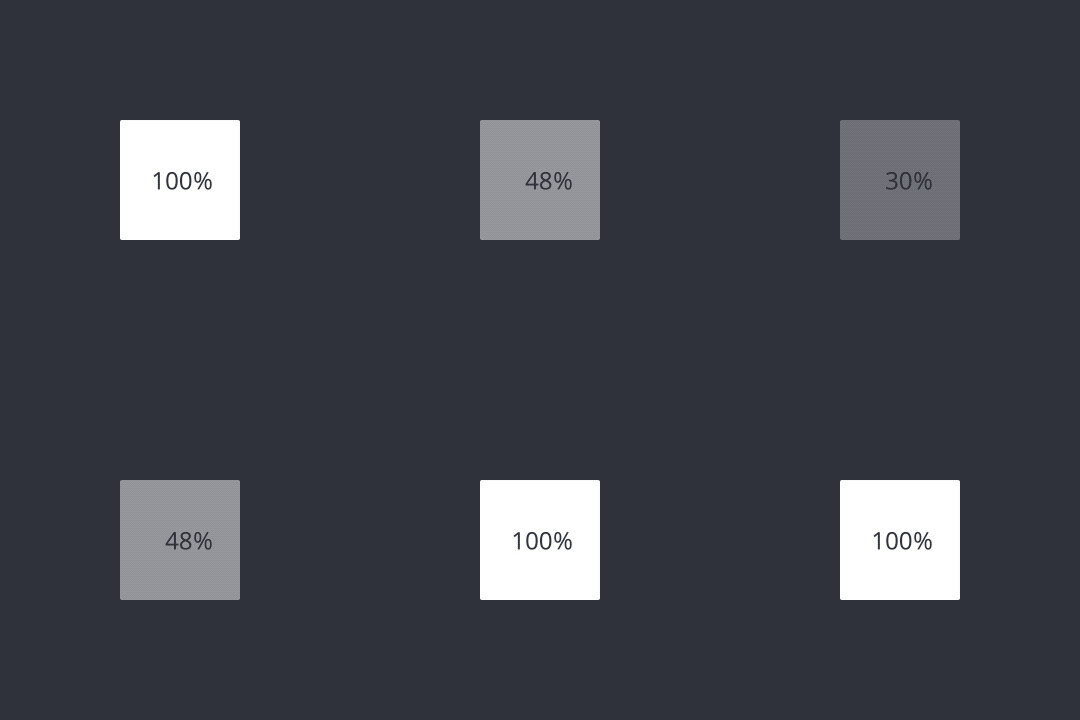
Change to (変更先)
レイヤーの不透明度の変更
色
レイヤーの色を変更します。
Fill (塗りつぶし)
レイヤーの色を変更する
Border (境界線)
レイヤーの境界線の色を変更する
Shadow (シャドウ)
レイヤーのシャドウの色を変更する
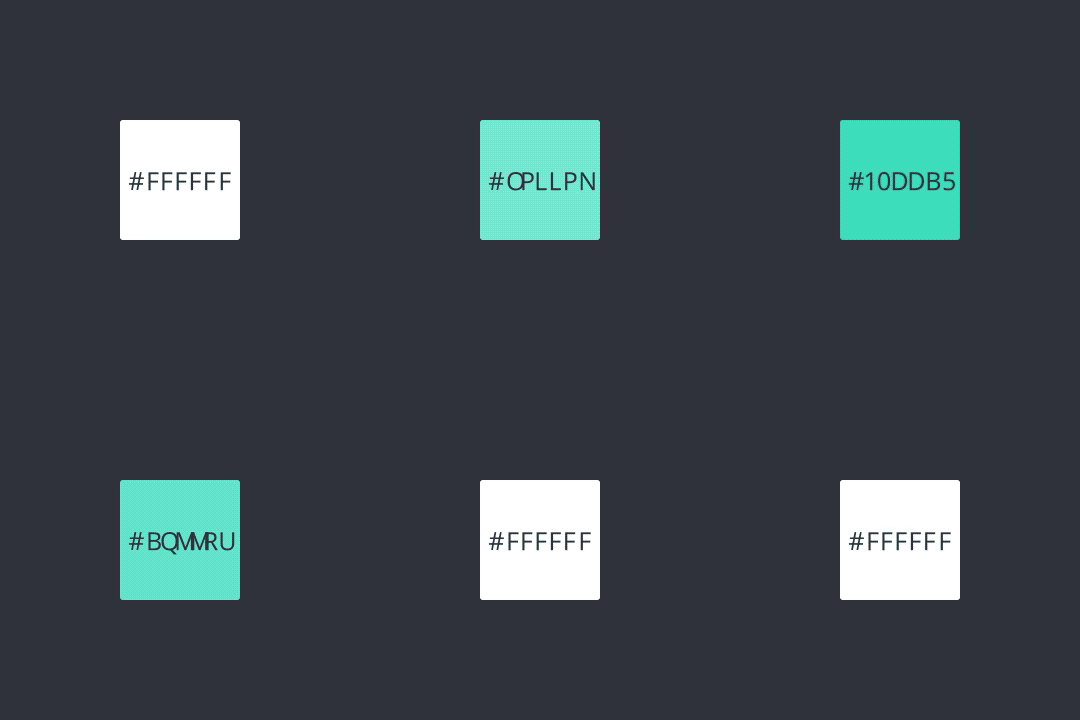
Fill (塗りつぶし)
レイヤーの色を変更する
Border (境界線)
レイヤーの境界線の色を変更する
Shadow (シャドウ)
レイヤーのシャドウの色を変更する
半径
レイヤーの個々の角またはすべての角の半径を変更します。
Radius To (半径変更先)
半径に設定する値。
Radius By (半径増減量)
現在の半径に対して加算または減算する量。
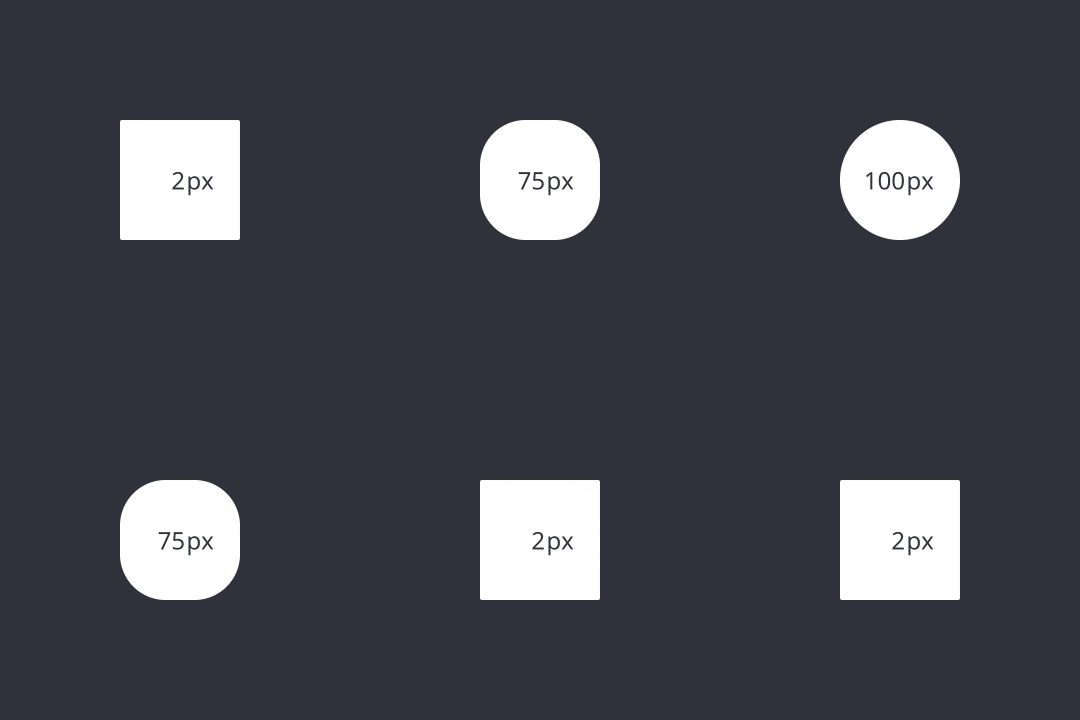
Radius To (半径変更先)
半径に設定する値。
Radius By (半径増減量)
現在の半径に対して加算または減算する量。
境界線
レイヤーにカスタムの境界線を追加します。
Border Position (境界線の位置)
境界線は、レイヤーのアウトラインの内側、中央、または外側に配置できます

Border Position (境界線の位置)
境界線は、レイヤーのアウトラインの内側、中央、または外側に配置できます
影
レイヤーにカスタムの影を追加します。
Shadow (シャドウ)
シャドウは、選択した座標とぼかしに基づいてカスタマイズできます。

Shadow (シャドウ)
シャドウは、選択した座標とぼかしに基づいてカスタマイズできます。
背景ぼかし
特定のぼかし効果に基づいて、下のレイヤーをぼかします。
Default Effects (デフォルトのエフェクト)
Ultra Light(極めて明るい)
Light(明るい)
Dark(暗い)
Material Effects [マテリアルエフェクト(ライト&ダークテーマ)]
Ultra Thin Material(極めて薄いマテリアル)
Thin Material(薄いマテリアル)
Material(マテリアル)
Thick Material(厚いマテリアル)
Chrome Material(クロームマテリアル)

Default Effects (デフォルトのエフェクト)
Ultra Light(極めて明るい)
Light(明るい)
Dark(暗い)
Material Effects [マテリアルエフェクト(ライト&ダークテーマ)]
Ultra Thin Material(極めて薄いマテリアル)
Thin Material(薄いマテリアル)
Material(マテリアル)
Thick Material(厚いマテリアル)
Chrome Material(クロームマテリアル)
順序を変更
スタック内のレイヤーの順序を変更します。
Reorder (並べ替え)
レイヤーの順序の変更
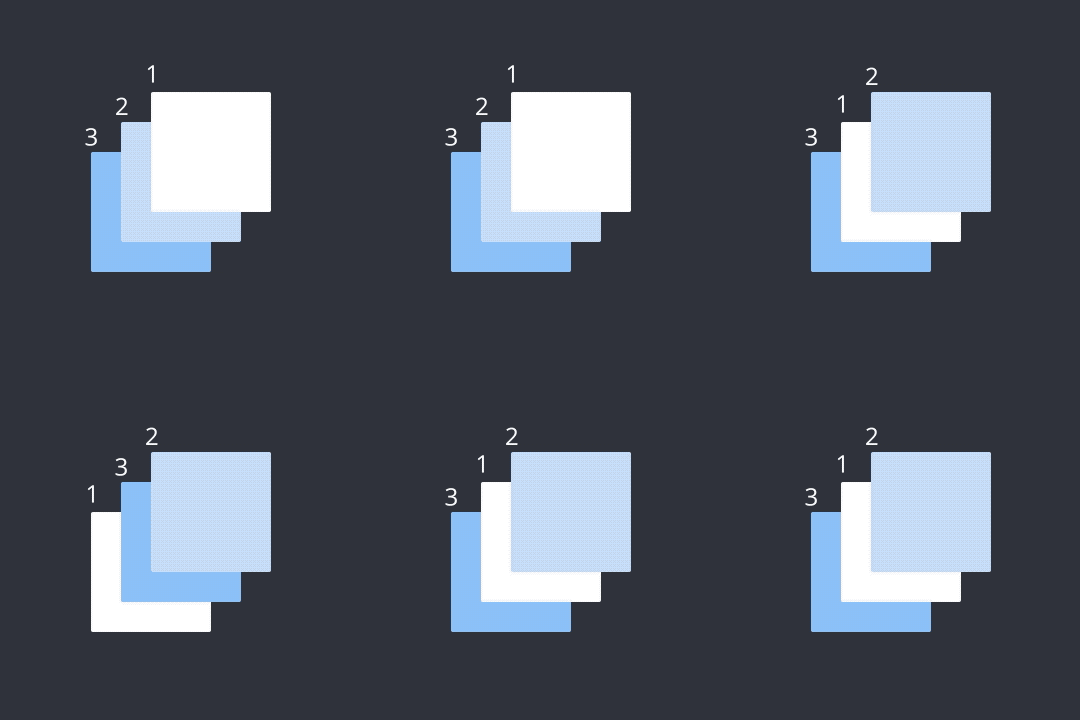
Reorder (並べ替え)
レイヤーの順序の変更
スクロール
コンテナ内の特定の位置までスクロールします。
Scroll (スクロール)
レイヤーがスクロールする量

Scroll (スクロール)
レイヤーがスクロールする量
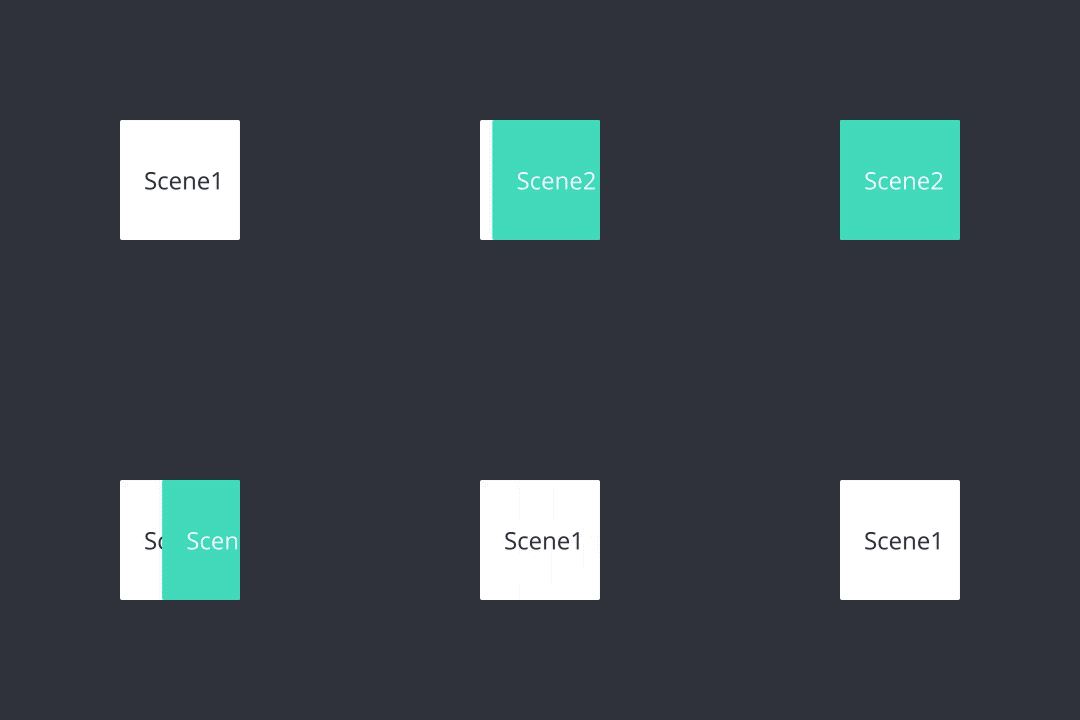
ジャンプ
あるシーンから別のシーンへ移動します。
Smart Jump を使うと、シーン間の遷移を自動でアニメーション化できます。Smart Jump については詳しく見る。
Scene (シーン)
特定のシーンにジャンプします
Transition (トランジション)
シーンへのジャンプ時のトランジション効果
Instant (インスタント)
Smart (スマート)
Fade (フェード)
Pop (ポップ)
Slide In (スライドイン)
Slide Out (スライドアウト)
Flip (フリップ)
Reset the current scene (現在のシーンをリセット)
ジャンプ時に、選択されたシーンがリセットされます。このオプションが有効でない場合、シーンは最後の状態のままになります
Scene (シーン)
特定のシーンにジャンプします
Transition (トランジション)
シーンへのジャンプ時のトランジション効果
Instant (インスタント)
Smart (スマート)
Fade (フェード)
Pop (ポップ)
Slide In (スライドイン)
Slide Out (スライドアウト)
Flip (フリップ)
Reset the current scene (現在のシーンをリセット)
ジャンプ時に、選択されたシーンがリセットされます。このオプションが有効でない場合、シーンは最後の状態のままになります
送信
Send レスポンスはデバイスのインタラクションを有効にしますが、単独では使用できません。
これらは Receive トリガーと一緒に使用する必要があります。Receive トリガーを持つプロトタイプが、Send レスポンスを通じて別のプロトタイプから送信されたメッセージを受信すると、これらのアクションが実行されます。受信したメッセージは、常に送信されたメッセージと一致している必要があります。
メッセージの送受信は、同じシーン内でインタラクションをモジュール化したり、一連のレスポンスを再利用したりするために使用できます。これにより、繰り返し作業を避けられます。
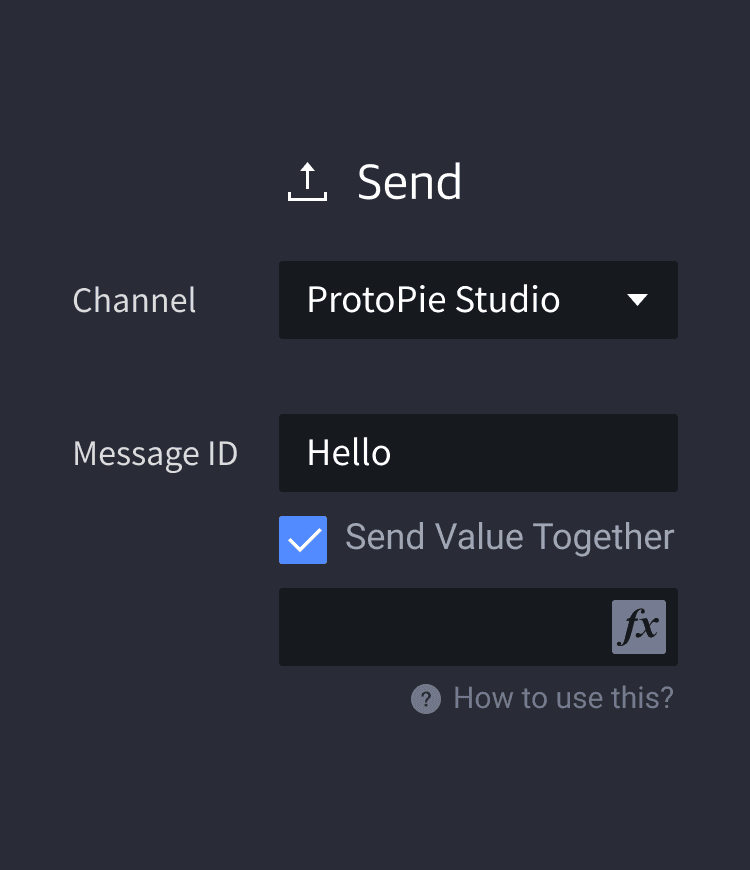
チャンネル [コンポーネント]
コンポーネント内では、[送信] レスポンスを使用してメッセージを送信でき、これをコンポーネント外の [受信] トリガーで受信できます。これは逆の場合も同様に機能します。詳細については、 コンポーネント を参照してください。
チャンネル [ProtoPie Connect/Studio]
ProtoPie Connect/Studioをチャンネルとして選択すると、デバイス間のインタラクションが可能になります(ProtoPie Connectでも同様に機能します)。
チャンネル [現在のシーン]
インタラクションをモジュール化したり、一連のレスポンスを再利用して重複する作業を回避したりするために、1つのシーン内で [受信] トリガーと [送信] レスポンスを使用できます。
Meesage (メッセージ)
メッセージは送信される文字列です。1つのデバイスの [受信] トリガーのメッセージが、[送信] レスポンスのメッセージと一致している必要があります。一致している場合のみ、デバイス間でインタラクションが発生します。
Assign to Variable (変数に割り当て)
メッセージと一緒に値を送信できます。この値は、受信時に変数に割り当てる必要があります。
チャンネル [コンポーネント]
コンポーネント内では、[送信] レスポンスを使用してメッセージを送信でき、これをコンポーネント外の [受信] トリガーで受信できます。これは逆の場合も同様に機能します。詳細については、 コンポーネント を参照してください。
チャンネル [ProtoPie Connect/Studio]
ProtoPie Connect/Studioをチャンネルとして選択すると、デバイス間のインタラクションが可能になります(ProtoPie Connectでも同様に機能します)。
チャンネル [現在のシーン]
インタラクションをモジュール化したり、一連のレスポンスを再利用して重複する作業を回避したりするために、1つのシーン内で [受信] トリガーと [送信] レスポンスを使用できます。
Meesage (メッセージ)
メッセージは送信される文字列です。1つのデバイスの [受信] トリガーのメッセージが、[送信] レスポンスのメッセージと一致している必要があります。一致している場合のみ、デバイス間でインタラクションが発生します。
Assign to Variable (変数に割り当て)
メッセージと一緒に値を送信できます。この値は、受信時に変数に割り当てる必要があります。
リンク
URL スキームを介してウェブサイトやアプリを開きます。
URL
ウェブサイトのURLを入力して、ブラウザまたはiOSのアプリ内ブラウザでウェブサイトを表示できます。
例: https://protopie.io
例: https://www.google.com/search?q=protopie
URLスキームを使用すると、iOSおよびAndroidデバイスでシステムアプリやサードパーティのアプリを開くことができます。サードパーティのアプリには通常、独自に定義されたURLスキームがあります。
例: mailto:hello@protopie.io
例: tel:+1-212-555-1234
例: whatsapp://send?text=[[hello]]
例: fb://feed
例: slack://open?team={TEAM_ID}
Formula (式)
式を入力して、リンク・レスポンスをより動的に使用できます。
例: "https://www.google.com/search?q=" +
Input 1.text例: "https://www.amazon.com/s/field-keywords=" +
keyword.text
URL
ウェブサイトのURLを入力して、ブラウザまたはiOSのアプリ内ブラウザでウェブサイトを表示できます。
例: https://protopie.io
例: https://www.google.com/search?q=protopie
URLスキームを使用すると、iOSおよびAndroidデバイスでシステムアプリやサードパーティのアプリを開くことができます。サードパーティのアプリには通常、独自に定義されたURLスキームがあります。
例: mailto:hello@protopie.io
例: tel:+1-212-555-1234
例: whatsapp://send?text=[[hello]]
例: fb://feed
例: slack://open?team={TEAM_ID}
Formula (式)
式を入力して、リンク・レスポンスをより動的に使用できます。
例: "https://www.google.com/search?q=" +
Input 1.text例: "https://www.amazon.com/s/field-keywords=" +
keyword.text
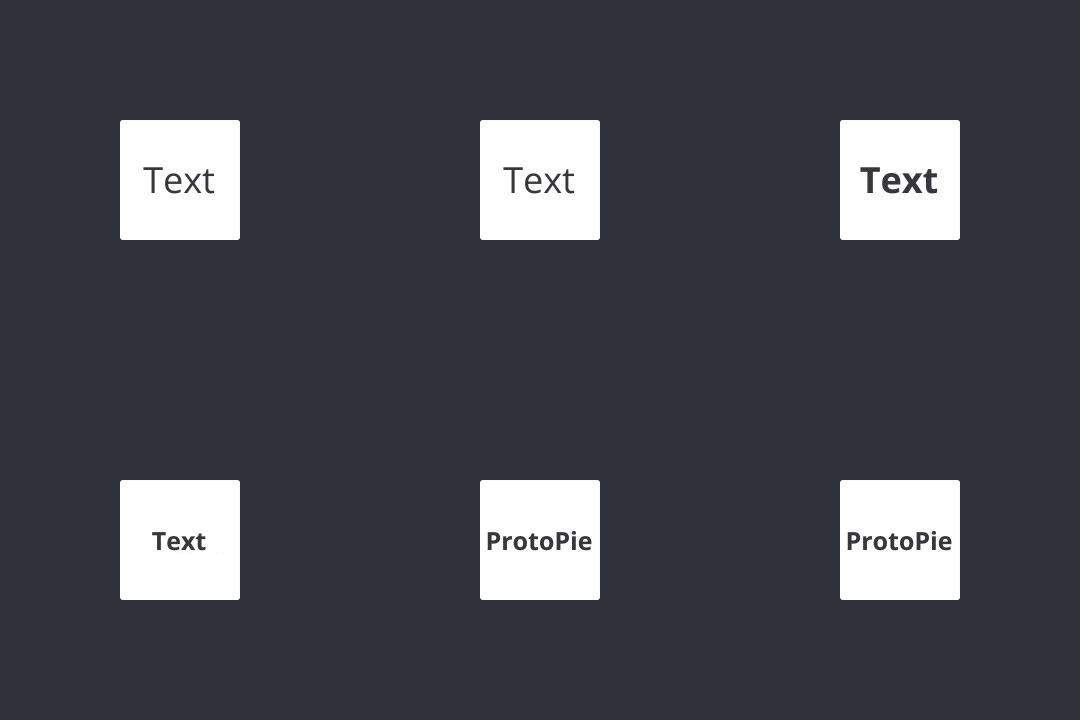
テキスト
テキストレイヤーの内容とプロパティを変更します。テキストのレスポンスには継続時間がありません。
Change To (変更先)
テキストコンテンツはユーザーが希望するものに変更されます
Size (サイズ)
テキストのサイズが変更されます
Weight (太さ)
テキストをより太く、またはより細くすることができます
Alignment (配置)
テキストの水平方向または垂直方向の間隔を調整できます
Line Spacing (行間)
テキストの行間を調整できます
Change To (変更先)
テキストコンテンツはユーザーが希望するものに変更されます
Size (サイズ)
テキストのサイズが変更されます
Weight (太さ)
テキストをより太く、またはより細くすることができます
Alignment (配置)
テキストの水平方向または垂直方向の間隔を調整できます
Line Spacing (行間)
テキストの行間を調整できます
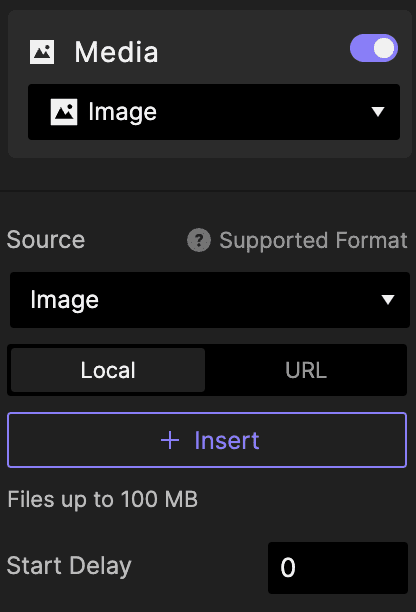
メディア
画像、動画、または Lottie レイヤーの内容を変更します。プランによっては、ローカルファイルから、または Enterprise ユーザー向けのセルフホスト URLから画像をインポートできます。
以下の形式がサポートされています:
画像: PNG、JPG、JPEG、BMP、GIF、SVG、WebP。
動画: MP4(H.264)、WebM、および最大 100 MB の MOV ファイル。
Lottie: ProtoPie は、式を使用する Lottie ファイルをサポートしていません。
サポートされているメディアファイルについては詳しく見る。
Source (ソース)
デバイスから画像、動画、またはLottieを選択するか、セルフホストされたURLからインポートします。
Start Delay (開始遅延時間)
応答を開始するまでの遅延時間を入力します。
Source (ソース)
デバイスから画像、動画、またはLottieを選択するか、セルフホストされたURLからインポートします。
Start Delay (開始遅延時間)
応答を開始するまでの遅延時間を入力します。
フォーカス
入力レイヤーにフォーカスする、またはフォーカスを外します。
Focus In (フォーカスイン)
選択された入力レイヤーにカーソルがフォーカスインします。
Focus Out (フォーカスアウト)
選択された入力レイヤーからカーソルがフォーカスアウトします。

Focus In (フォーカスイン)
選択された入力レイヤーにカーソルがフォーカスインします。
Focus Out (フォーカスアウト)
選択された入力レイヤーからカーソルがフォーカスアウトします。
カメラ
デバイスのネイティブカメラにアクセスする、または終了します。
Camera レスポンスは camera レイヤーと組み合わせて使用する必要があります。また、プロトタイプ内で QR & Barcode Scanner 機能を使用して、QR コードやバーコードを直接スキャンすることもできます。
Action [Start] (アクション [開始])
カメラを開始します。フロントカメラとリアカメラのいずれかを選択できます。
Action [Stop] (アクション [停止])
カメラを停止します。
Camera [Current Camera] (カメラ [現在のカメラ])
現在のカメラを使用します。
Camera [Front Camera] (カメラ [フロントカメラ])
現在のカメラを使用します。
Camera [Rear Camera] (カメラ [リアカメラ])
リアカメラを使用します。
Camera [Switch] (カメラ [切り替え])
最後に使用したカメラの反対側を向いているカメラを使用します。
QR & Barcode Scanner (バーコードスキャナー)
プロトタイプ内からのQRコードおよびバーコードのスキャンを有効にします。
Open URL Immediately (すぐにURLを開く)
QRコードをスキャンしてウェブブラウザでリンクを開きます。バーコードをスキャンするには、「追跡を継続」オプションを使用してください。
Keep Tracking (追跡を継続)
QRコードまたはバーコードに保存されている値を監視します。
Action [Start] (アクション [開始])
カメラを開始します。フロントカメラとリアカメラのいずれかを選択できます。
Action [Stop] (アクション [停止])
カメラを停止します。
Camera [Current Camera] (カメラ [現在のカメラ])
現在のカメラを使用します。
Camera [Front Camera] (カメラ [フロントカメラ])
現在のカメラを使用します。
Camera [Rear Camera] (カメラ [リアカメラ])
リアカメラを使用します。
Camera [Switch] (カメラ [切り替え])
最後に使用したカメラの反対側を向いているカメラを使用します。
QR & Barcode Scanner (バーコードスキャナー)
プロトタイプ内からのQRコードおよびバーコードのスキャンを有効にします。
Open URL Immediately (すぐにURLを開く)
QRコードをスキャンしてウェブブラウザでリンクを開きます。バーコードをスキャンするには、「追跡を継続」オプションを使用してください。
Keep Tracking (追跡を継続)
QRコードまたはバーコードに保存されている値を監視します。
再生
ビデオ、音声、Lottie レイヤーの再生、一時停止、シークを行います。
Play (再生)
オーディオ、ビデオ、またはLottieファイルを再生します。
Pause (一時停止)
オーディオ、ビデオ、またはLottieファイルを一時停止します。
Seek (シーク)
オーディオ、ビデオ、またはLottieファイルの特定のポイントに移動します。MM:SS.SS形式に従ってタイムスタンプを入力してください。
数式を使用することも可能です。これにより、実際に動作するスクラバーを作成できます。例を参照してください。
Play (再生)
オーディオ、ビデオ、またはLottieファイルを再生します。
Pause (一時停止)
オーディオ、ビデオ、またはLottieファイルを一時停止します。
Seek (シーク)
オーディオ、ビデオ、またはLottieファイルの特定のポイントに移動します。MM:SS.SS形式に従ってタイムスタンプを入力してください。
数式を使用することも可能です。これにより、実際に動作するスクラバーを作成できます。例を参照してください。
音量
ビデオまたは音声ファイルの音量を制御します。
Volume to (音量設定)
オーディオまたはビデオレイヤーの音量を調整します
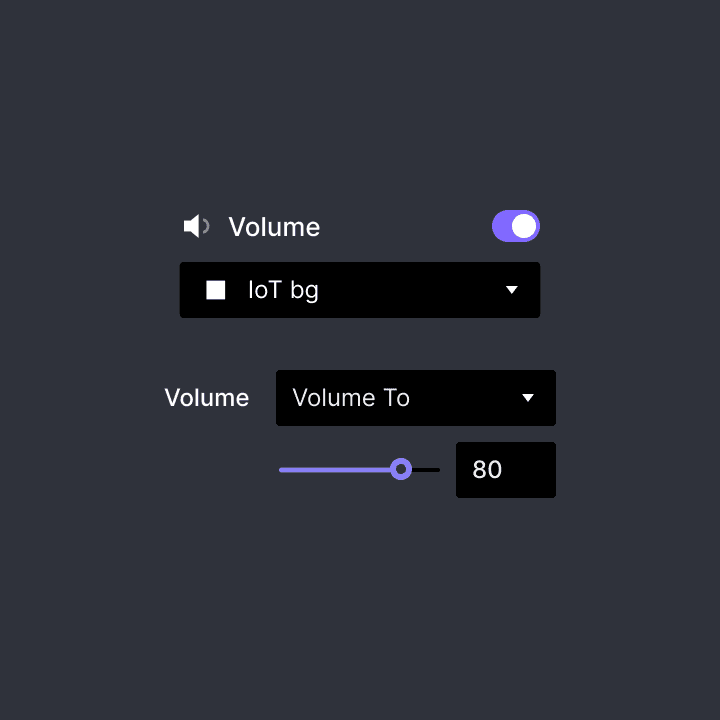
Volume to (音量設定)
オーディオまたはビデオレイヤーの音量を調整します
バイブレーション
スマートデバイスで振動とハプティックフィードバックを有効にします。
ハプティックフィードバックの詳細については、Google の Android デベロッパー ドキュメント と Apple の Human Interface Guidelines を参照してください。
iOS
デフォルト:基本的な振動。
通知 - 成功:小切手の入金や車両のロック解除など、タスクまたはアクションが完了したことを示します。
通知 - 警告:小切手の入金や車両のロック解除など、タスクまたはアクションで何らかの警告が発生したことを示します。
通知 - 失敗:小切手の入金や車両のロック解除など、タスクまたはアクションが失敗したことを示します。
インパクト - 軽度/中度/重度:視覚的な体験を補完する物理的なメタファーを提供します。たとえば、ビューが所定の位置にスライドしたときや、2つのオブジェクトが衝突したときに、ユーザーはドスンという振動を感じる場合があります。
選択 - 選択:選択がアクティブに変化していることを示します。たとえば、ユーザーがピッカーホイールをスクロールしているときに、軽いタップ感を感じます。このフィードバックは、一連の不連続な値による動きを伝えるためのものであり、選択を行ったり確定したりするためのものではありません。
Android
デフォルト:基本的な振動。
キーボードの押下:ユーザーが仮想またはソフトウェアキーボードのキーを押したときの触覚フィードバック。
キーボードのタップ:ユーザーがソフトキーボードのキーを押したときの触覚フィードバック。
長押し:アクションが実行されるオブジェクトをユーザーが長押ししたときの触覚フィードバック。
仮想キー:ユーザーが画面上の仮想キーを押したときの触覚フィードバック。

iOS
デフォルト:基本的な振動。
通知 - 成功:小切手の入金や車両のロック解除など、タスクまたはアクションが完了したことを示します。
通知 - 警告:小切手の入金や車両のロック解除など、タスクまたはアクションで何らかの警告が発生したことを示します。
通知 - 失敗:小切手の入金や車両のロック解除など、タスクまたはアクションが失敗したことを示します。
インパクト - 軽度/中度/重度:視覚的な体験を補完する物理的なメタファーを提供します。たとえば、ビューが所定の位置にスライドしたときや、2つのオブジェクトが衝突したときに、ユーザーはドスンという振動を感じる場合があります。
選択 - 選択:選択がアクティブに変化していることを示します。たとえば、ユーザーがピッカーホイールをスクロールしているときに、軽いタップ感を感じます。このフィードバックは、一連の不連続な値による動きを伝えるためのものであり、選択を行ったり確定したりするためのものではありません。
Android
デフォルト:基本的な振動。
キーボードの押下:ユーザーが仮想またはソフトウェアキーボードのキーを押したときの触覚フィードバック。
キーボードのタップ:ユーザーがソフトキーボードのキーを押したときの触覚フィードバック。
長押し:アクションが実行されるオブジェクトをユーザーが長押ししたときの触覚フィードバック。
仮想キー:ユーザーが画面上の仮想キーを押したときの触覚フィードバック。
読み上げ
テキストを入力するか、数式を使って、テキストを読み上げる機能を有効にします。
詳しく見るで音声プロトタイピングについて学べます。
Text (テキスト)
読み上げるテキストを入力できます。
Formula (式)
音声インタラクションをよりダイナミックにするために、最終的にテキストとなる限り、式を使用できます。また、最後の音声コマンドが保存される定義済みの変数 $voiceTranscript を使用することもできます。
Language (言語)
40の言語および言語バリアントから選択できます。
Voiced by (音声の性別)
言語ごとに女性または男性の音声を選択できます。
Speed (速度)
0.5から2の間の値を選択して、速度を調整できます。
Pitch (ピッチ)
0.5から2の間の値を選択して、ピッチを調整できます。
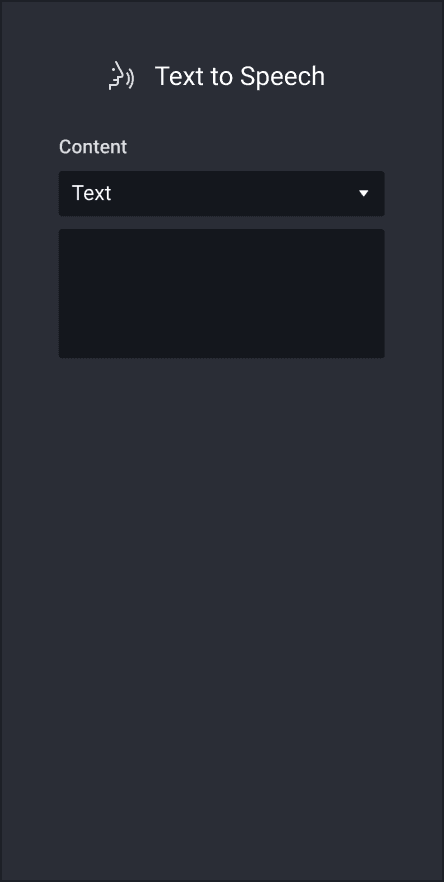
Text (テキスト)
読み上げるテキストを入力できます。
Formula (式)
音声インタラクションをよりダイナミックにするために、最終的にテキストとなる限り、式を使用できます。また、最後の音声コマンドが保存される定義済みの変数 $voiceTranscript を使用することもできます。
Language (言語)
40の言語および言語バリアントから選択できます。
Voiced by (音声の性別)
言語ごとに女性または男性の音声を選択できます。
Speed (速度)
0.5から2の間の値を選択して、速度を調整できます。
Pitch (ピッチ)
0.5から2の間の値を選択して、ピッチを調整できます。
聞き取り
音声コマンドの聞き取りを有効にします。
デフォルトでは、プロトタイプは音声コマンドを一切拾いません。そのため、まず聞き取りを有効にする必要があります。プロトタイプは最大 5 分間、継続して音声コマンドを聞き取ることができます。
詳しく見るで音声プロトタイピングについて学べます。
Continuous (連続的)
音声コマンドの聞き取りが有効な場合、音声が検出されなくなるとすぐに自動的に停止します。これを避けるために、「連続的(Continuous)」にチェックを入れることで、音声コマンドが検出されない場合でも聞き取りを有効なままに維持することができます。
「連続的(Continuous)」にチェックが入っている場合、聞き取りを停止するには別途「聞き取り(Listen)」レスポンスが必要になります。つまり、「連続的(Continuous)」のチェックが外れている場合は、聞き取りを停止するために別の「聞き取り(Listen)」レスポンスを必要としません。
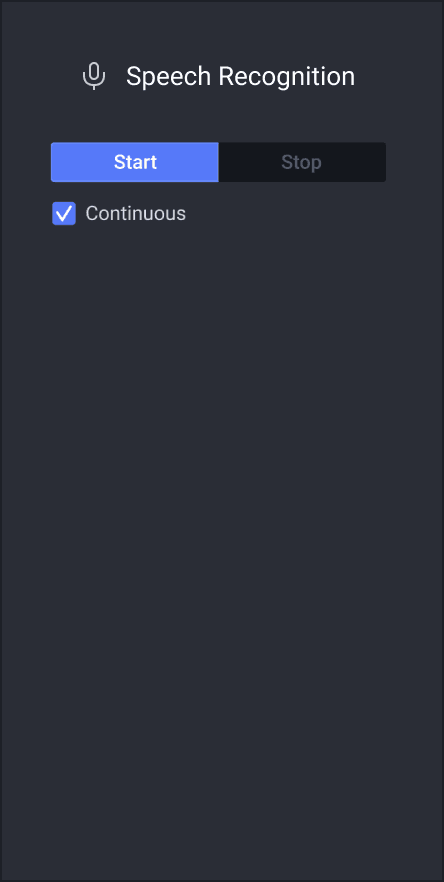
Continuous (連続的)
音声コマンドの聞き取りが有効な場合、音声が検出されなくなるとすぐに自動的に停止します。これを避けるために、「連続的(Continuous)」にチェックを入れることで、音声コマンドが検出されない場合でも聞き取りを有効なままに維持することができます。
「連続的(Continuous)」にチェックが入っている場合、聞き取りを停止するには別途「聞き取り(Listen)」レスポンスが必要になります。つまり、「連続的(Continuous)」のチェックが外れている場合は、聞き取りを停止するために別の「聞き取り(Listen)」レスポンスを必要としません。
リセット
現在のシーン、レイヤー、または変数をリセットします。シーン全体をリセットしたり、レイヤーや変数を初期状態に戻したりできます。
停止
レイヤーのアニメーションを停止します。たとえば、Stop を使って読み込みバーや進行バーを停止できます。
割り当て
変数に保存されている値を上書きします。
条件
レスポンスをトリガーするために満たす必要のあるパラメータを設定します。
> より大きい
ターゲットレイヤーのプロパティが、このプロパティに設定された値を超えたときにレスポンスがトリガーされます
≥ 以上
ターゲットレイヤーのプロパティが、このプロパティに設定された値に達するか、それを超えたときにレスポンスがトリガーされます
< 未満
ターゲットレイヤーのプロパティが、このプロパティに設定された値を下回ったときにレスポンスがトリガーされます
≤ 以下
ターゲットレイヤーのプロパティが、このプロパティに設定された値に達するか、それを下回ったときにレスポンスがトリガーされます
= 等しい
ターゲットレイヤーのプロパティが、このプロパティに設定された値と完全に一致したときにレスポンスがトリガーされます。
≠ 等しくない
ターゲットレイヤーのプロパティが、このプロパティに設定された値と完全には一致しないときにレスポンスがトリガーされます
> より大きい
ターゲットレイヤーのプロパティが、このプロパティに設定された値を超えたときにレスポンスがトリガーされます
≥ 以上
ターゲットレイヤーのプロパティが、このプロパティに設定された値に達するか、それを超えたときにレスポンスがトリガーされます
< 未満
ターゲットレイヤーのプロパティが、このプロパティに設定された値を下回ったときにレスポンスがトリガーされます
≤ 以下
ターゲットレイヤーのプロパティが、このプロパティに設定された値に達するか、それを下回ったときにレスポンスがトリガーされます
= 等しい
ターゲットレイヤーのプロパティが、このプロパティに設定された値と完全に一致したときにレスポンスがトリガーされます。
≠ 等しくない
ターゲットレイヤーのプロパティが、このプロパティに設定された値と完全には一致しないときにレスポンスがトリガーされます