[Beta] ProtoPie MCP is here! Learn More.

Introducing ProtoPie

Getting Started

Making Your First Prototype

ProtoPie Ecosystem

ProtoPie Studio Interface

Import

Getting Started

Importing From Adobe XD

Importing From Figma

Importing From Sketch

ProtoPie Genie

Basic Elements

Containers

Devices

Layers

Preview Window

Scenes

Scroll/Paging

Shortcuts

System Status Bar

Triggers & Responses

Easing

Annotations

Responses

Timelines

Triggers

Formulas

Getting Started

Functions

Layer Properties

Syntax

Formulas Use Cases

Variables

Getting Started

Variables

Predefined Variables

Variables Use Cases

AI

Getting Started

AI Interaction Creation

AI Document Q&A

AI Panel Interface

Tips for Best Results

ProtoPie MCP

Getting Started

Studio MCP Introduction

Studio MCP Installation & Setup

Code MCP Introduction

Code MCP Installation & Setup

Dev View

Auto Layout

Getting Started

Auto Layout Properties

Components

Getting Started

Component Guides

Editing Components

Nested Components

Send & Receive Messages

Interaction Libraries

Getting Started

Managing Interaction Libraries

Managing Library Members

Voice Prototyping

Getting Started

Listen Response

Speak Response

Use Cases

Voice Command Trigger

Connecting Devices

Connecting blokdots

Connecting Mobile Devices

ProtoPie Cloud

Getting Started

Managing Prototypes

Managing Storage

Sharing Prototypes

ProtoPie Player

Testing Prototypes

Managing Fonts

Offline Testing

ProtoPie Player for Wear OS

Teams

Getting Started

Editors & Viewers

Onboarding Your Team

Projects

Team Owner & Team Admin

Handoff

Getting Started

Creating Interaction Recordings

Managing Interaction Recordings

Recording Page

User Testing

Getting Started

Overview

Creating Test Rooms

External Integrations

Managing Test Sessions

Test Results & Analysis

User Testing on ProtoPie Cloud

ProtoPie Connect

Getting Started

API Plugin

Arduino Plugin

blokdots Plugin

Connect Embedded

Custom Layer Integrations

Custom Plugins

Connect Devices

Gamepad Plugin

IFTTT Plugin

Logitech G29 Steering Wheel Plugin

Testing Prototypes

Feature Comparison

Unity Plugin

ProtoPie Enterprise

Getting Started

Organization Settings

Service Admin

Single Sign-On (SSO)

Security

Overview

Access Control

Data Transit, Storage & Backup

Incident Response

Network & ProtoPie Player App Security

Physical Security

Risk Management

Menu

Introducing ProtoPie

Getting Started

Making Your First Prototype

ProtoPie Ecosystem

ProtoPie Studio Interface

Import

Getting Started

Importing From Adobe XD

Importing From Figma

Importing From Sketch

ProtoPie Genie

Basic Elements

Containers

Devices

Layers

Preview Window

Scenes

Scroll/Paging

Shortcuts

System Status Bar

Triggers & Responses

Easing

Annotations

Responses

Timelines

Triggers

Formulas

Getting Started

Functions

Layer Properties

Syntax

Formulas Use Cases

Variables

Getting Started

Variables

Predefined Variables

Variables Use Cases

AI

Getting Started

AI Interaction Creation

AI Document Q&A

AI Panel Interface

Tips for Best Results

ProtoPie MCP

Getting Started

Studio MCP Introduction

Studio MCP Installation & Setup

Code MCP Introduction

Code MCP Installation & Setup

Dev View

Auto Layout

Getting Started

Auto Layout Properties

Components

Getting Started

Component Guides

Editing Components

Nested Components

Send & Receive Messages

Interaction Libraries

Getting Started

Managing Interaction Libraries

Managing Library Members

Voice Prototyping

Getting Started

Listen Response

Speak Response

Use Cases

Voice Command Trigger

Connecting Devices

Connecting blokdots

Connecting Mobile Devices

ProtoPie Cloud

Getting Started

Managing Prototypes

Managing Storage

Sharing Prototypes

ProtoPie Player

Testing Prototypes

Managing Fonts

Offline Testing

ProtoPie Player for Wear OS

Teams

Getting Started

Editors & Viewers

Onboarding Your Team

Projects

Team Owner & Team Admin

Handoff

Getting Started

Creating Interaction Recordings

Managing Interaction Recordings

Recording Page

User Testing

Getting Started

Overview

Creating Test Rooms

External Integrations

Managing Test Sessions

Test Results & Analysis

User Testing on ProtoPie Cloud

ProtoPie Connect

Getting Started

API Plugin

Arduino Plugin

blokdots Plugin

Connect Embedded

Custom Layer Integrations

Custom Plugins

Connect Devices

Gamepad Plugin

IFTTT Plugin

Logitech G29 Steering Wheel Plugin

Testing Prototypes

Feature Comparison

Unity Plugin

ProtoPie Enterprise

Getting Started

Organization Settings

Service Admin

Single Sign-On (SSO)

Security

Overview

Access Control

Data Transit, Storage & Backup

Incident Response

Network & ProtoPie Player App Security

Physical Security

Risk Management

Using the Gamepad Plugin in ProtoPie Connect

The Gamepad plugin is one of the many built-in plugins in ProtoPie Connect that allows you to create dynamic, multi-device prototyping experiences. Read along to see how the Gamepad plugin works.

How It Works

Prerequisites

In the Security & Privacy Settings of your computer, enable Input Monitoring for both ProtoPie Connect and your browser.
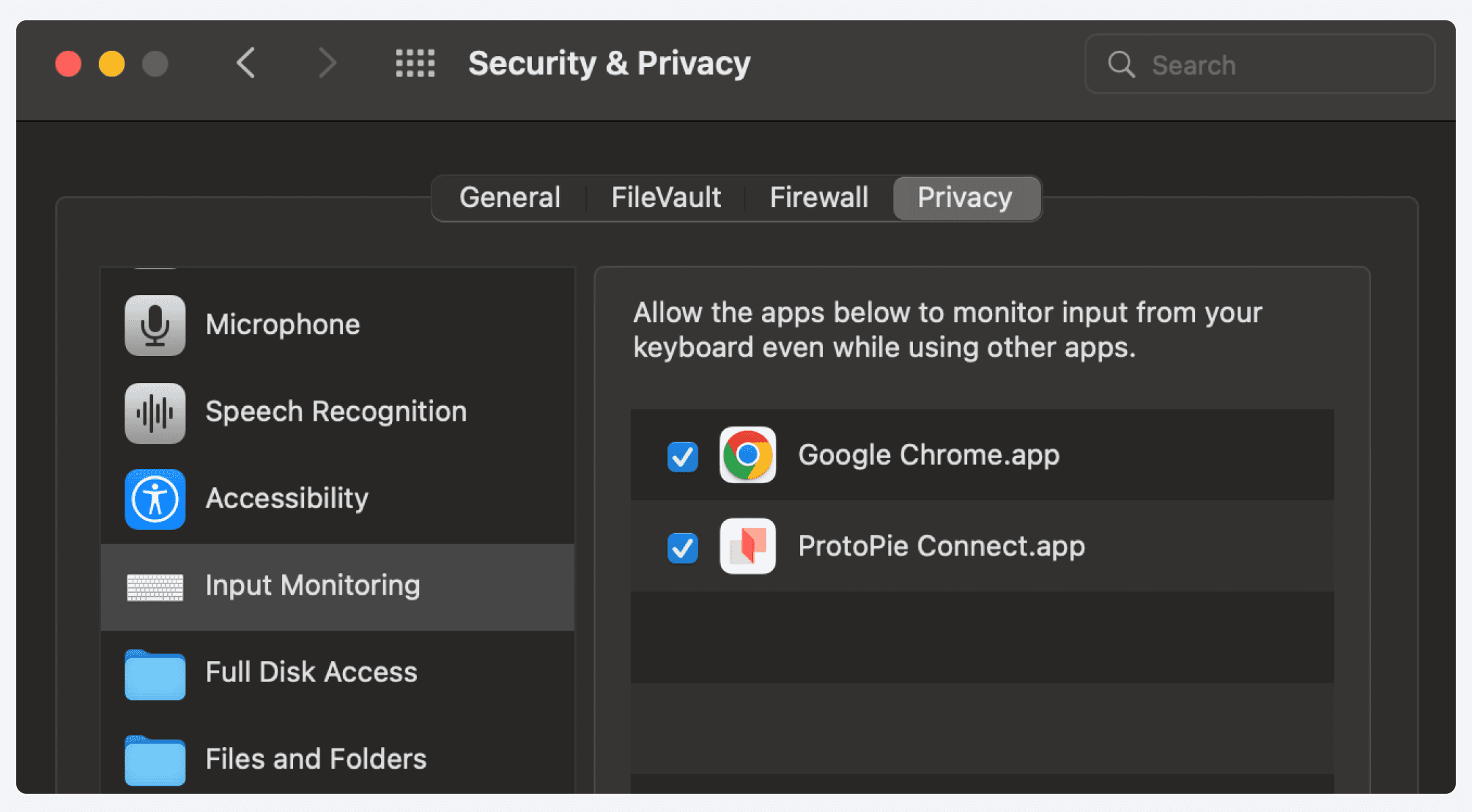

{'_type': 'localeString', 'en': 'Enable input monitoring.'}

Getting Set-Up

  1. Open ProtoPie Connect.

  2. Connect your Gamepad via USB or Bluetooth to the machine where ProtoPie Connect is running.

    • In the Gamepad Settings window, Device Status will indicate Connected when the Gamepad is detected. If the plugin does not recognize the gamepad, try pressing some buttons on the Gamepad first.
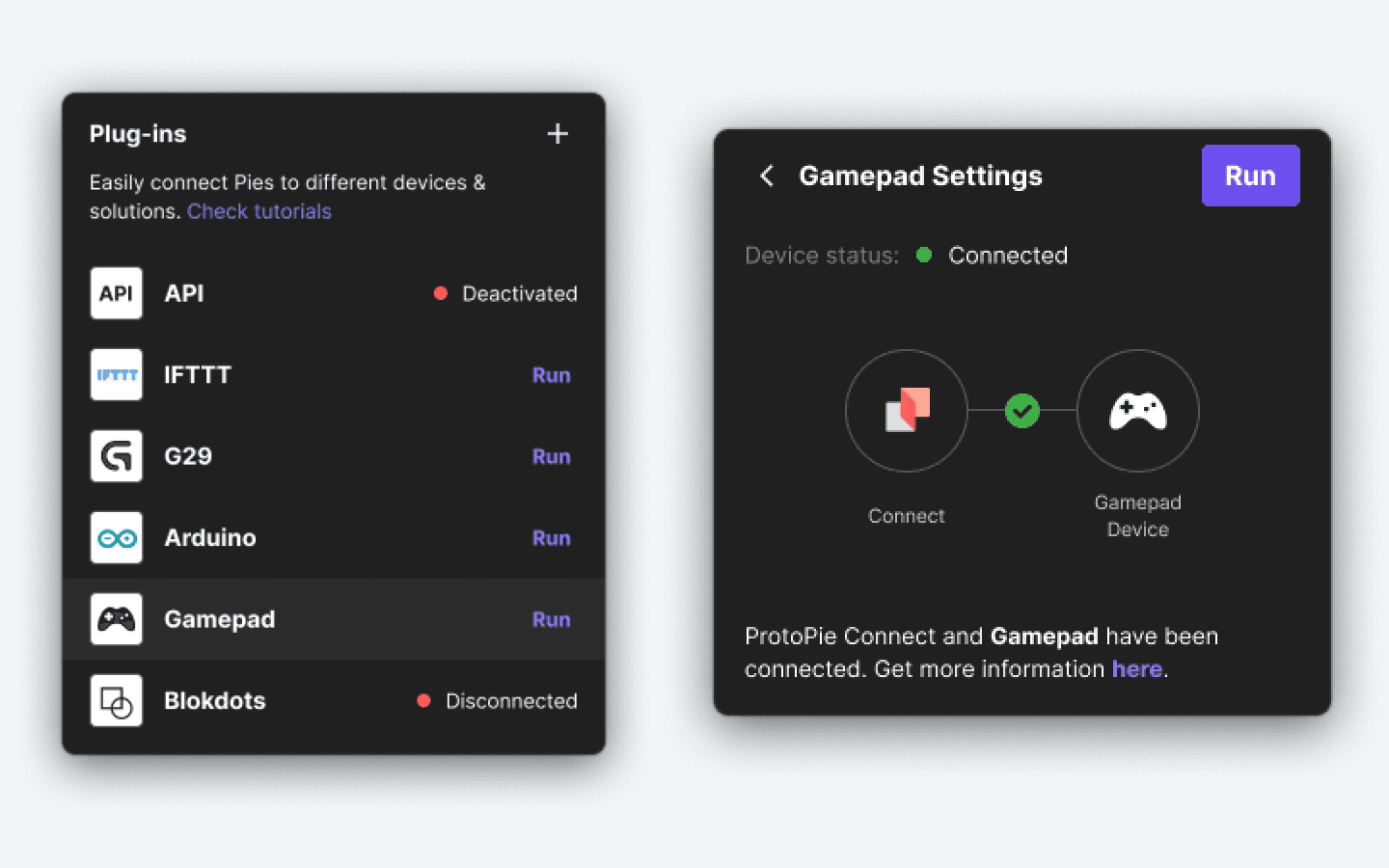
{'_type': 'localeString', 'en': 'Connected.'}
  1. Press Run to activate the gamepad connection with ProtoPie Connect.

  2. When the Gamepad buttons are pressed, ProtoPie Connect automatically detects the keystrokes and broadcasts message and value pairs to the Pies running on Connect.

Connecting Multiple Gamepads

ProtoPie Connect supports connections with multiple Gamepads.

  • The message will follow the below format:

    • {Gamepad Number}_{Button Name}

  • Gamepad Number is assigned from 1 in the following connection order:

    • Gamepad connected first will have Gamepad number of 1.

    • Gamepad connected second will have Gamepad number of 2.

  • The number of connected gamepads is displayed in the Gamepad Settings window.
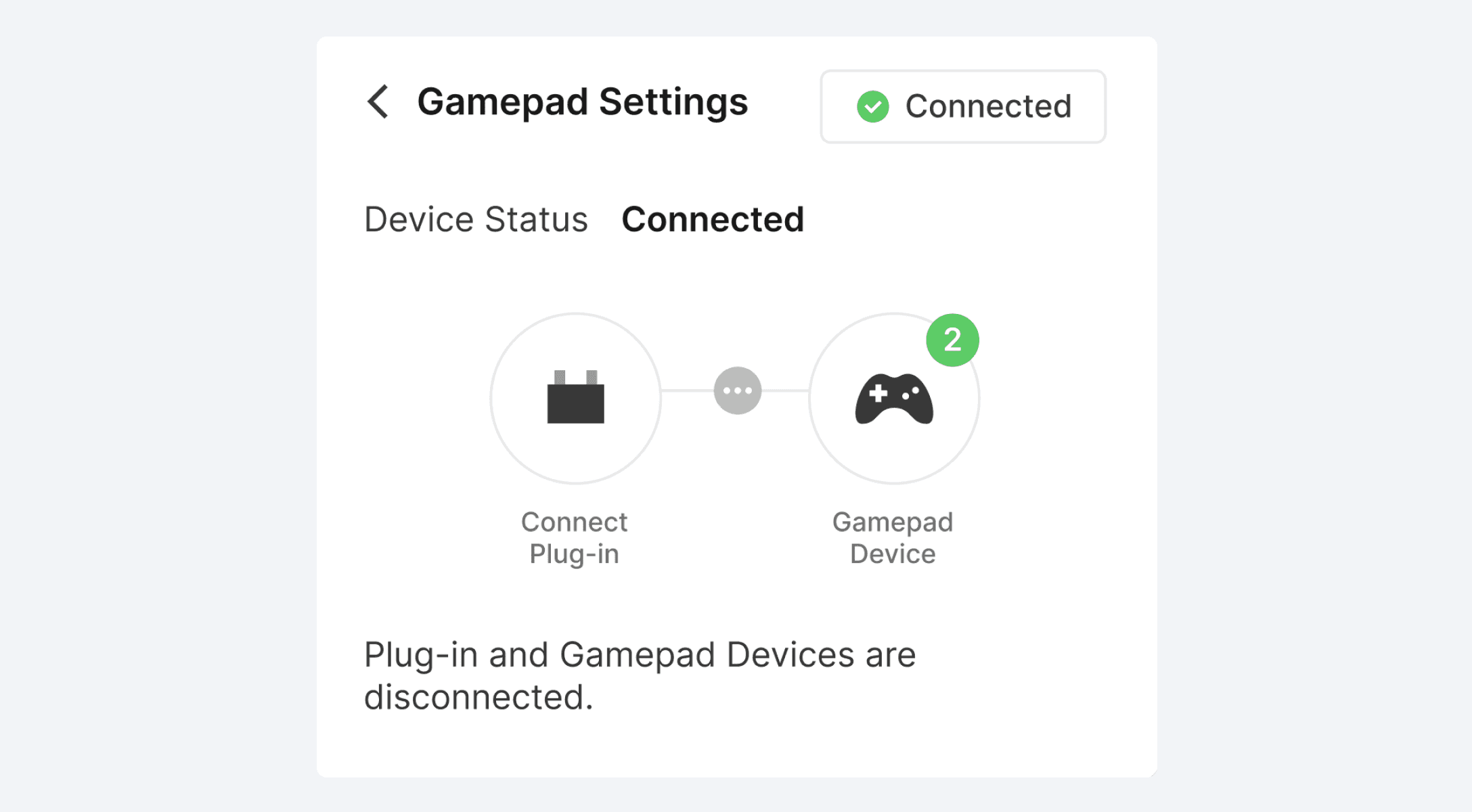

{'_type': 'localeString', 'en': 'Gamepad number.'}

Gamepad Buttons and Messages

Gamepad buttons and messages are as follows (assuming messages are received from the first connected gamepad).
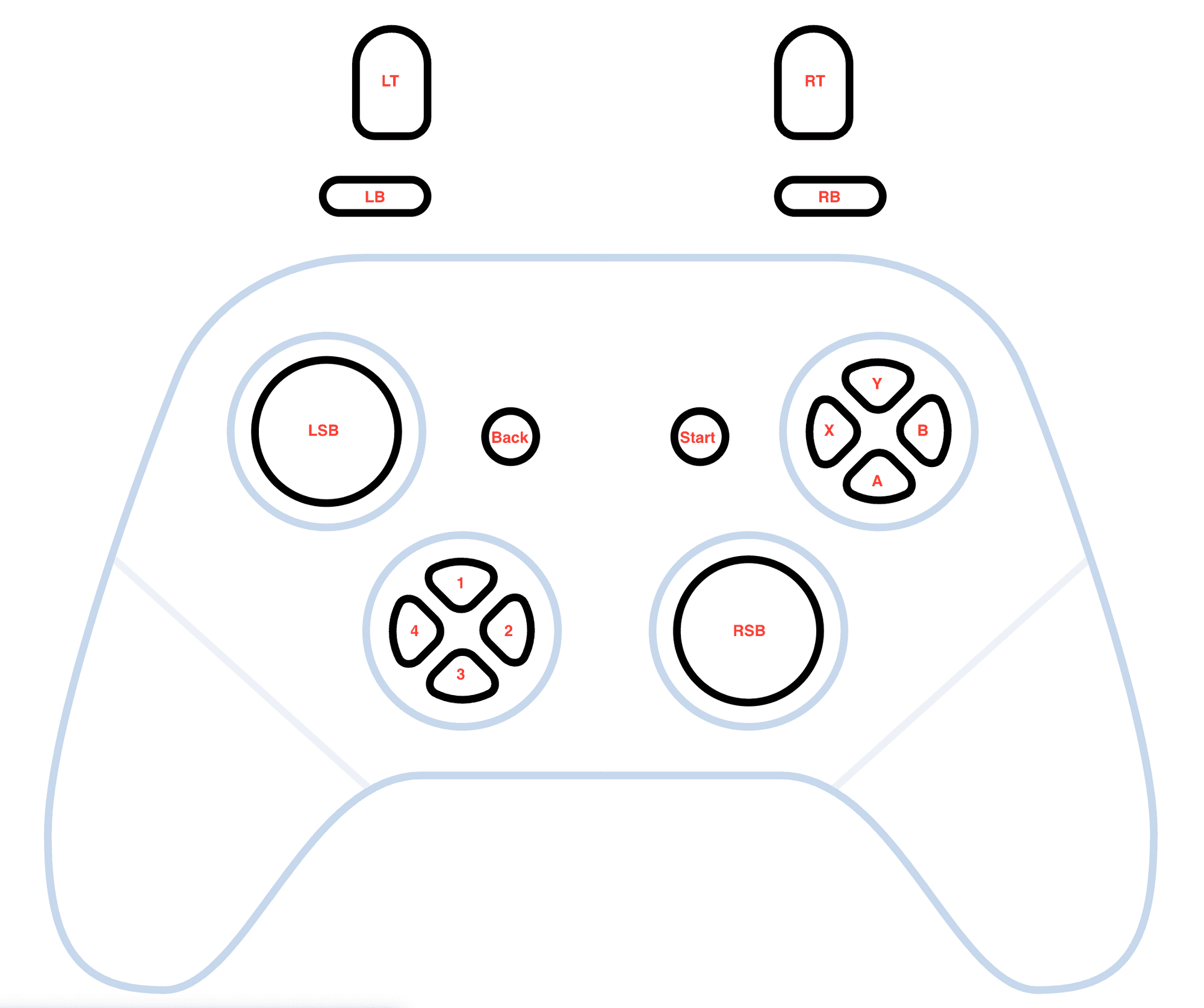

{'_type': 'localeString', 'en': 'gamepad buttons'}

Gamepad Plugin – Buttons and Messages

Gamepad button

ProtoPie Connect message

Value

LT

1_button6

10,0

LB

1_button4

1,0

RT

1_button7

10,0

RB

1_button5

1,0

X

1_button2

1,0

Y

1_button3

1,0

A

1_button0

1,0

B

1_button1

1,0

Start

1_button9

1,0

Back

1_button8

1,0

1

1_button12

1,0

2

1_button15

1,0

3

1_button13

1,0

4

1_button14

1,0

RSB X axis

1_axe2

10 to -10

RSB Y axis

1_axe3

10 to -10

LSB X axis

1_axe0

10 to -10

LSB Y axis

1_axe1

10 to -10

Learn more about ProtoPie Connect's various built-in plugins, such as API, IFTTT, Logitech G29 Steering Wheel, Arduino, blokdots, and Unity plugins.