Managing Library Members
Team libraries only.
Permissions
When you create a team library, you become the library owner by default. Or you can become a library owner when ownership has been transferred to you by the previous library owner.
The library owner can add and remove library members. Library members, if they are editors, can make changes and publish them to the interaction library, see the version history, and restore previous versions.
A library owner can do everything a library member can. In addition, a library owner can transfer ownership, change the information of the library, and archive libraries.
See below what the differences are between what a library owner and a library member can do when both of them are editors.
Privileges | Library Owner | Library Member |
|---|---|---|
Make and publish changes to a library | ✓ | ✓ |
See version history | ✓ | ✓ |
Restore previous versions | ✓ | ✓ |
Add and remove library members | ✓ | |
Transfer ownership | ✓ | |
Change library information | ✓ | |
Archive library | ✓ |
Adding and Removing Library Members
The library owner can easily add and remove library members among members of the team.
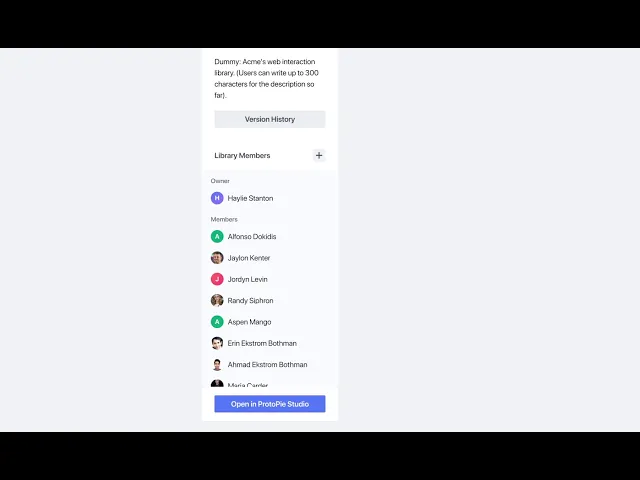
By clicking on the + button on the left panel, you can reveal the list of library members. Then by checking or unchecking the checkboxes next to the names, the owner can add or remove library members.
Transferring Ownership
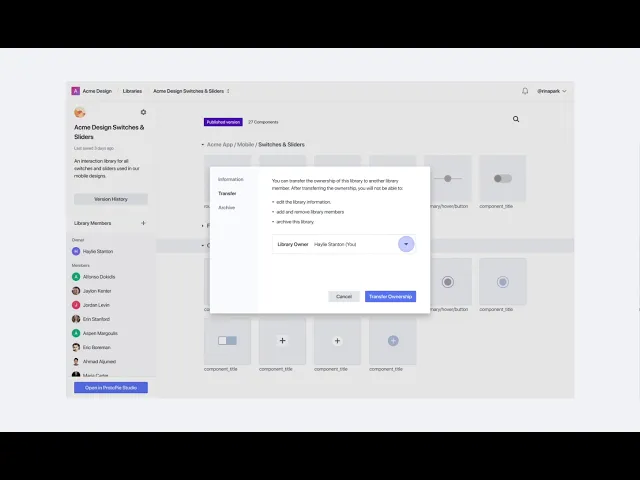
As the library owner, you can transfer the ownership to one of the library members. Click on the settings icon in the left panel in the desired team library and click on the Transfer tab in the following window. You can then select a library member in the drop-down menu. By clicking on the Transfer Ownership button, you are downgraded to a library member. There can be only one library owner per team library at a time.