Using IFTTT with ProtoPie Connect
What is IFTTT?
IFTTT is a web automation service that enables integration with various devices and services including Twitter, Dropbox, Evernote, Fitbit, Amazon Alexa, and Google Assistant.
IFTTT stands for 'If This Then That', and the Applets you create in IFTTT work similarly to ProtoPie’s triggers and responses: If this happens — then that happens.
Learn more about IFTTT Applets.
How does the IFTTT plugin work?
ProtoPie Connect communicates with IFTTT’s partner services through messages called Webhooks. These work similarly to the Send and Receive messages in ProtoPie. A message (“Event”) is sent to IFTTT and in response, IFTTT translates the message into an action.
By using ProtoPie Connect with IFTTT’s Webhooks, you can connect your prototypes to all their partner web services and devices.
Creating Applets in IFTTT
Create an account on the IFTTT website.
Configuring the Trigger

Once logged in, click on Create on the top right corner of the IFTTT page
Click on Add from the If This section and search for Webhooks
Select “Receive a web request”
Name your event and click on Create Trigger. You can only use letters, numbers, and underscores in the name (for instance: “send_email”)
Configuring the Action

Click on the Add button in the Then That section
Search for your desired action in the Choose a service field
For example, “Gmail” - “Send yourself an Email”
Fill in the sections ‘Subject, Body, To address, CC address, BCC address, and Attachment URL’ Click on the Add ingredient button to add up to 3 customizable values (”Value1, Value2, Value3”) that will have to be configured in ProtoPie Studio (see Configuring Messages in ProtoPie Studio)
Click on Update Action
Review your Applet and click on Finish
Connecting IFTTT to ProtoPie Connect
Configure ProtoPie Connect to send a request to IFTTT.
Testing your Applet
Open and log into ProtoPie Connect.
Select IFTTT from the Plugin dropdown menu.
Copy-paste your private Webhook Key, which you can find on the IFTTT website under Explore → ”Webhooks” → Documentation
Click on the Run button
You can test the Applet in the Test section
Enter your event name and JSON payload
Click on Send
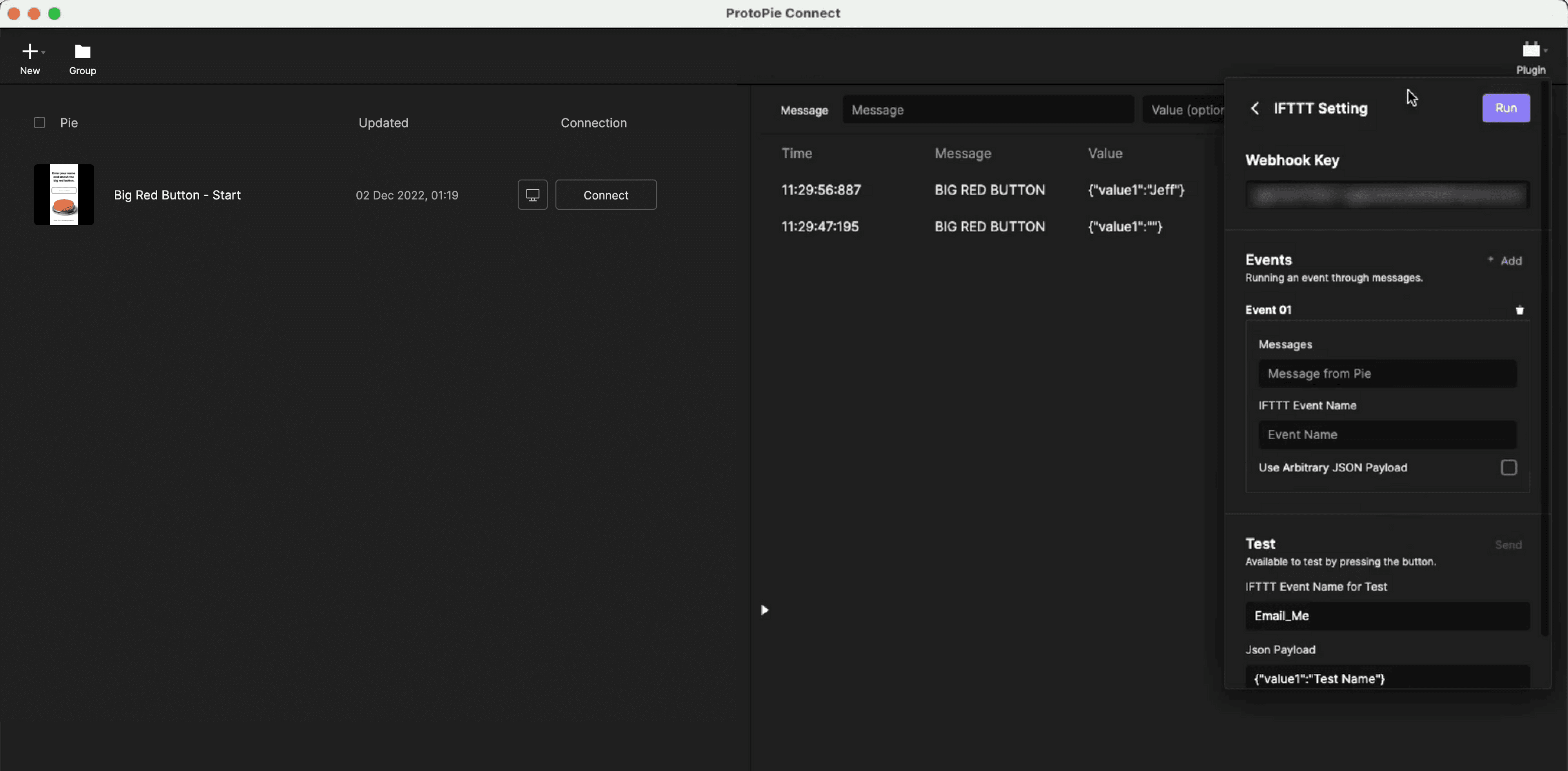
You can verify if your Applet is working correctly by going to My Applets on the IFTTT website and clicking on View activity.
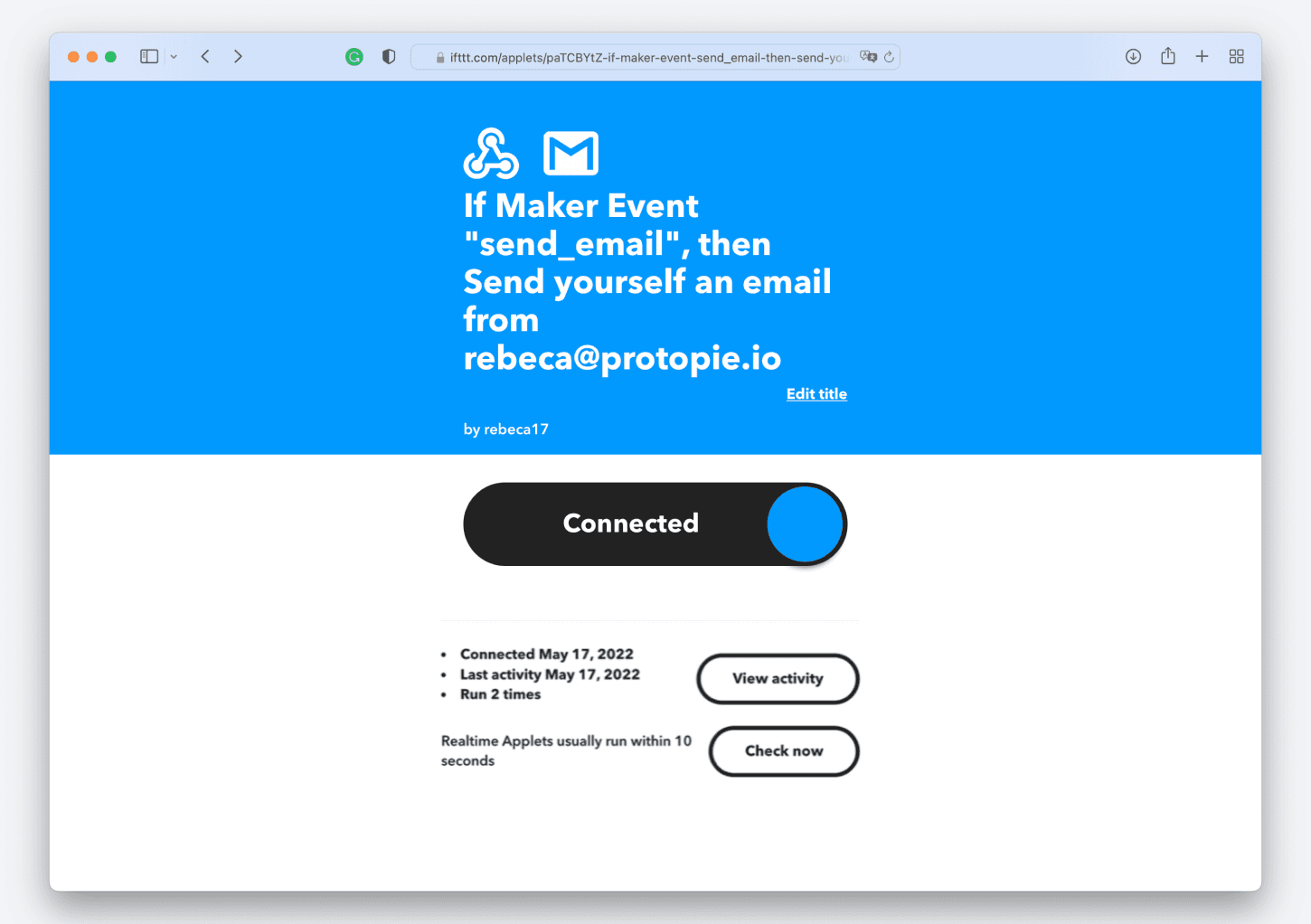
You will receive an email with the values specified in the JSON payload.
Configuring Messages in ProtoPie Studio
Now that you have created and tested your Applet, you need to configure the corresponding messages in the prototype using ProtoPie Studio.
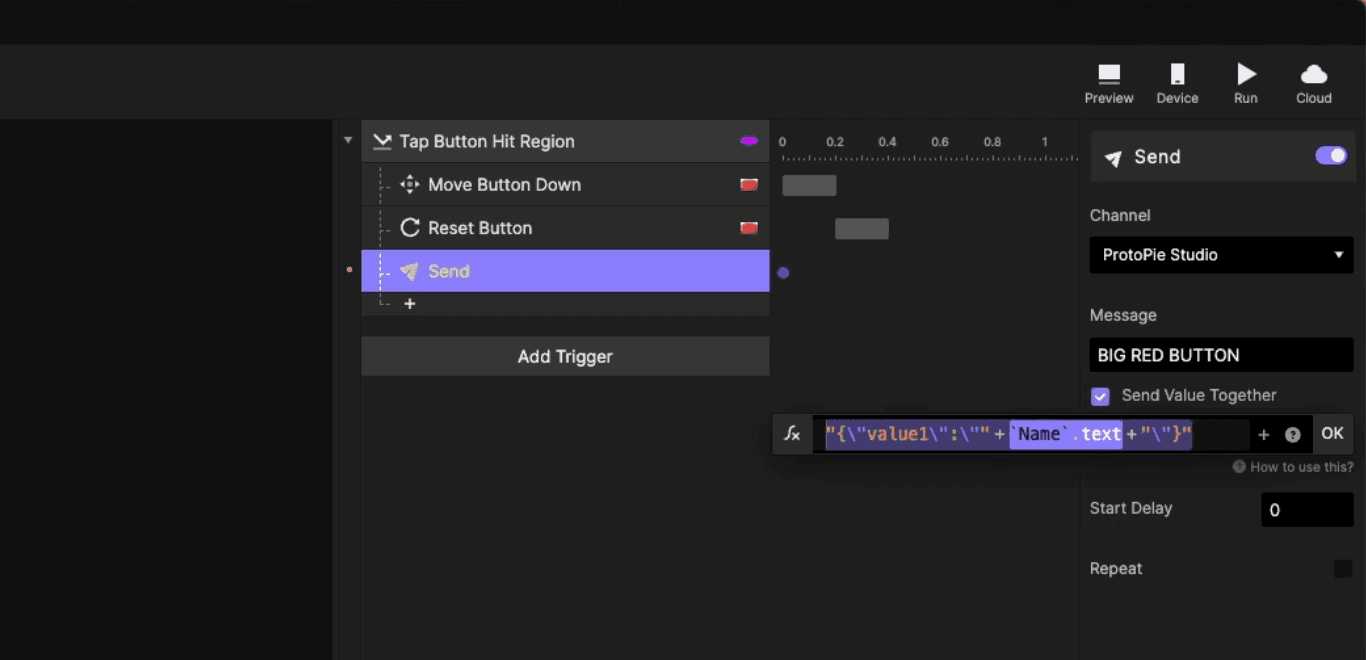
Set up the Send responses that will trigger the action in the Applet.
Use the channel “ProtoPie Studio” to communicate with ProtoPie Connect and activate “Send Value Together”.
Configure your JSON Payload values if you used one or more in the IFTTT Applet.
Test the prototype in ProtoPie Connect