Auto Layout
Auto Layout in ProtoPie Studio is designed to automate alignment and spacing, simplifying layout creation and adjustment. By transforming regular containers into Auto Layout Containers, it ensures consistency and flexibility throughout the design process.
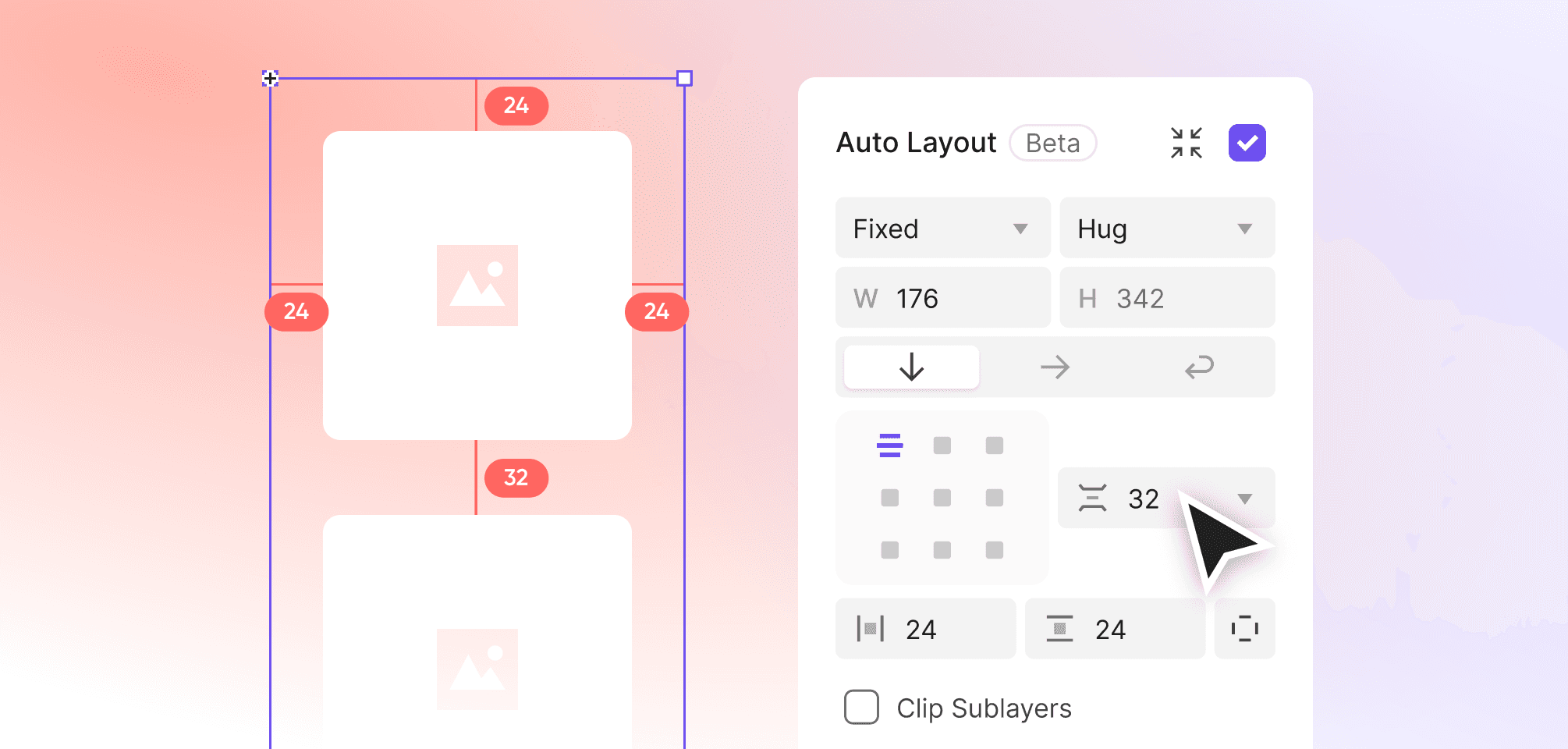
Difference Between Fixed Layout & Auto Layout
Fixed Layout and Auto Layout provide different ways to handle alignment and spacing in design.
Fixed Layout: Requires manual adjustments to maintain consistency, offering precise but static control.
Auto Layout: Dynamically adapts to content changes, reducing manual effort and enabling responsive designs.
Getting Started with Auto Layout
You can enable Auto Layout for containers, components, or multiple objects using the Property Panel, right-click menu, or a simple shortcut. Once applied, Auto Layout automatically assigns default properties.
How to Apply Auto Layout
You can enable Auto Layout via:
Property Panel: Select a layer or container and check the Auto Layout option.
Right-Click Menu: Right-click and select "Add Auto Layout."
Shortcut: Use the
Shift+Ashortcut.
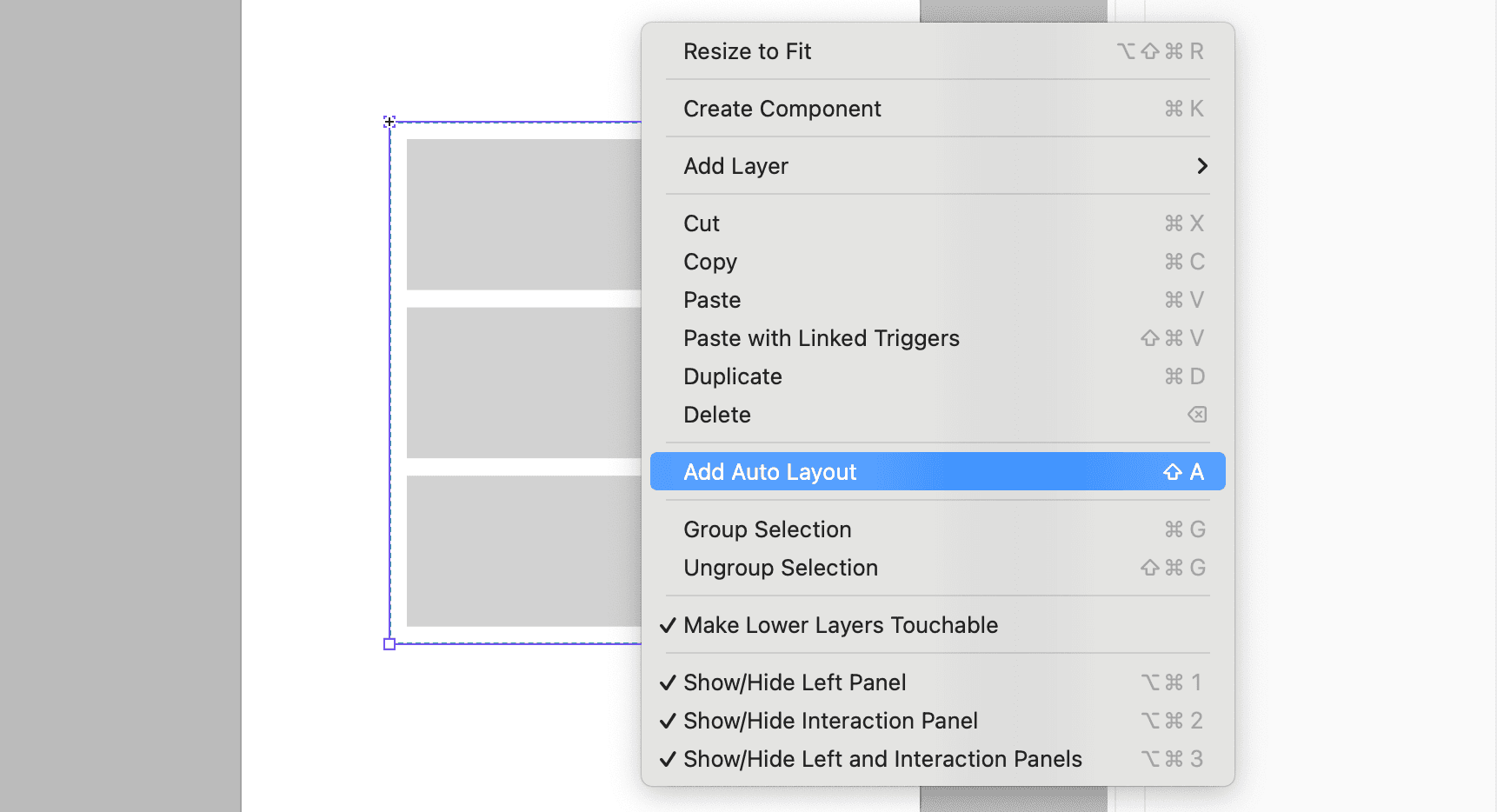
When you apply Auto Layout, the following default properties are assigned:
Direction: Vertical
Resizing: Hug Contents for both width and height
Alignment: Top-Left
Gap: 10px
Padding: 10px (applied uniformly to all sides)
Auto Layout Visibility in the Property Panel
The Auto Layout option becomes visible in the Property Panel depending on the selected layer type or group. Here’s how it works for different cases:
Single Container: Enable Auto Layout for a container to transform it into an Auto Layout container.
Main Components: Apply Auto Layout to components for consistent behavior across instances.
Multiple Objects: Add Auto Layout to multiple selected objects, grouping them into a single Auto Layout container.
How to Remove Auto Layout
You can restore manual control over alignment and spacing by disabling Auto Layout. This feature allows you to switch back to Fixed Layout when needed.
You can remove Auto Layout via:
Property Panel: Uncheck the Auto Layout option.
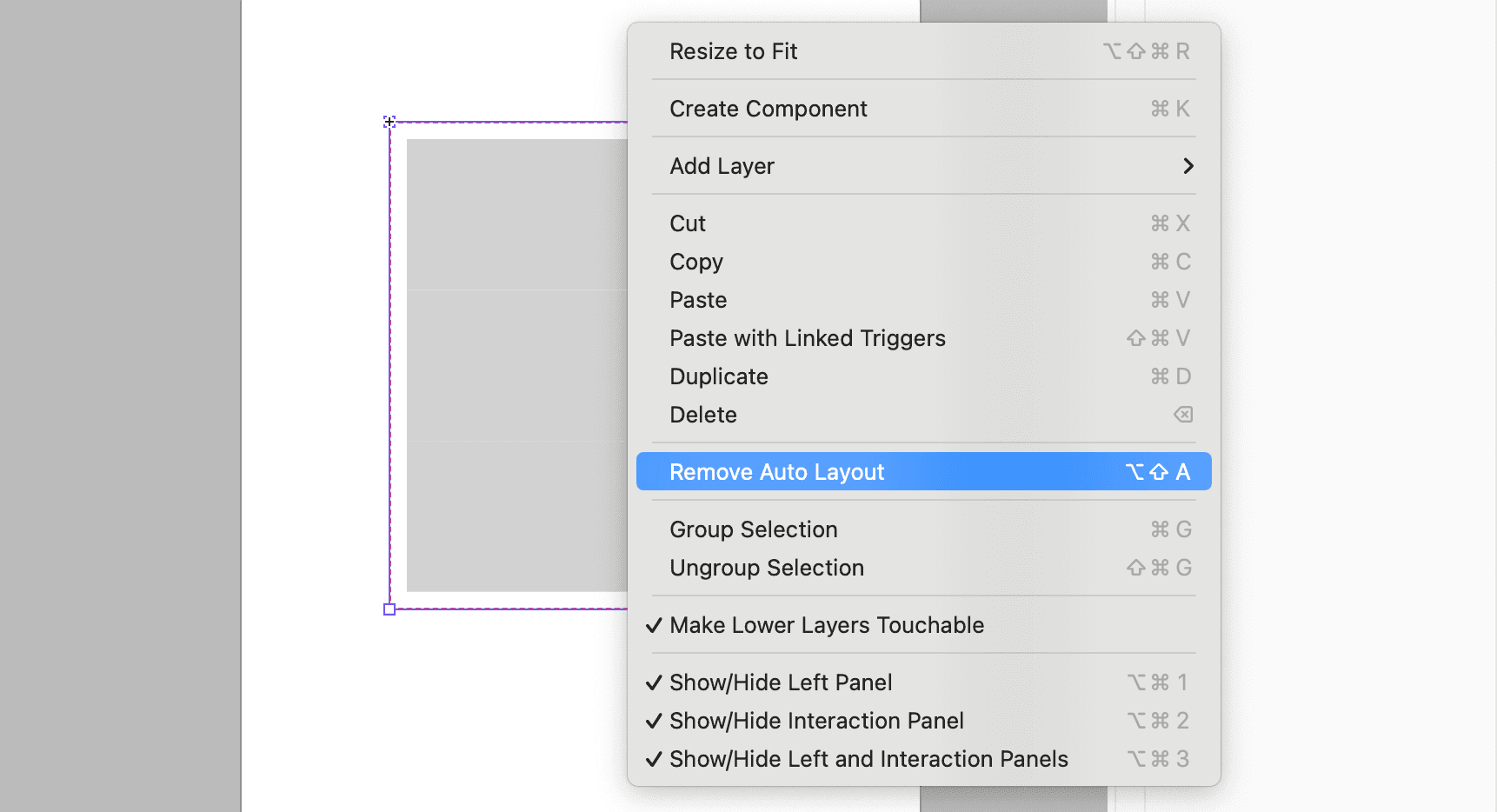
Right-Click Menu: Select "Remove Auto Layout."
Shortcut: Use
Option+Shift+A(Mac) /Alt+Shift+A(Windows).
Notes on Auto Layout
While Auto Layout is powerful and flexible, there are a few things to keep in mind to make the most of this feature. Here are some important points about how Auto Layout interacts with specific layers:
Mask Layers: Applying Auto Layout to a mask layer replaces the mask option with Auto Layout.
Audio Layers: Auto Layout does not affect resizing or interactions with audio layers.
Auto Layout can be applied to single non-container layers, but only via shortcuts or the right-click menu. It is not accessible in the Property Panel.