Automating User & Team Management with SCIM 2.0
Learn how to configure SCIM 2.0 (System for Cross-domain Identity Management) in ProtoPie Enterprise to automatically manage user accounts and teams through your identity provider (IdP), such as Okta or Microsoft Entra ID.
What is SCIM?
When you add or deactivate users, or change group memberships in an IdP (such as Okta or Microsoft Entra ID), the corresponding accounts and teams in ProtoPie Cloud are automatically updated. There is no need to send invitation emails or manually deactivate accounts for employees who have left the company.
Prerequisites
You must be on the Enterprise plan (Private Cloud or On-Premises).
SSO (SAML or OIDC) must be enabled first before you can enable SCIM, since SCIM handles user account creation and lifecycle management, not authentication.
You need a ProtoPie Enterprise administrator account and administrative permissions in your IdP management console.
Note: Google Workspace does not support SCIM for custom app integrations.
Preparing for SCIM in ProtoPie
1) Enable SCIM & Group Provisioning
Go to Organization Settings → Authentication and verify that SSO is enabled.

On the User Provisioning screen, toggle SCIM 2.0 to On. If SSO is turned off, the request will be rejected with the message: "Please enable SSO first."
To synchronize down to the team level, also enable the Group provisioning toggle. If left disabled, group pushes from the IdP will be rejected, while user synchronization will continue.

2) Issue a Token and Copy the Base URL
In the SCIM 2.0 section, click Update to issue a token.
Click the Copy button to copy the displayed Bearer Token and store it in a secure location (such as a password manager). The token is only displayed once on this screen and cannot be retrieved later.

Copy the Base URL, which follows the format:
https://<your-protopie-host>/api/scim/v2
Note: If you omit /api/scim/v2 at the end, the IdP connection test will fail.
☝️Important Token Rule: When a new token is issued, the existing token is immediately revoked. Only one valid token is allowed per organization. If you reissue a token while already connected to an IdP, the token on the IdP side must also be updated to the new value for synchronization to continue.
3) Check Connection Status
The status badge at the top of the SCIM screen displays one of the following four states:
Status Badge | Description |
|---|---|
Off / Inactive | The SCIM toggle is turned off. |
Waiting for connection | A token exists, but the IdP has not yet connected. You must configure the IdP first. |
Connected / Integration Complete | The IdP has successfully connected using this active token. |
Reconnection required | The token was reissued, but the IdP has not yet logged in using the new token. You must update the IdP’s token to the new value. |
Integrating with Okta
App Selection Guidelines
Standard Approach: Add a new "SCIM 2.0 Test App (Header Auth)" from the Okta catalog. Do not use the Basic Auth variant. Since ProtoPie SCIM authentication accepts only Authorization: Bearer tokens, connection tests for Basic Auth apps will fail with a 401 error.
Existing SAML 2.0 or SWA Apps: If created via the App Integration Wizard, enable SCIM under General App Settings → Edit Provisioning: SCIM to link it to the same app (Catalog apps do not have this setting; their Provisioning tab is visible from the start). OIDC apps do not have a SCIM option.
Configuration Rules: Apps created manually in Okta cannot combine OIDC and SCIM within a single app.
If SSO is OIDC: Use two separate apps in Okta—an OIDC app for login and a SCIM 2.0 Test App (Header Auth) for provisioning. Assign the same Okta user group to both apps.
If SSO is SAML: Create a single SAML 2.0 app using the App Integration Wizard, then enable SCIM under General App Settings → Provisioning to handle both login and provisioning in one app.
Step-by-Step Okta Setup
Enable SCIM for a SAML or SWA app (if applicable). In the General tab, go to App Settings → Edit → Provisioning, select SCIM, and save your changes. Skip this step if you are using a catalog app, where provisioning is already available.

Configure the API integration. Go to Provisioning → Configure API Integration, select Enable API Integration, and enter the following details:

Base URL: Paste the Base URL copied from ProtoPie (
https://<host>/api/scim/v2).
API Token: Enter the
Bearerprefix (including the trailing space), followed by the token copied from ProtoPie (for example,Bearer abc123…). Okta requires this prefix. Other IdPs, such as Microsoft Entra ID, do not require the prefix; enter only the token value.For a SAML or SWA app: Okta displays the Integration → Edit screen instead. Set the SCIM connector base URL as above; for the “Unique identifier field for users,” select
“userName”; under “Supported provisioning actions,” check “Push New Users,” “Push Profile Updates,” and “Push Groups”; set the “Authentication Mode” to“HTTP Header”; and enter theBearerprefix followed by the token value in the “Authorization” field.
Test and save the connection. Click Test API Credentials or, for a SAML or SWA app, Test Connector Configuration. After the test succeeds, click Save. Okta sends a
GET /Usersrequest to ProtoPie, and the connection status in ProtoPie changes to Connected.

Enable user lifecycle actions. Under Provisioning → To App, enable Create Users, Update User Attributes, and Deactivate Users. For a SAML or SWA app, To App appears only after you enable Push New Users under Supported provisioning actions and save the configuration. Enabling Push Groups also adds the Push Groups tab. These options are available by default in catalog apps.

Review the attribute mappings. Confirm that the following mappings are configured:

userName←user.email(ProtoPie uses the email address as the username.)givenName←user.firstNamefamilyName←user.lastNameRemove mappings for attributes that ProtoPie does not use, such as phone numbers.
Assign users or groups. In the Assignments tab, assign the users or groups that should have access to ProtoPie. Okta creates a ProtoPie account as soon as a user is assigned. If your organization uses separate SSO and SCIM apps, as with OIDC, assign users to both apps so authentication and provisioning remain aligned. For easier administration, create one Okta group, such as ProtoPie Users, and assign it to both apps. Removing a user from the SSO app alone does not deactivate the ProtoPie account; the user must also be removed from the SCIM app.

Push groups to synchronize teams. In the Push Groups tab, add each Okta group you want to synchronize. ProtoPie creates a corresponding team using the Okta group name.

☝️Okta sends changes immediately. You can verify them in the ProtoPie People list within a few seconds after assignment or deassignment. After verification, check to see if the connection status in ProtoPie has changed to “Connected.”
Integrating with Microsoft Entra ID
Choose the correct app before you begin. The Provisioning menu is available only for non-gallery apps under Enterprise applications. If you use SAML for SSO, configure SSO and SCIM provisioning in the same non-gallery app. If you use OIDC through App registrations, create a separate non-gallery enterprise app for provisioning. Assign the same users and groups to both the OIDC app and the provisioning app so authentication and account provisioning remain aligned.
Go to entra.microsoft.com → Entra ID → Enterprise applications, then open the non-gallery app used for ProtoPie. If one does not exist, select + New application → + Create your own application, enter a name, choose Integrate any other application you don’t find in the gallery (Non-gallery), and click Create. After the app is created, confirm that Provisioning appears under Manage in the left sidebar. This menu does not appear in OIDC apps created under App registrations.
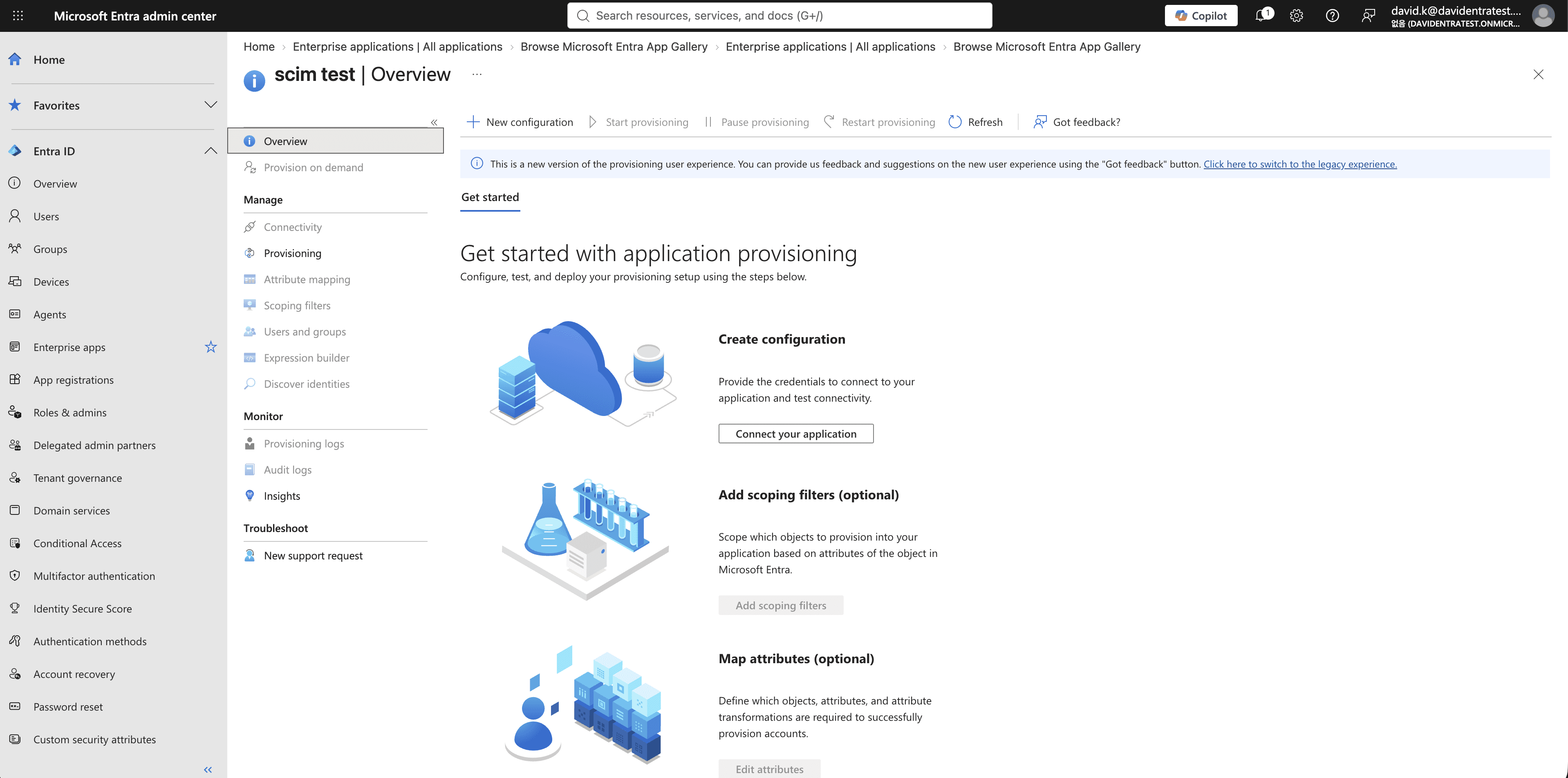
In the left sidebar, open Provisioning and click + New configuration. Automatic provisioning is selected by default. In the older Entra interface, select Get started, then set Provisioning Mode to Automatic.
Enter the ProtoPie SCIM credentials:

Tenant URL: Paste the Base URL copied from ProtoPie (
https://<host>/api/scim/v2).Secret Token: Paste the token copied from ProtoPie.
Click Test Connection. After the test succeeds, click Save. Entra sends a
GET /Users?filter=…request to ProtoPie, and the connection status in ProtoPie changes to Connected. If the test times out, confirm that your firewall allows traffic from the Microsoft Entra provisioning service IP ranges.Open Mappings → Provision Microsoft Entra ID Users and confirm the following mappings:

userName←mail. Usemailinstead of the defaultuserPrincipalName, because ProtoPie usesuserNameas the user’s login email.active← Keep the built-in Switch expression based onIsSoftDeleted. When a user is unassigned or deactivated in Entra, it sendsactive: falseto ProtoPie.name.givenName←givenNamename.familyName←surnameexternalId←objectIdRemove mappings for attributes ProtoPie does not use, such as addresses and phone numbers.
Set Provision Microsoft Entra ID Groups to Enabled. Entra uses each group’s
displayNameas the corresponding ProtoPie team name.
Under Provisioning → Overview (formerly Settings), set Scope to Sync only assigned users and groups. This prevents Entra from attempting to provision every user and group in the directory.

Open Users and groups and assign the users and groups that should be provisioned to ProtoPie. Only assigned objects are synchronized when the recommended scope is selected.

Set Provisioning status to On and click Save. In the older interface, this is equivalent to clicking Start provisioning. To pause synchronization later, set the status to Off.

☝️Microsoft Entra runs an incremental synchronization cycle approximately every 40 minutes, so newly assigned users and groups may not appear in ProtoPie immediately. To test without waiting for the next cycle, select a user, run Provision on demand, and review the result in Provisioning logs.

SCIM-Managed Accounts in ProtoPie
Managing User Accounts
After synchronization, ProtoPie marks accounts managed through SCIM and limits changes that could conflict with your identity provider.
Identify SCIM-managed users. A SCIM badge appears next to managed accounts in the People list. Use the SCIM filter at the top of the list to show all users, only SCIM-managed users, or only users who are not managed through SCIM.


Manage account details in your IdP. A SCIM-managed user’s name, email address, active status, and account deletion cannot be changed in ProtoPie. Make these changes in your identity provider, and ProtoPie will apply them during the next synchronization. In the user’s row menu (⋯), the options to change the email address or deactivate the account are removed; only Reset MFA remains.

Users cannot edit managed profile details. In their account settings, SCIM-managed users see their name and email fields disabled, along with the message Account managed by IdP. To update these details, they must contact an administrator or follow your organization’s identity-management process.

Users sign in through SSO only. SCIM-managed accounts do not have a ProtoPie password and are not covered by ProtoPie’s built-in MFA. The MFA column in the People list shows Not applicable. Let existing users know that any ProtoPie password they used before SCIM was enabled will be removed.

Roles and profile pictures remain editable in ProtoPie. Administrators can still change a user’s ProtoPie role (Admin or Member), and users can still update their profile picture.
Managing Teams
When group provisioning is enabled, your identity provider manages team creation and membership in ProtoPie.
Teams are created when the first member is synchronized. An IdP group becomes a ProtoPie team when its first member is added. New team members initially join as Viewers; you can promote their team roles in ProtoPie.

Manage team membership in your IdP. You cannot add, invite, or remove IdP-managed members from ProtoPie. SCIM-managed teams and members display a SCIM badge, and the Invite new member button is disabled. To change membership, update the corresponding group in your IdP.

Organization Settings → Teams → Team Details — SCIM chip for members added by the IdP
Review the automatically assigned team owner. When the team is created, ProtoPie assigns ownership to the organization administrator with the oldest account. If another person should own the team, change the owner in ProtoPie after synchronization.
Team names must be unique. If your organization already has more than one team with the same name, synchronization of a matching IdP group fails with a
409uniqueness error. Rename the existing team in ProtoPie so each team has a unique name, then retry the group synchronization from your IdP.Deleting an IdP group does not delete ProtoPie content. The associated team and its files remain in ProtoPie, but the connection to the IdP group is removed.
Day-to-Day SCIM Management
Use your IdP as the primary place to manage SCIM users and team membership.
New hires: Assign the user to the ProtoPie provisioning app in your IdP. ProtoPie creates the account automatically, and the user signs in through SSO.
Departing employees: Remove the user’s assignment or deactivate the account in your IdP. ProtoPie deactivates the account but retains its data. If the account must be permanently deleted, a ProtoPie administrator must handle that separately.
Email address changes: Email changes made in the IdP after SCIM integration are not automatically applied in ProtoPie. Contact ProtoPie Support if an email address must be changed.
Team membership changes: Add or remove users from the corresponding group in your IdP. Do not manage SCIM-controlled membership in ProtoPie.
Troubleshooting SCIM
Connection test fails with
401 Unauthorized: The token is invalid, expired, or was copied incorrectly. Reissuing a token immediately invalidates the previous one. If ProtoPie shows Reconnection required, update the token in your IdP and test the connection again.Connection test fails with
403 Forbidden: The SCIM 2.0 toggle is turned off in ProtoPie. Turn it on, then retry the connection test.Connection test fails with
404 Not Found: Confirm that the Base URL includes/api/scim/v2and that your organization is on an eligible Enterprise plan.A group member does not appear in the ProtoPie team: The user may not be assigned to the provisioning app. Assign the user first, then retry or save the group in your IdP.
Provisioning fails with a
409uniqueness error: An account with the same email address or a team with the same name already exists in ProtoPie. Check the IdP log for the specific conflict, resolve the duplicate, and then retry synchronization.Okta: Open the affected group under Apps → Push Groups, or open the event under Reports → System Log and review the response body in Debug Data.
Microsoft Entra: Open the failed entry under Provisioning logs, then review Troubleshooting & Recommendations.
After the conflict is resolved, Okta retries the group push. Microsoft Entra applies the change during its next synchronization cycle, or you can run Provision on demand.
Microsoft Entra places provisioning in quarantine: Entra may pause provisioning after repeated failures caused by a temporary server or configuration error. Review the latest error in Provisioning logs, resolve the cause, and click Restart provisioning.
Pausing or Disconnecting SCIM
Choose the option that matches whether you want to pause synchronization or permanently remove the SCIM connection.
Temporarily pause synchronization: Turn off the SCIM 2.0 toggle. Your mappings and token remain configured, but ProtoPie rejects provisioning requests until you turn SCIM back on. Editing restrictions for SCIM-managed users and teams remain in place while synchronization is paused.
Disconnect a single user or team: Find the entry under People or Teams and click Unlink from IdP. Because an unlinked user may not have a ProtoPie password, guide them through the password reset process before they attempt to sign in without SSO.
Reconnect a user or team: Reassign the user or group to the provisioning app in your IdP, then run a full synchronization.