Shortcuts—the term already gives it away—are faster alternatives to completing a specific action. Perform actions, e.g., pasting with interactions or creating components, much faster in ProtoPie. Save yourself time and clicking simultaneously.
ProtoPie puts different shortcuts at your disposal. Mastering some can help you speed up your workflow and enhance productivity.
In this article, we will show you 10 of our favorite and time-saving shortcut tips.
Learn more about shortcuts in ProtoPie.
1. Shortcuts modal
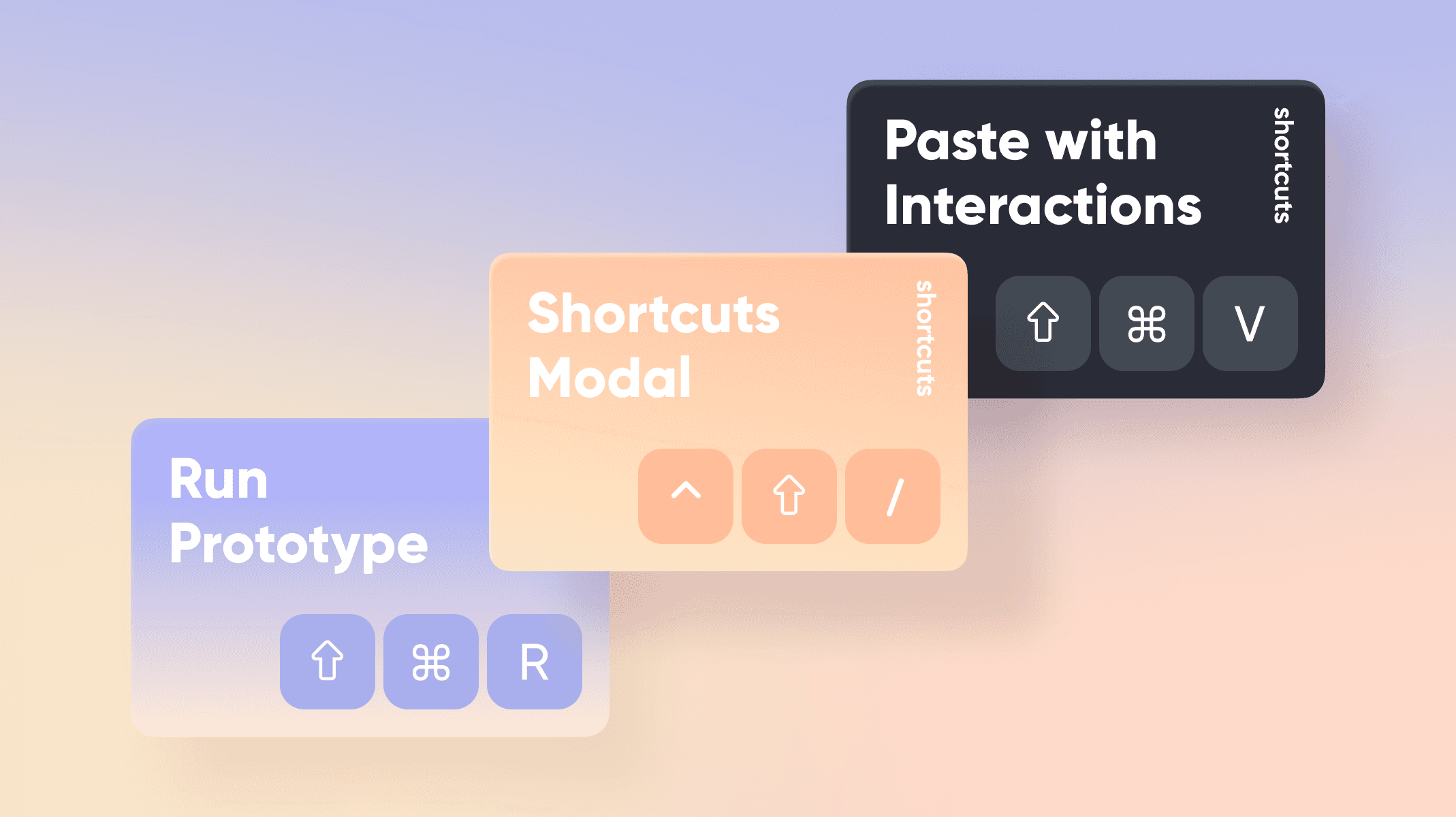
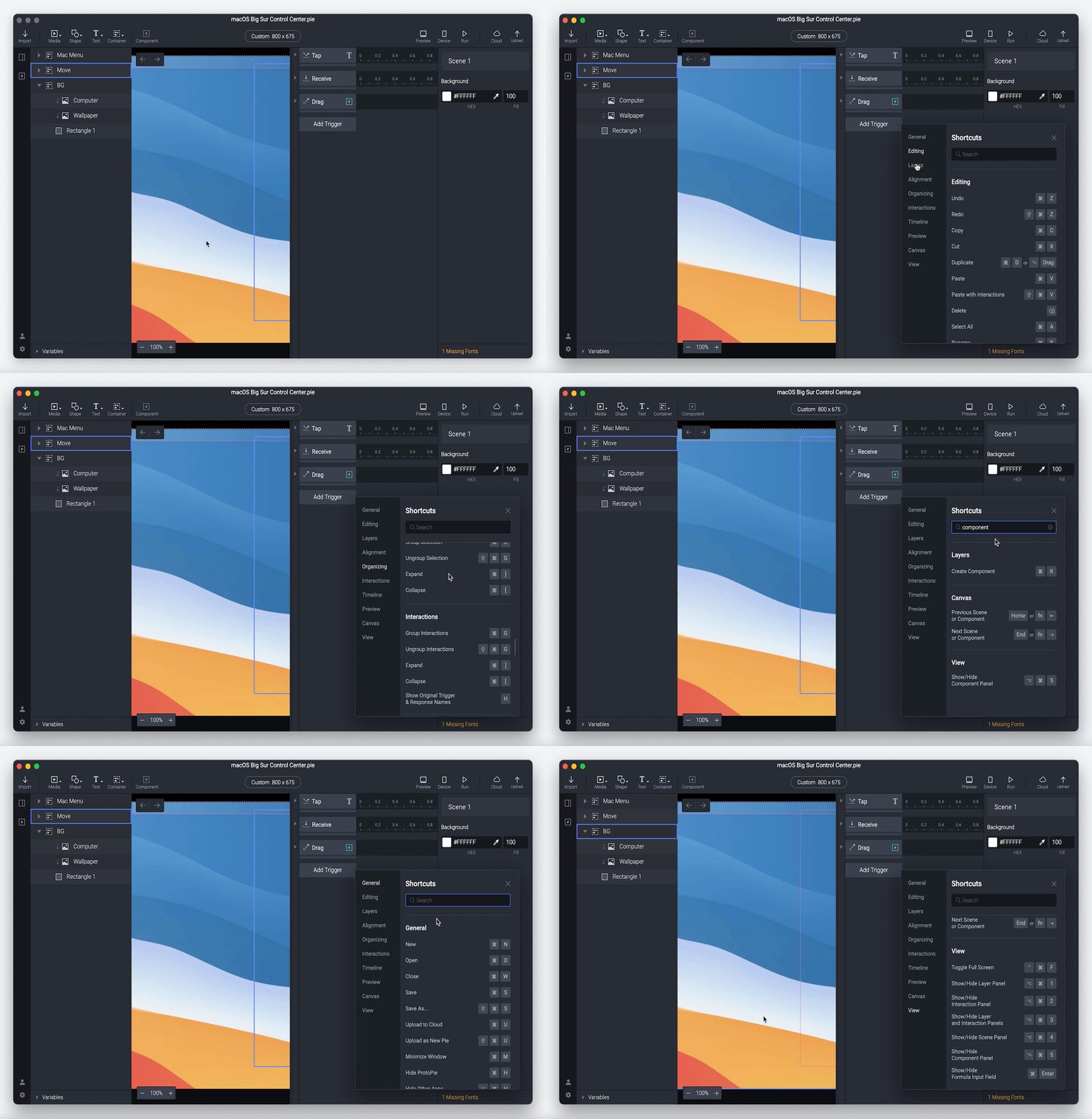
It's one thing to have useful keyboard shortcuts, it's another thing to find out about them. This is why we introduced the shortcuts modal—your one-stop shop for all keyboard shortcuts.
Discover all shortcuts to boost productivity or make your workflow easier at a glance.
macOS: ⌃ + ⇧ + /
Windows: Ctrl + Shift + /
2. Paste with interactions
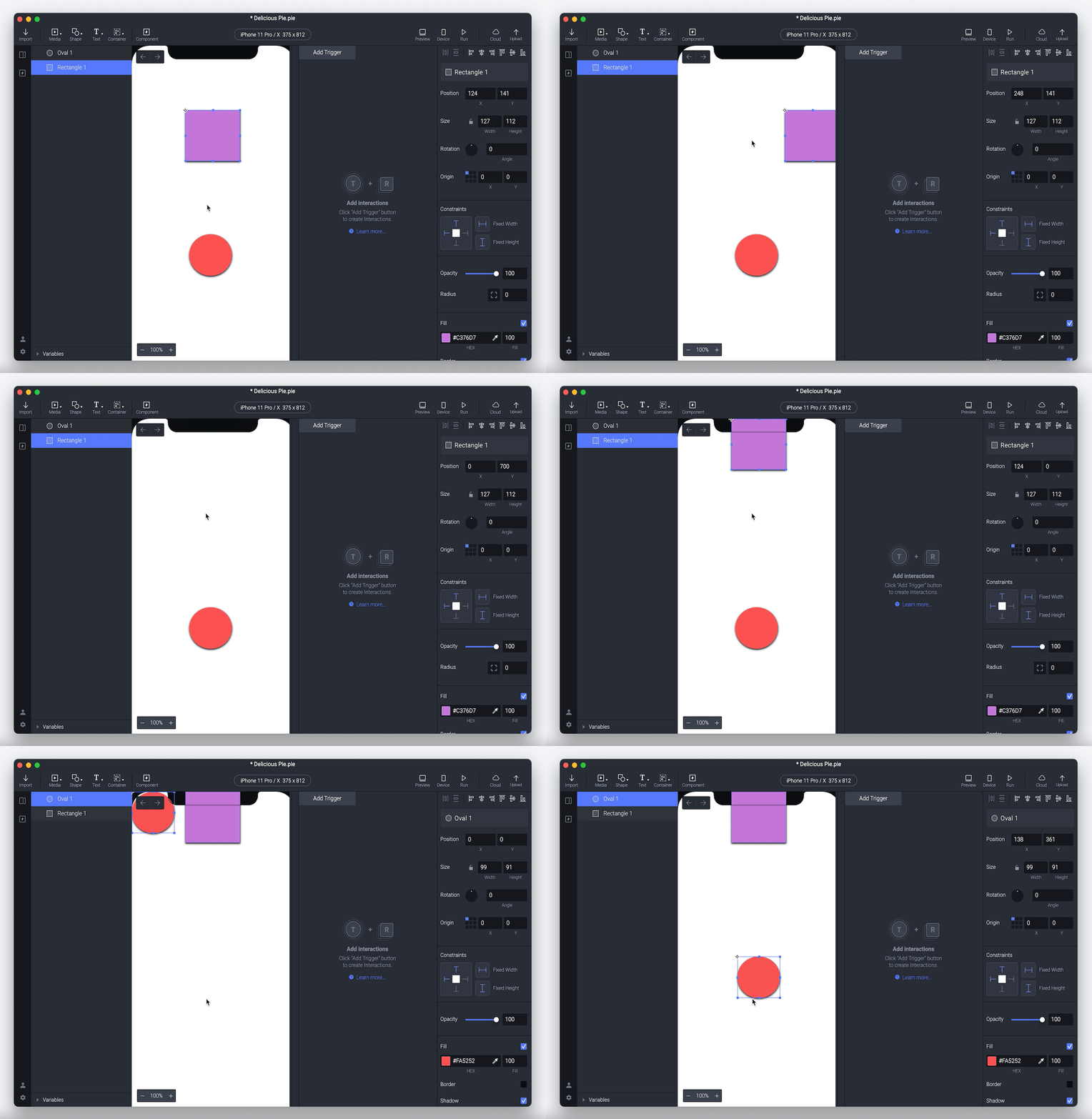
Is it possible to copy-and-paste a layer with all its interactions? The answer is yes. Easily paste a layer without losing its triggers and responses.
macOS: ⇧ + ⌘ + V
Windows: Ctrl + Shift + V
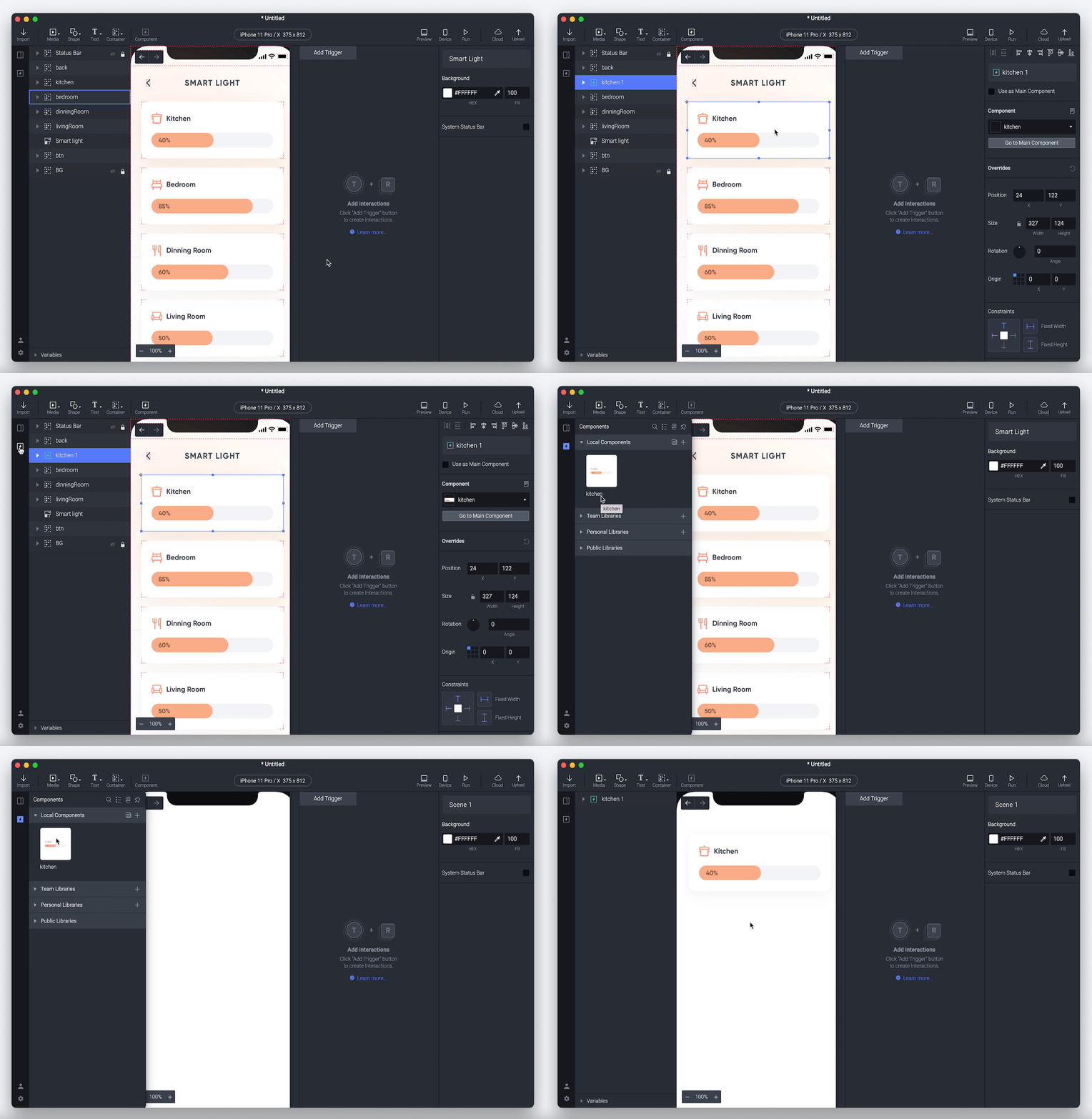
3. Create component
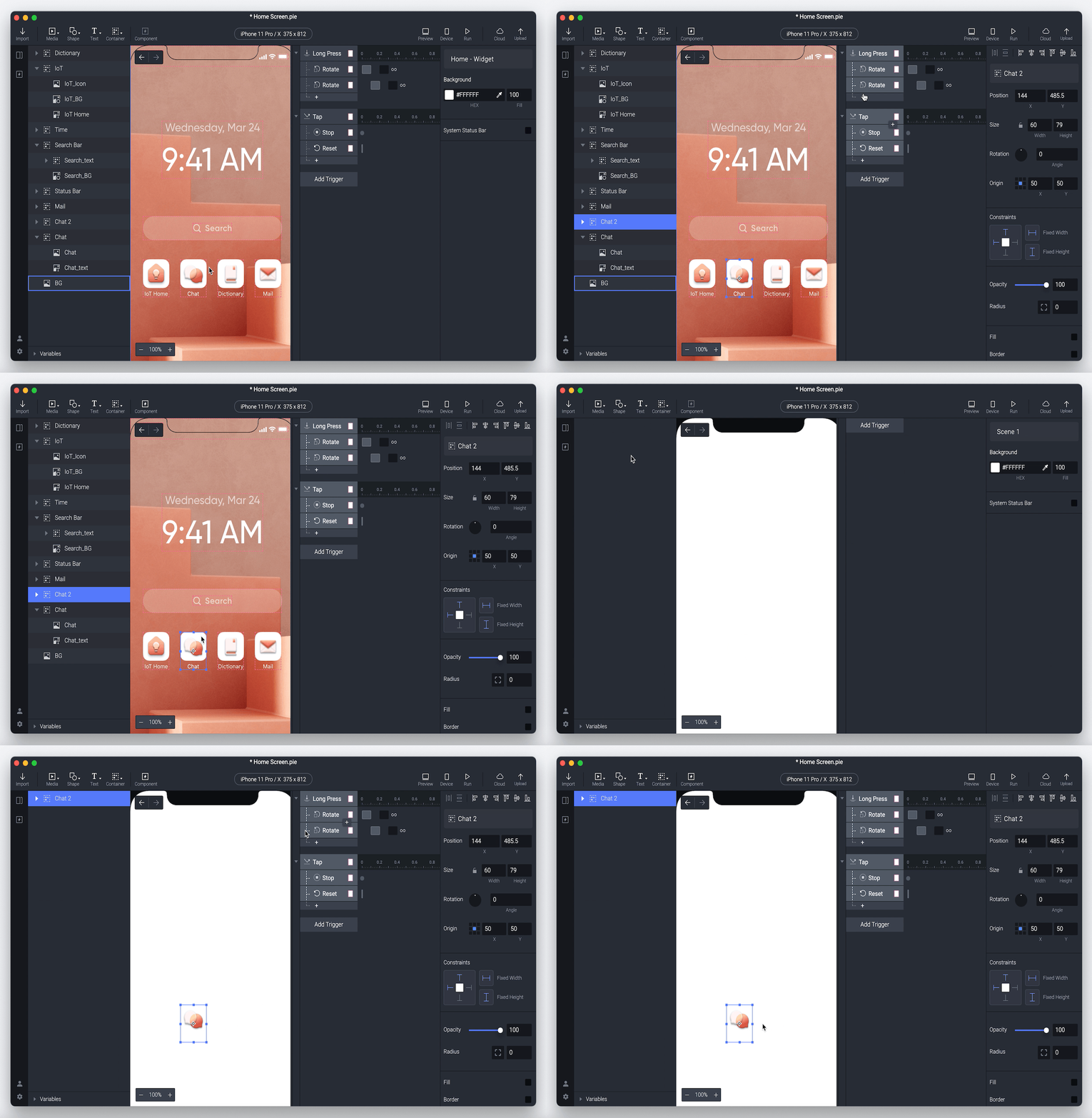
Creating components could not be easier with this shortcut. Avoid repetitive work by saving sets of layers and their interactions to use again later.
macOS: ⌘ + K
Windows: Ctrl + K
Learn more about components.
4. Group/Ungroup interactions
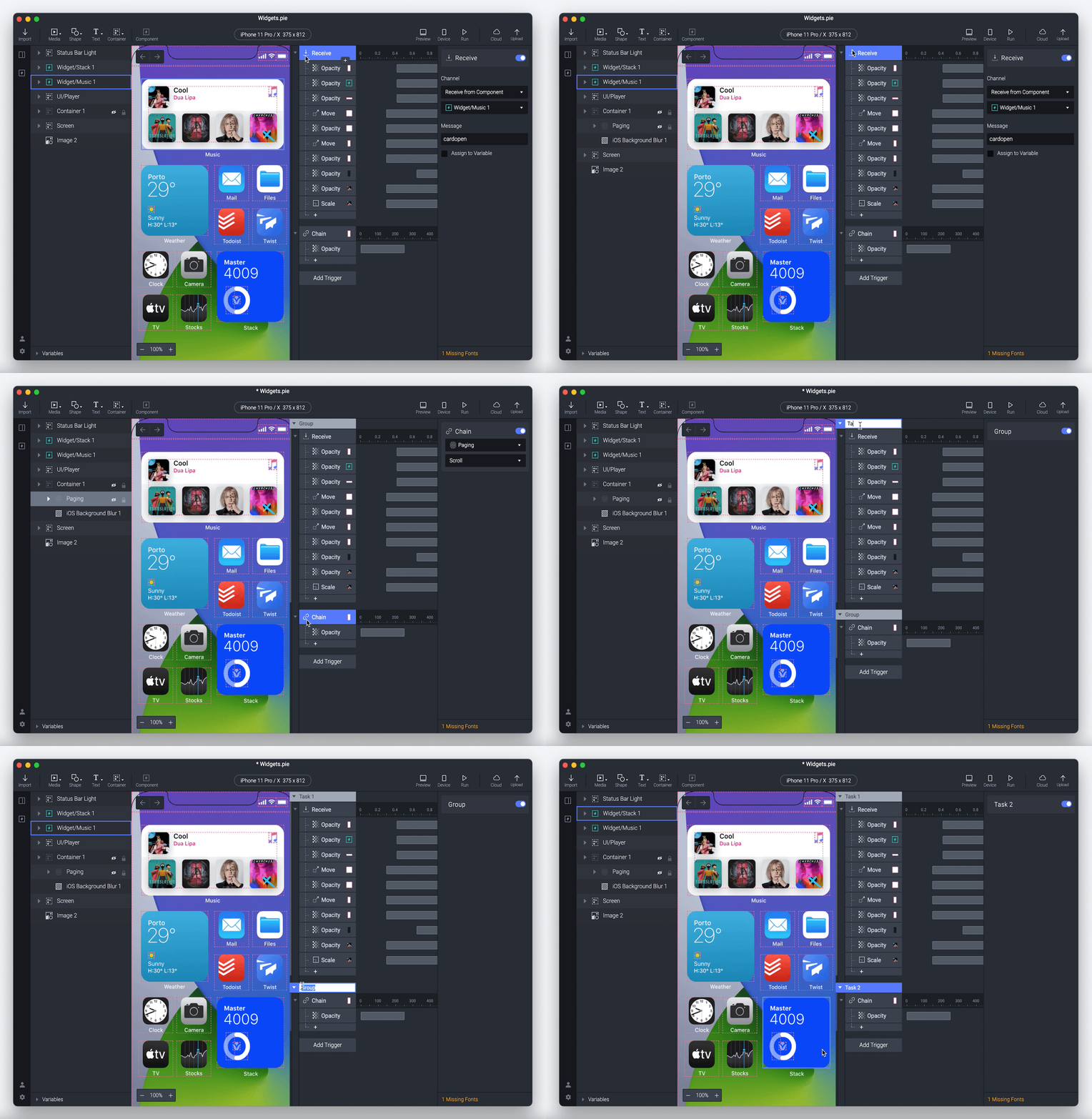
Having a hard time organizing all the triggers and responses in your Pie? Grouping them helps you manage them in a more effective way.
Group interactions
macOS: ⌘ + G
Windows: Ctrl + G
Ungroup interactions
macOS: ⇧ + ⌘ + G
Windows: Ctrl + Shift + G
5. Show original trigger & response names
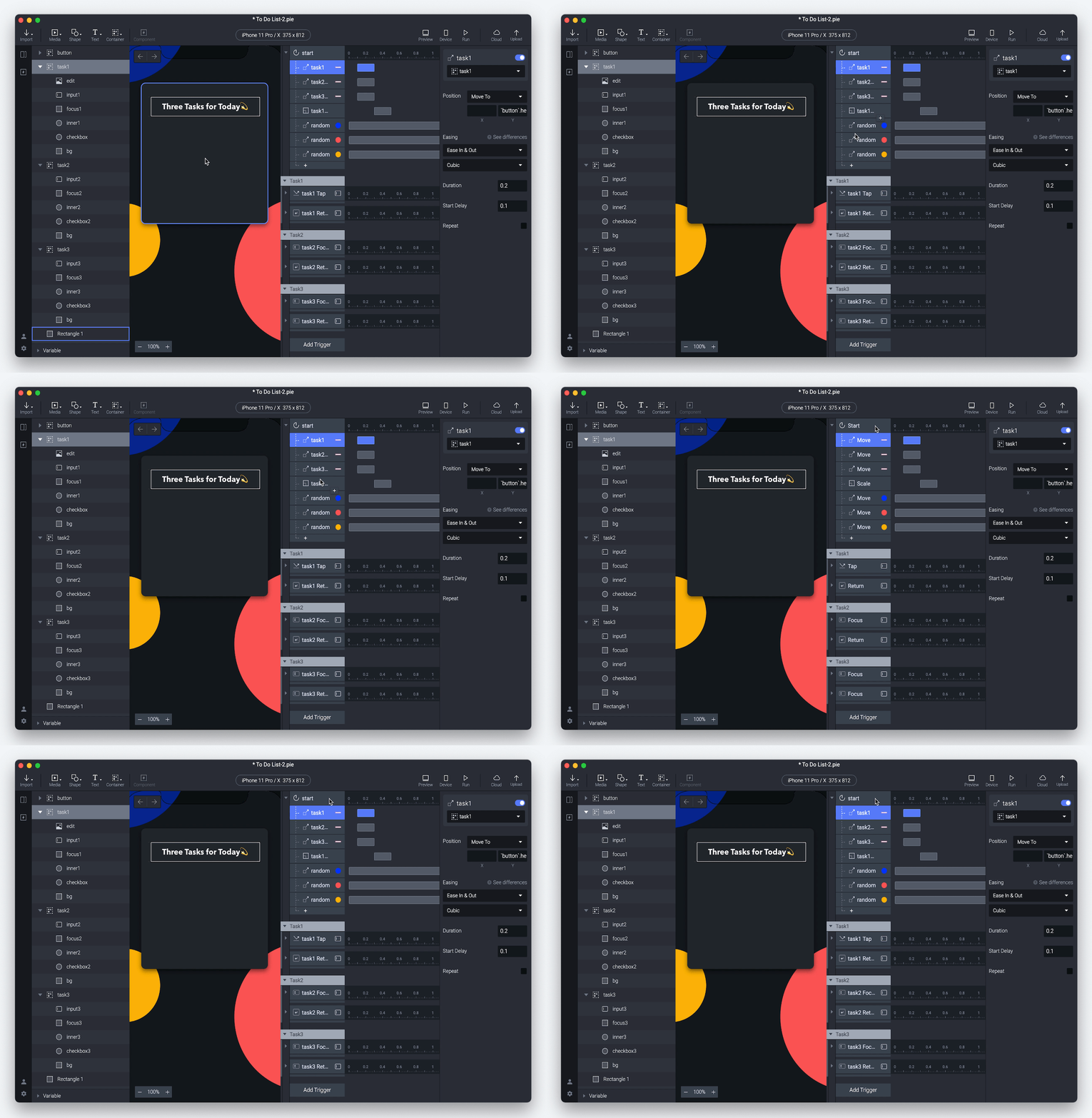
Lost in a long list of renamed triggers and responses in a prototype? Get a glimpse of the original names of the triggers and responses used for each interaction.
macOS: H
Windows: H
6. Increase/Decrease delay & duration
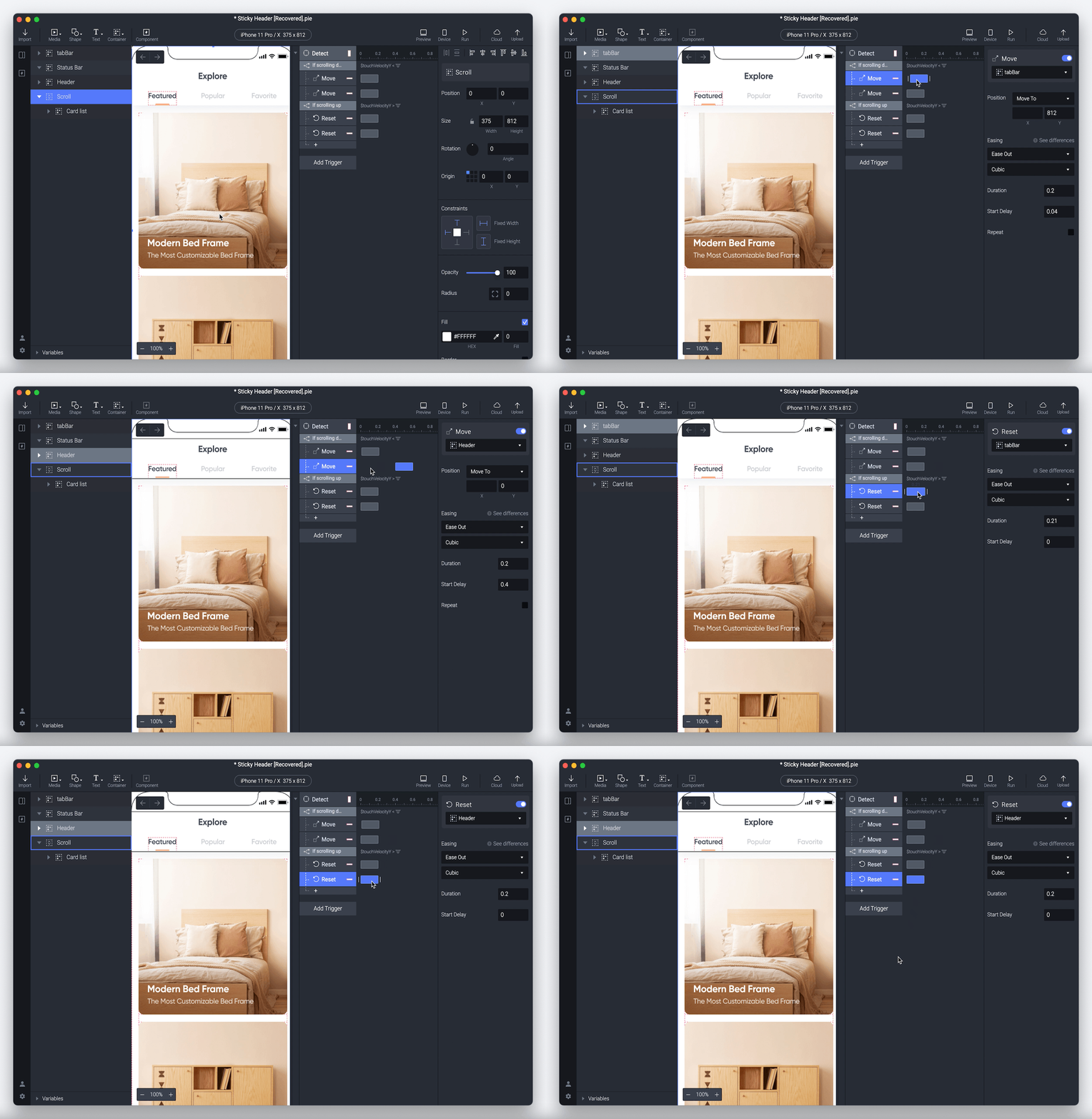
Timeline handles are your best help, using your cursor, to adjust delays and durations to the Timelines. However, this does require some tinkering with your cursor. Accurately manage each delay or duration without the tinkering.
Select first the response to increase or decrease its delay and/or duration. Find these shortcuts under Timeline in the Shortcuts modal: ⌃ + ⇧ + / (on macOS) or Ctrl + ⇧ + / (on Windows).
7. Run prototype
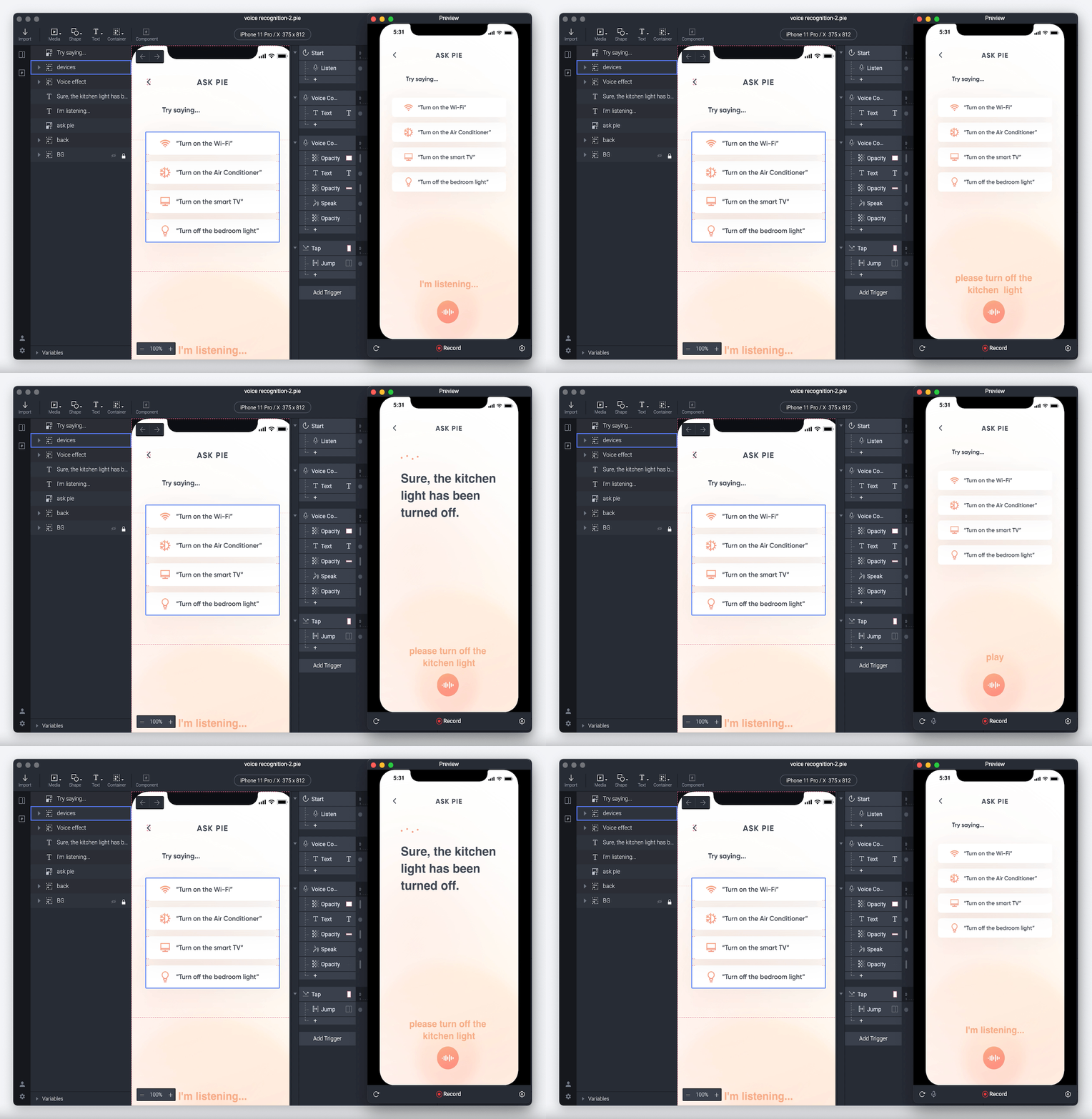
With this shortcut you can easily display your prototype in the Preview Window. Moreover, once connected to ProtoPie Player you can also test it in your device.
macOS: ⇧ + ⌘ + R
Windows: Ctrl + Shift + R
8. Pick color
Activate the eyedropper instantly to pick a color.
macOS: I
Windows: I

9. Lock/Unlock & Show/Hide layer
Lock/Unlock layer
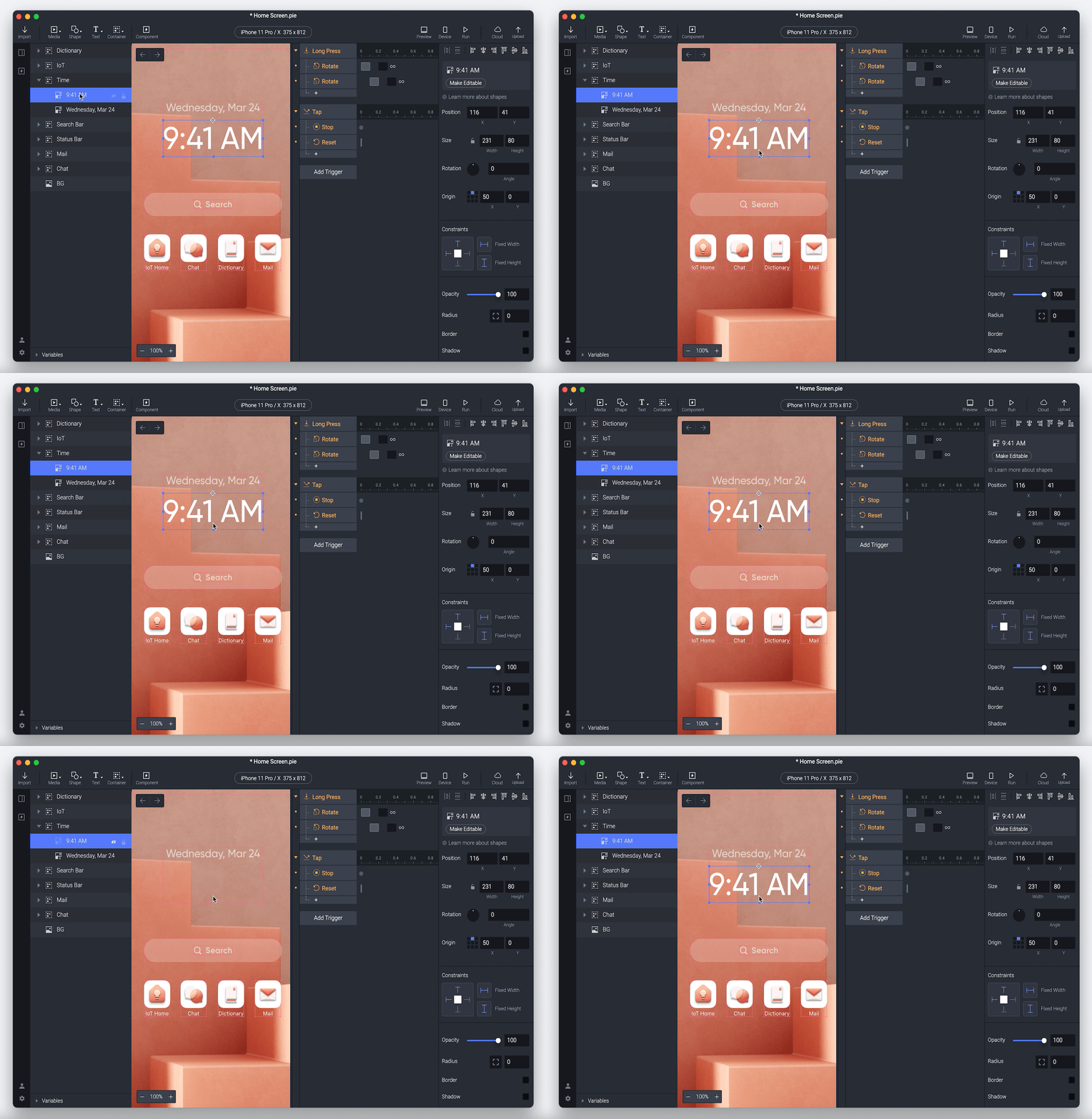
Locking a layer prevents you from selecting it or making any changes to it in the canvas. Avoid accidental mistakes while prototyping using this shortcut. You will see the lock icon activate when a layer has been locked. Unlock them using the same shortcut.
macOS: ⇧ + ⌘ + L
Windows: Ctrl + Shift + L

Show/Hide layer
A simple way to hide a layer is to click on the eye icon next to the layer name. Nonetheless, we show a faster way to help you save some time from trying to find a specific layer among others. Simply select the layer in the canvas and use the shortcut below.
Repeat the shortcut to show the layer again.
macOS: ⇧ + ⌘ + H
Windows: **Ctrl + Shift + H **
10. Alignment
The alignment tools are those located in the upper part of the property panel. They help you to precisely position or align your layers within the canvas or among other layers. These shortcuts composed of commands and arrow keys will let you play around with the different options available.
Find all Alignment shortcuts in the Shortcut modal: ⌃ + ⇧ + / (on macOS) or Ctrl + ⇧ + / (on Windows).