INDUSTRIES

Automotive

Aviation

Finance

Gaming

MedTech

IoT

Digital Products

USE CASES

For Enterprise

For Individuals

For Teams

For education

KEY FEATURES

Hardware & System Integration

Beta

ProtoPie MCP

Multi-Device Prototyping

Interaction Logic

Developer Handoff

ProtoPie AI

New

User Testing

PLUGINS

Figma

Sketch

Adobe XD

INSIGHTS & INSPIRATION

Blog

eBooks

Clients Success Stories

Events & Webinars

ProtoPie Gallery

PRODUCT LEARNING & SUPPORT

ProtoPie School

Download ProtoPie

Product Documentation

Community

INDUSTRIES

Automotive

Aviation

Finance

Gaming

MedTech

IoT

Digital Products

USE CASES

For Enterprise

For Individuals

For Teams

For education

KEY FEATURES

Hardware & System Integration

Beta

ProtoPie MCP

Multi-Device Prototyping

Interaction Logic

Developer Handoff

ProtoPie AI

New

User Testing

PLUGINS

Figma

Sketch

Adobe XD

INSIGHTS & INSPIRATION

Blog

eBooks

Clients Success Stories

Events & Webinars

ProtoPie Gallery

PRODUCT LEARNING & SUPPORT

ProtoPie School

Download ProtoPie

Product Documentation

Community

Releases

2

min read

What’s New in ProtoPie? Prototypes' Expiring Links

Set an expiration timespan for prototypes shared through your Enterprise Cloud Space. Share Pie links securely with external stakeholders.

ProtoPie,
connect ai agents like claude, cursor and more to protopie via mcp

Ensuring the security of our Enterprise customer’s data is one of our top priorities.

We know organizations can’t afford risking that the prototypes they share through ProtoPie Cloud might get into the wrong hands and cause data leaks.

For this reason, we have introduced expiring links on ProtoPie Cloud. Enterprise teams can now configure how many days a prototype’s link should remain accessible after it is generated.

This feature is only available in the Enterprise plan.

Where to configure Expiring Links

To set a link expiration on ProtoPie Cloud, follow these steps:

  1. Click on Share in the upper-right area of the pie page.

  2. Click on the section below the space owner’s name.

  3. Define Who can access and the Access Level.

  4. Select the timespan of the expiration.
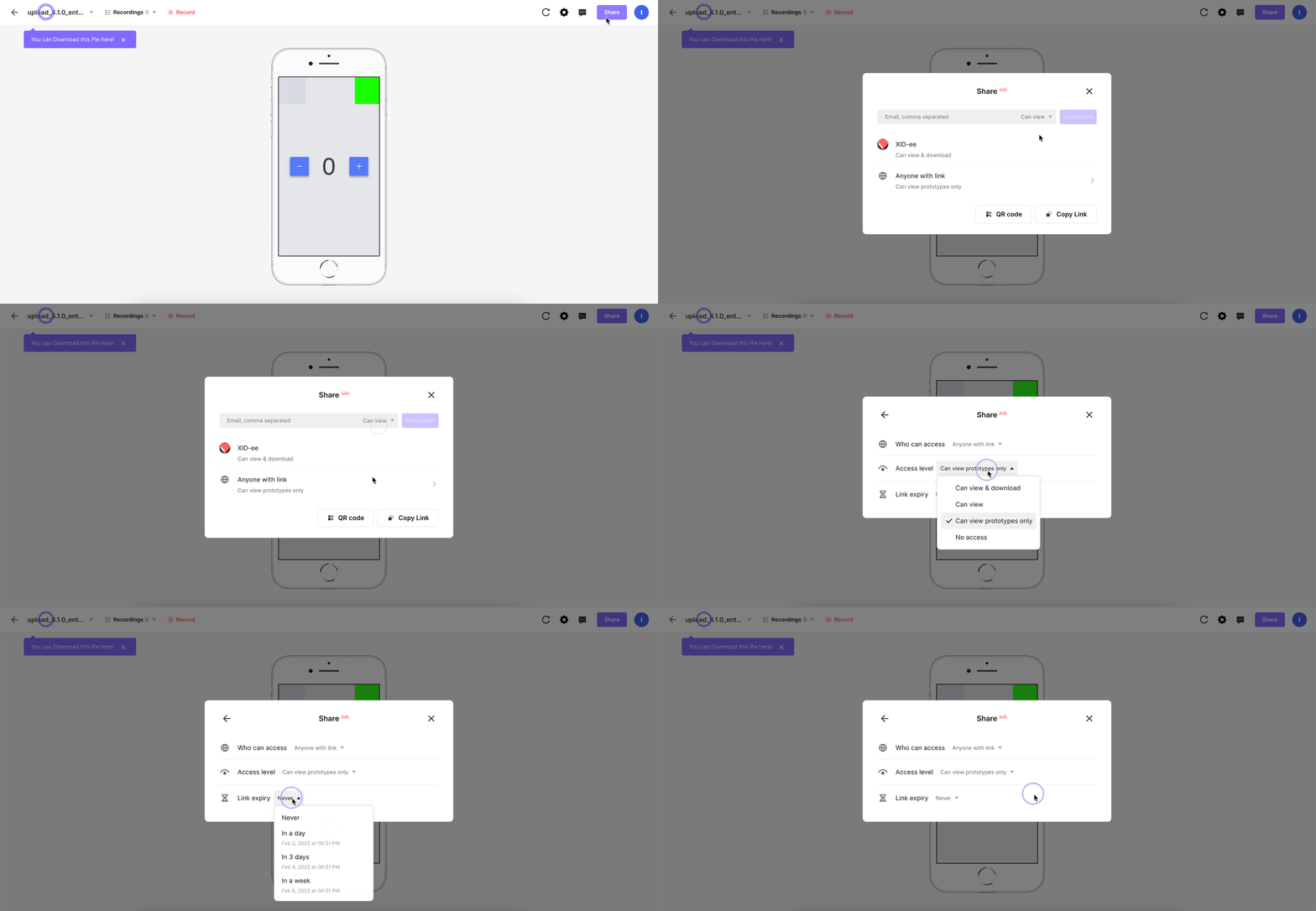

expiry links configuration

Configuration Options

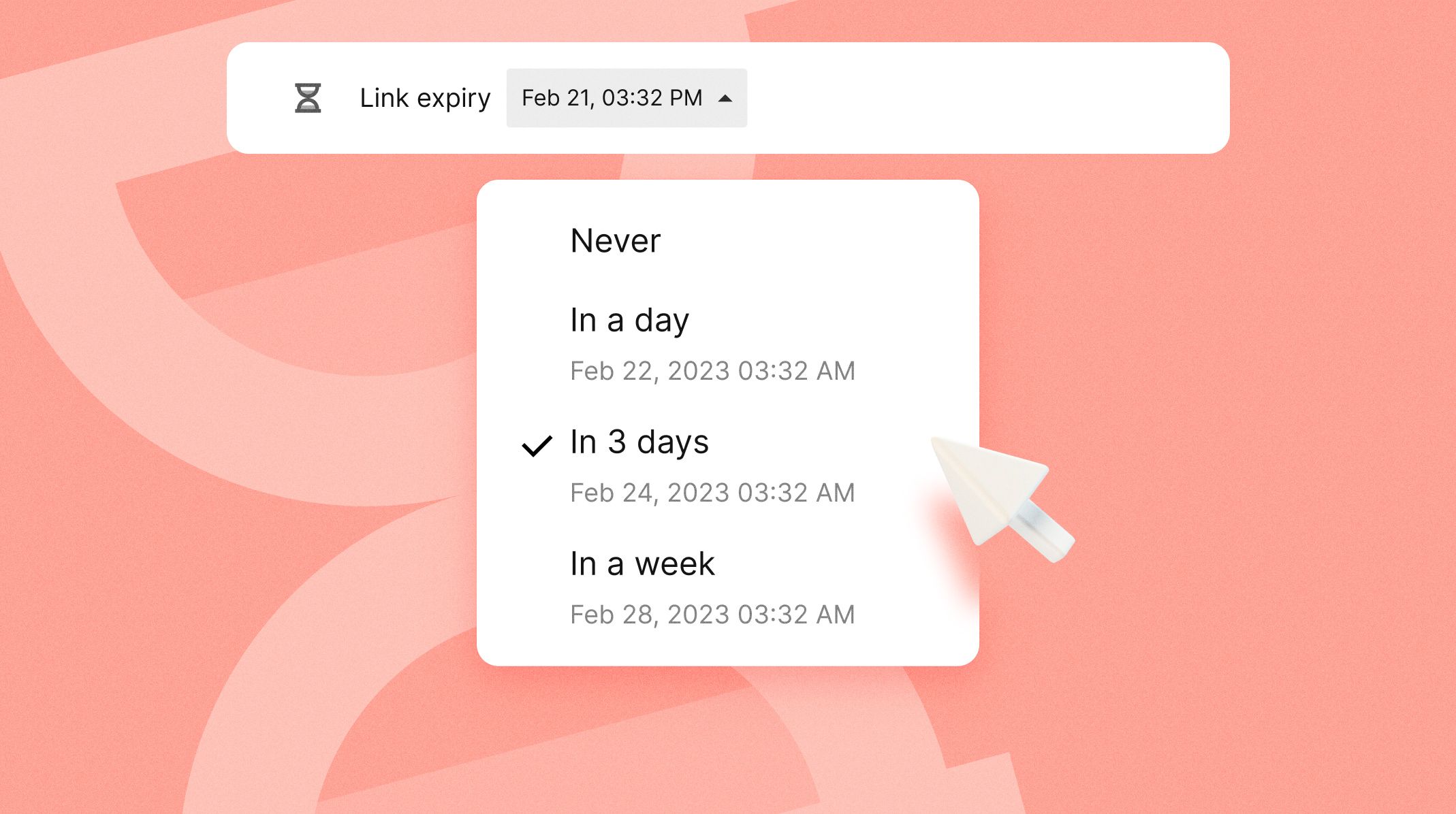
The default expiration timespan is Never.

Choose between the following:

  • In a day

  • In 3 days

  • In a week

The timespan is exact as it also considers the time the expiration was set.

Access Level Options

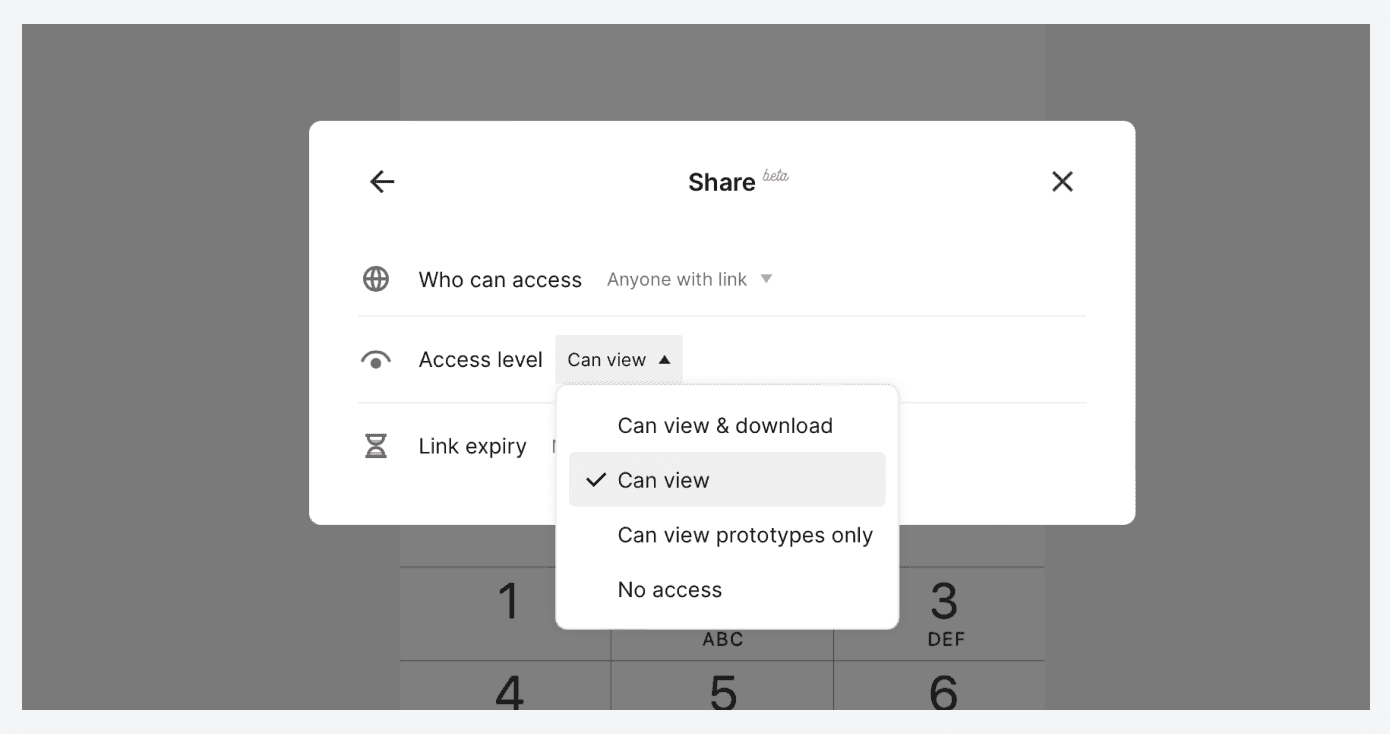
The default access level is No access. Other options are:

  • Can view & download

  • Can view

  • Can view prototypes only


access level

Get started today

Subscribe now and discover endless possibilities with ProtoPie.

[Try ProtoPie for Free] {Contact Sales}