
Hi! Here is ProtoPie Teacher, Leah.
Did you know in ProtoPie there is a feature named Constraints? With it, you can define whether the sub-layers’ position or size should be changed together with the container.
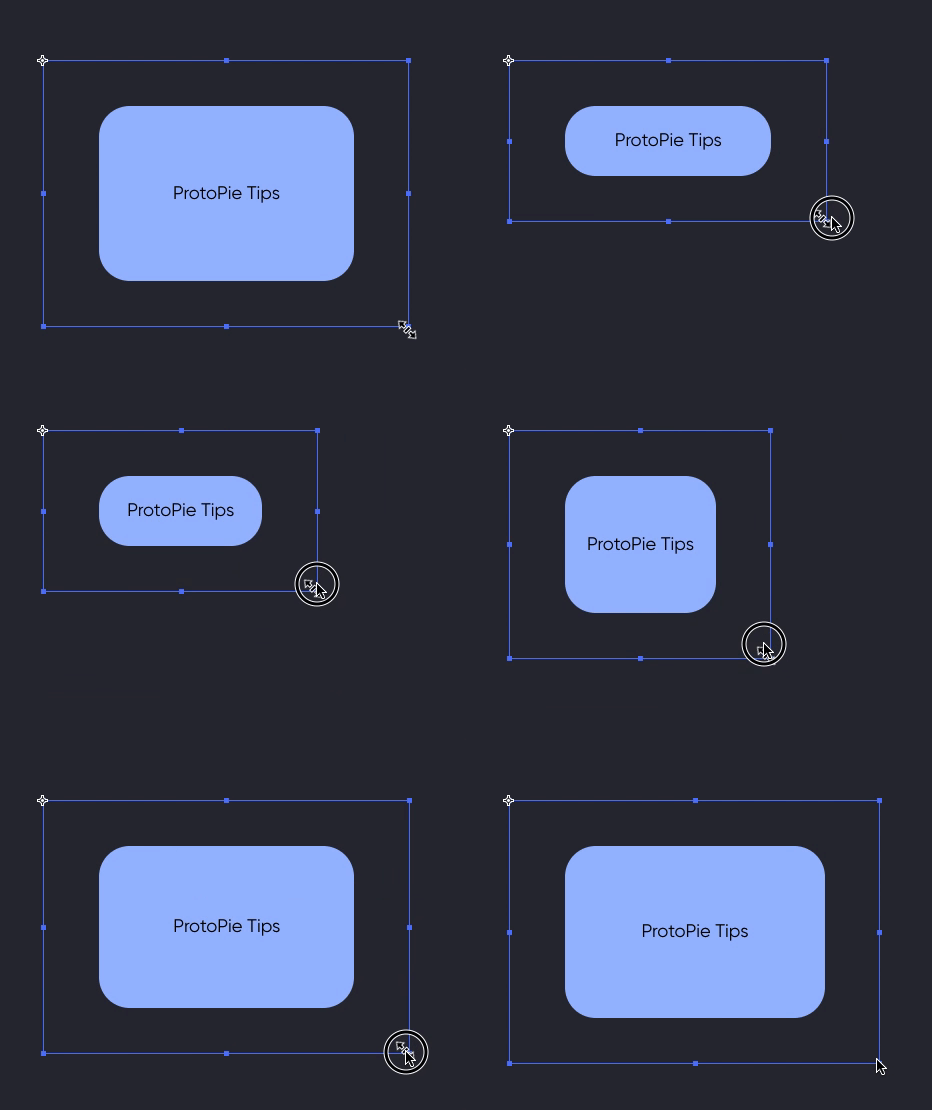
Changing Sub-layer's position and size
Step 1: Define how the sub-layer will change following the container.
In your container, there might be several sub-layers, such as background and text layers. First, you should decide when you change the Container’s size, how the sub-layers will change.
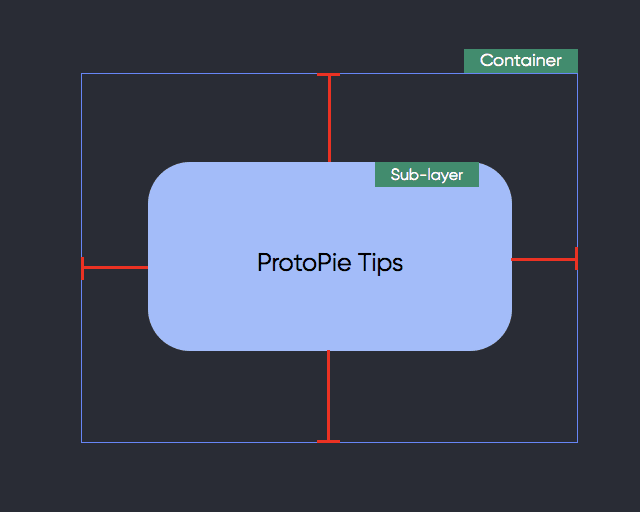
Sub-layer and Container
In this case, we want the background sub-layer to be scaled following the Container’s size.
It means that the distance from the border of the background sub-layer to the Container should always be the same. However, the text layer will not be changed following the Container’s size.
Step 2: Select sub-layer and set the constraints
The most important point is that you should set the constraints of the sub-layer, not container.
After you select the sub-layer, you can find the setting of the constraints on the property panel. If you want to change the sub-layer size with the container together, you should check the box (image below).

Checkbox image
However, if you don’t want to change the size of the sub-layer (in this example, text layer), we just need to check the “fixed width” and “fixed Height” setting.
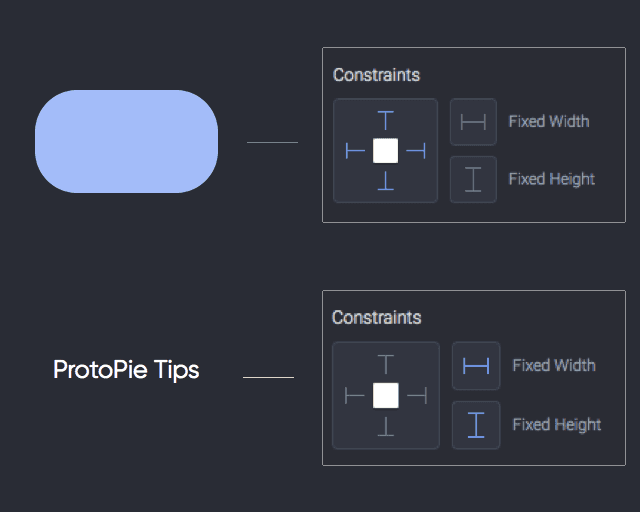
Check the Fixed Width and Fixed Height setting
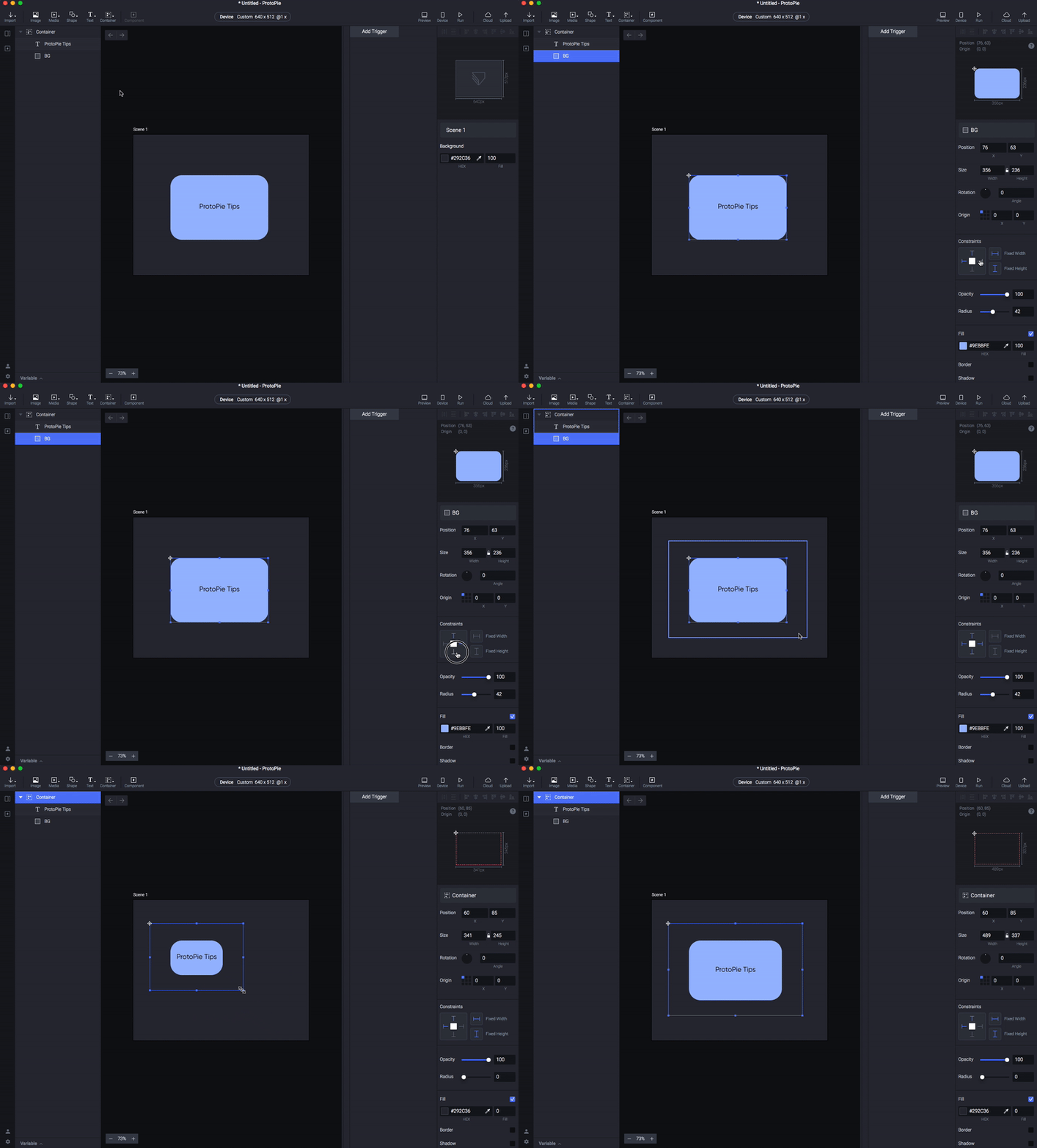
Constraints feature demo
That’s all for now!
If there are some other tips that you would like to see us talking about, feel free to let us know by replying.