

The next step is the hard part
AI has changed how fast a UX designer can get to a working prototype. You describe what you want, you vibe code it, and a prototype is running before lunch. Then comes the hard part: getting it onto the real device it’s meant for.
For a smart home app, a TV interface, or any screen that sits next to lights, knobs, sensors, and other screens, that usually means waiting. Someone has to set up a test environment and wire the app, the device, and the data together by hand. Your prototype sits, user testing slips, and problems show up late, when they cost the most to fix.
Your AI can write those connections, too. The catch is that each one stands alone: one bridge for the lamp, another for the phone, another for the TV, and nowhere to see whether any of them work.
Connect Omni by ProtoPie gives every connection your AI writes one place to come together.
[ Connect Omni walkthrough]
Let your AI make the connections
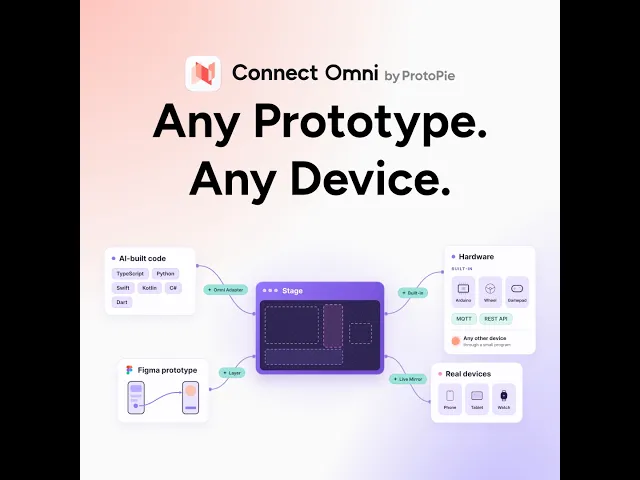
Give your AI tool the Omni Adapter setup guide, written for AI, or install the Omni Adapter skill in Claude Code, and tell it what you want to connect: your app, a sensor, an in-house simulator. It writes the Adapter, a small piece of code that puts that program on your Stage, your project where devices, apps, and screens come together. Adapters work in TypeScript, Python, C#, Kotlin, Swift, and Dart.
Your AI writes one Adapter per thing, not one bridge for every pair. Once something is on your Stage, it can talk to everything else there.
If it runs code in one of those languages, your AI can connect it. Common hardware and protocols, like Arduino, MQTT, REST APIs, and gamepads, connect through built-in settings, with no Adapter needed.
What it looks like
The walkthrough video above starts with three apps built with an AI coding tool: a TV streaming web app, a smart home app for iPhone, and a small Python helper that drives a real Wi-Fi desk lamp. The watch interface is still a Figma prototype. None of them know the others exist.
Hand the plan to your AI agent in one prompt, and it adds the right Adapter to each app: an npm package for the TV, a Swift package for the iPhone, and a pip package for the lamp helper. The Figma watch joins from its share link, with no code. Press play, and the real lamp follows the movie’s colors. The phone becomes the remote for the TV and the lamp, and the watch controls both. No test server, and no wiring each pair by hand.
How it works
Connect Omni is a connectivity hub. Everything on a Stage can send and receive messages with everything else on it.
Create a Stage for your project.
Add what you’re building with. Your AI tool writes an Adapter for your apps and code. Common hardware connects through built-in settings, and Figma prototypes join from a share link, with no code.
Watch it live in Backstage, Connect Omni’s real-time view of who’s connected and what they’re sending.
A Stage can include web apps you’ve vibe coded, Unity apps, Figma prototypes, code from Figma Make, in-house simulators, physical devices, and ProtoPie prototypes, spread across as many devices and screens as your project needs.
Validate before you build
Connect Omni doesn’t replace development. Your programs still need to send and receive the messages you care about, and the Adapters your AI writes handle that part. What changes is when you can start: you can test on real hardware and run user tests without waiting for a test environment.
No hardware yet? Simulate a signal, like a temperature that rises and falls, or replay a session you recorded earlier, and start validating before the device arrives.
Connect Omni is built for the early stage of development, when you’re validating how a design looks and behaves on real hardware. Production-level testing on the device’s own operating system comes later.
Who it’s for
Connect Omni is built first for designers who already prototype with AI and want to see their work respond on real devices. UX engineers and test engineers can connect the devices and in-house systems that aren’t on the built-in list, then reuse that setup from project to project. IT and security teams get what they need to approve it: SSO, dedicated infrastructure, and change logs.
What you get
Connect anything with AI. Your AI writes the connections, and built-in settings cover common hardware.
All in one place. Add every app, device, piece of hardware, and screen to one Stage, instead of connecting them one pair at a time.
See it live. Backstage shows who’s connected and what they’re sending, so you can tell at a glance whether the connection your AI wrote is working.
Enterprise-ready. SSO, dedicated customer infrastructure, and change logs. Your data stays in your data region.
Get free early access
Connect Omni by ProtoPie is open for Early Access, free for three months, with a technical walkthrough from our team. Share a few details, and we’ll reach out to get you started. Learn more about how to use Connect Omni.


